


How to install Proton VPN on Fedora
- पढ़ने का समय
- 3 मिनट
- श्रेणी
- Linux
Proton VPN offers a Linux GUI app (with a graphic user interface) and a Linux CLI (command-line tool). These are officially supported on the latest stable Fedora version running the GNOME desktop environment. Currently, this is Fedora 44.
- Other ways to use Proton VPN on Linux
- How to use the Proton VPN Linux GUI app
- How to use the Proton VPN CLI
In this support guide, we show you how to install Proton VPN on Fedora using our official repositories. These instructions install both the Linux GUI app and Linux CLI. Note that you can’t run the GUI app and the CLI at the same time.
- How to install Proton VPN
- How to enable the system tray icon (GUI only)
- How to disable the kill switch if you have uninstalled Proton VPN
- How to install our beta Linux GUI app and CLI
- How to uninstall Proton VPN the app
How to install Proton VPN
1. Open a terminal window.
2. Download the package that contains the repository configuration and keys required to install the Proton VPN GUI app and CLI. Run:
wget "https://repo.protonvpn.com/fedora-$(cat /etc/fedora-release | cut -d' ' -f 3)-stable/protonvpn-stable-release/protonvpn-stable-release-1.0.4-1.noarch.rpm"
3. Install the Proton VPN repository containing GUI app and CLI. Run:
sudo dnf install ./protonvpn-stable-release-1.0.4-1.noarch.rpm && sudo dnf check-update --refresh
4. Run the following command to install both the GUI app and the CLI. Please note you can’t run both at the same time.
sudo dnf install proton-vpn-gnome-desktop
As part of the install process, you’ll be asked to accept an OpenPGP key. To do this when prompted, tap y <enter>.
- UserID : “Proton Technologies AG (Fedora 44) <opensource@proton.me>”
Fingerprint: 6929133BDE1CE1CFA9EDB286D84176F6844830D4
From : https://repo.protonvpn.com/fedora-44-stable/public_key.asc(new window)(नई विंडो)
Note: This fingerprint is only correct for the latest version of Fedora (v. 44). If you’re using an older version of Fedora, the fingerprint will be different.
How to enable the system tray icon (optional)
The system tray icon is only available while running the GUI app (not the CLI). By default, the GNOME desktop doesn’t support tray icons. To enable this functionality:
1. चलाएं:
sudo dnf install libappindicator-gtk3 gnome-shell-extension-appindicator gnome-extensions-app
2. अपना कंप्यूटर वापिस शुरु करें।
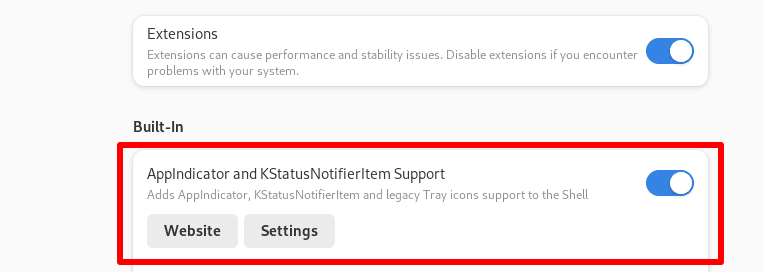
Once you’ve done this, open the Extensions app and ensure that AppIndicator and KStatusNotifierItem Support is toggled on before opening the app.
How to disable the kill switch if you have uninstalled Proton VPN
1. Identify the Proton VPN connection name with the command:
nmcli connection show --active
इससे आपके सिस्टम के सक्रिय कनेक्शन की सूची दिखेगी।
2. Look for any connections that begin with prefix pvpn- This usually includes pvpn-killswitch and pvpn-ipv6leak-protection, and may include pvpn-routed-killswitch. Delete all these connections using the following command:
nmcli connection delete [connection name]
For example:
nmcli connection delete pvpn-killswitch
3. Re-run the following command to check that all Proton VPN connections have been removed:
nmcli connection show --active
If you see any Proton VPN connections left, delete them as described above.
How to use our beta Linux GUI app and CLI
The beta versions of our GUI app and CLI give you access to new features before they are released publicly, but they are still in development. By using the beta versions and sharing your feedback, you can help us find and address bugs.
If you already have Proton VPN installed, simply open the GUI app and go to Settings and toggle the Beta access switch on.

If you haven’t installed Proton VPN yet, you can either install it and then enable beta access in the GUI app (as above). Or you can install Proton VPN beta directly. This installs both the beta GUI app and the CLI. Please note you can’t run both at the same time.
Open a terminal window and run the following commands:
wget "https://repo.protonvpn.com/fedora-$(cat /etc/fedora-release | cut -d' ' -f 3)-unstable/protonvpn-beta-release/protonvpn-beta-release-1.0.4-1.noarch.rpm"
sudo dnf install ./protonvpn-beta-release-1.0.4-1.noarch.rpm && sudo dnf check-update --refresh
sudo dnf install proton-vpn-gnome-desktop
Verify the following fingerprint: 6929133BDE1CE1CFA9EDB286D84176F6844830D4 (correct for Fedora 44 only).
pip और PyPI के इस्तेमाल के बारे में एक चेतावनी
How to uninstall Proton VPN
Run:
sudo dnf remove proton-vpn-gnome-desktop protonvpn-*-release