


การอนุญาตให้โทรศัพท์และแอปเข้าถึงตำแหน่งช่วยให้ใช้งานได้สะดวกยิ่งขึ้นอย่างปฏิเสธไม่ได้ หากโทรศัพท์ทราบตำแหน่งที่อยู่ จะสามารถรับเส้นทางบนแผนที่และอัปเดตสภาพอากาศ คำนวณเวลาเดินทาง หรือแจ้งเตือนตำแหน่งให้เพื่อนและครอบครัวทราบได้ แต่การติดตามตำแหน่งก็มีด้านที่น่ากังวล เนื่องจากแอปต่างๆ มักจะสร้างโปรไฟล์ข้อมูลการเคลื่อนไหวในแต่ละวันอย่างละเอียดจนน่าตกใจ แล้วนำข้อมูลนี้ไปสร้างรายได้
การปิด บริการตำแหน่ง และ การล้างประวัติตำแหน่ง(หน้าต่างใหม่) หรืออย่างน้อยที่สุดคือการปรับแต่งการตั้งค่าบางอย่าง ถือเป็นขั้นตอนสำคัญในการปกป้องข้อมูลส่วนตัวจากบุคคลภายนอก ด้านล่างนี้จะแสดงวิธีปิดใช้งานบริการตำแหน่งบน Android, iOS และ iPadOS, macOS และ Windows วิธีลบและปิดใช้งาน Google Maps Timeline รวมถึงอธิบายว่าเหตุใด การปิดบริการตำแหน่งเพียงอย่างเดียวจึงไม่เพียงพอ ที่จะรักษาความเป็นส่วนตัวของตำแหน่งได้อย่างแท้จริง
- ทำไมต้องปิดบริการตำแหน่งที่ตั้ง?
- วิธีปิดใช้งานบริการตำแหน่งที่ตั้งบน Android
- วิธีปิดใช้งานบริการตำแหน่งที่ตั้งบน iOS และ iPadOS
- วิธีปิดใช้งานบริการตำแหน่งที่ตั้งบน Windows
- วิธีปิดใช้งานบริการตำแหน่งที่ตั้งบน macOS
- วิธีลบและปิดใช้งานไทม์ไลน์ ประวัติตำแหน่ง และประวัติการค้นหาของ Google Maps
- ทำไมการปิดบริการตำแหน่งที่ตั้งจึงยังไม่เพียงพอ
- คำถามที่พบบ่อยเกี่ยวกับบริการตำแหน่งที่ตั้ง
ทำไมต้องปิดบริการตำแหน่งที่ตั้ง?
มีเหตุผลมากมายในการปิดหรือปรับการตั้งค่าตำแหน่งที่ตั้ง:
ความเป็นส่วนตัวจากผู้โฆษณา
อุปกรณ์จะทราบว่าพักอาศัยและทำงานที่ไหน ซื้อของเมื่อใดและที่ไหน บุตรหลานไปโรงเรียนที่ไหน และเข้ารับการรักษาที่คลินิกการแพทย์ใด ผลลัพธ์ของการติดตามนี้คือโปรไฟล์ข้อมูลที่ละเอียดอย่างเหลือเชื่อเกี่ยวกับการเคลื่อนไหวในทุกๆ วัน ซึ่งมักจะถูกนำไปขายให้กับผู้รวบรวมข้อมูลและบริษัทเทคโนโลยีโฆษณา เพื่อให้สามารถกำหนดเป้าหมายด้วยโฆษณาที่ตรงใจเฉพาะบุคคลมากยิ่งขึ้น
ข้อมูลตำแหน่งยังสามารถนำไปใช้สำหรับการตั้งราคาตามพฤติกรรมการสอดส่อง (surveillance pricing) ซึ่งการเดินผ่านร้านค้าอาจกระตุ้นให้เกิดโฆษณา หรือสถานที่อยู่อาศัยอาจส่งผลต่อราคาที่มองเห็นได้ ทั้งหมดนี้เกิดขึ้นโดยไม่มีการให้ความยินยอมอย่างชัดเจนแต่อย่างใด
ความเป็นส่วนตัวจากรัฐบาล
ในหลายประเทศ หน่วยงานของรัฐสามารถเข้าถึง(หน้าต่างใหม่)ข้อมูลตำแหน่งได้ ซึ่งมักจะไม่มีหมายค้น ในสหรัฐอเมริกา มีรายงานหลักฐาน(หน้าต่างใหม่)ว่าหน่วยงานบังคับใช้กฎหมายได้ซื้อข้อมูลตำแหน่งจากนายหน้าซื้อขายข้อมูลเชิงพาณิชย์โดยเฉพาะ เพื่อหลีกเลี่ยงข้อกำหนดทางกฎหมายที่อาจนำไปใช้กับการสอดส่องดูแล
การป้องกันจากผู้ล่วงละเมิด
การแชร์ตำแหน่งได้กลายเป็นเครื่องมือสำหรับการสะกดรอยตามและการควบคุมบังคับ ซึ่งใช้โดยคู่รักที่ชอบล่วงละเมิด สตอล์กเกอร์ หรือบุคคลภายนอกที่ไม่ได้รับอนุญาตเพื่อตรวจสอบเหยื่อแบบเรียลไทม์ การตรวจสอบและจำกัดผู้ที่สามารถดูตำแหน่ง รวมถึงการปิดใช้งานการติดตามในพื้นหลังสามารถช่วยลบช่องทางสำคัญที่อาจถูกนำไปหาประโยชน์โดยมิชอบได้
แหล่งข้อมูลเพิ่มเติม:
- คู่มือผู้ใช้ด้านความปลอดภัยส่วนบุคคลสำหรับอุปกรณ์ Apple(หน้าต่างใหม่)
- ความปลอดภัยทางดิจิทัลสำหรับผู้รอดชีวิตจากความรุนแรงในคู่รัก (IPV)(หน้าต่างใหม่)
- ชุดเครื่องมือเครือข่ายแห่งชาติเพื่อยุติความรุนแรงในครอบครัว (NNEDV)(หน้าต่างใหม่)
อายุการใช้งานแบตเตอรี่
หากเปิดบริการตำแหน่งที่ตั้งไว้ อาจส่งผลให้แบตเตอรี่หมดเร็วขึ้นอย่างเห็นได้ชัดและมีการใช้ข้อมูลมือถือโดยไม่จำเป็น ในโหมดความแม่นยำสูง โทรศัพท์จะส่งสัญญาณไปยังดาวเทียม GPS เครือข่าย WiFi และเสาสัญญาณเซลลูลาร์อย่างต่อเนื่อง
การจำกัดการเข้าถึงตำแหน่งเฉพาะแอปที่จำเป็นเท่านั้น และเลือก “ระหว่างใช้งาน” แทนที่จะเป็น “ตลอดเวลา” จะสามารถช่วยยืดอายุการใช้งานแบตเตอรี่และลดการใช้ข้อมูลได้โดยไม่สูญเสียฟังก์ชันการทำงานหลัก
วิธีปิดใช้งานบริการตำแหน่งที่ตั้งบน Android
คู่มือนี้สร้างขึ้นโดยใช้โทรศัพท์ Samsung OneUI 8.5 รายละเอียดอาจแตกต่างกันเล็กน้อยบนอุปกรณ์ Android อื่นๆ
ปิดบริการตำแหน่งที่ตั้งทั้งหมด
1. เปิด การตั้งค่า บนอุปกรณ์ Android
2. เลื่อนลงแล้วแตะ ตำแหน่ง (ในบางอุปกรณ์: ไปที่ ความเป็นส่วนตัว → ตัวจัดการการอนุญาต → ตำแหน่ง)
3. แตะสวิตช์ ตำแหน่ง เพื่อเปลี่ยนเป็น ปิด

หมายเหตุ: เมื่อปิดตำแหน่งแล้ว แอปและบริการต่างๆ จะไม่สามารถเข้าถึงตำแหน่งของอุปกรณ์ได้ อย่างไรก็ตาม อาจยังคงเห็นผลลัพธ์ในท้องถิ่นและโฆษณาตาม ที่อยู่ IP
ปิดใช้งานตำแหน่งสำหรับบางแอป
นอกจากนี้ยังสามารถจัดการวิธีที่แอปเฉพาะเจาะจงเข้าถึงข้อมูลตำแหน่งได้ โดยแตะที่ การอนุญาตแอป บนหน้าจอด้านบน หรือ:
1. เปิด การตั้งค่า
2. แตะ แอป หรือ แอปและการแจ้งเตือน
3. เลือกแอปที่ต้องการแก้ไข
4. แตะ การอนุญาต
5. แตะ ตำแหน่ง
เลือกตัวเลือกใดตัวเลือกหนึ่งต่อไปนี้:
- ไม่อนุญาต: แอปจะไม่สามารถเข้าถึงตำแหน่งได้
- ถามทุกครั้ง: จะมีการถามทุกครั้งที่แอปขอเข้าถึงตำแหน่ง
- อนุญาตเฉพาะขณะใช้แอปเท่านั้น: จะเข้าถึงตำแหน่งได้เฉพาะเมื่อเปิดแอปไว้เท่านั้น
- อนุญาตตลอดเวลา: แอปสามารถเข้าถึงตำแหน่งได้แม้ในขณะทำงานเป็นเบื้องหลัง

นอกจากนี้ยังสามารถปิดใช้งาน ใช้ตำแหน่งที่แม่นยำ จากหน้าจอนี้ได้
ปิด ปรับปรุงความแม่นยำของตำแหน่ง
ความแม่นยำของตำแหน่ง (หรือเรียกว่าบริการหาตำแหน่งของ Google) ช่วยให้อุปกรณ์ได้รับข้อมูลตำแหน่งที่แม่นยำยิ่งขึ้นโดยใช้สัญญาณ WiFi, Bluetooth และเสาสัญญาณเซลล์ การปิดใช้งานจะลดความแม่นยำลง แต่ไม่ได้หยุดการติดตามอย่างสมบูรณ์
1. ไปที่ การตั้งค่า → ตำแหน่ง
2. แตะ บริการตำแหน่ง → ความแม่นยำของตำแหน่ง
3. สลับสวิตช์ ปรับปรุงความแม่นยำของตำแหน่ง เป็น ปิด
สำคัญ: แม้จะปิดความแม่นยำของตำแหน่ง แต่อุปกรณ์ก็ยังคงสามารถประมาณตำแหน่งโดยใช้ GPS ได้หากได้รับอนุญาต
จัดการการสแกน WiFi และ Bluetooth
คุณสมบัติเหล่านี้สามารถเปิดเผยตำแหน่งได้ แม้จะปิดบริการตำแหน่งมาตรฐานอยู่ก็ตาม:
1. ไปที่ การตั้งค่า → ตำแหน่ง → บริการตำแหน่ง
2. สลับสวิตช์ทั้ง การสแกน Wi‑Fi และ การสแกน Bluetooth เป็น ปิด
วิธีปิดใช้งานบริการตำแหน่งบน iOS และ iPadOS
ปิดบริการตำแหน่งที่ตั้งทั้งหมด
1. เปิด การตั้งค่า
2. แตะ ความเป็นส่วนตัวและความปลอดภัย
3. แตะ บริการตำแหน่ง
4. สลับสวิตช์ บริการตำแหน่ง เป็น ปิด ที่ด้านบนสุดของหน้าจอ
สำคัญ: บางแอปอาจทำงานไม่ถูกต้องหากไม่มีการเข้าถึงตำแหน่ง การปิดใช้งานนี้จะรีเซ็ตการอนุญาตสำหรับทุกแอปจนกว่าจะให้สิทธิ์การเข้าถึงด้วยตนเองอีกครั้ง

ปิดใช้งานตำแหน่งสำหรับบางแอป
1. ไปที่ การตั้งค่า → ความเป็นส่วนตัวและความปลอดภัย → บริการตำแหน่ง
2. ตรวจสอบให้แน่ใจว่าได้สลับ บริการตำแหน่ง เป็น เปิด แล้ว
3. เลื่อนเพื่อหาแอปที่ต้องการจัดการ
4. แตะชื่อแอป
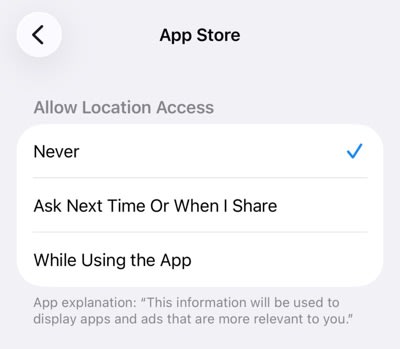
5. เลือกตัวเลือกใดตัวเลือกหนึ่งต่อไปนี้:
- ไม่เลย: แอปจะไม่ได้รับข้อมูลตำแหน่งเลย
- ถามในครั้งถัดไปหรือเมื่อฉันแชร์: จะมีการถามทุกครั้ง และอนุญาตให้เลือกเป็นรายครั้งได้
- ในระหว่างใช้แอป: จะเข้าถึงตำแหน่งได้เฉพาะเมื่อแสดงแอปบนหน้าจอเท่านั้น
ปิดใช้งานตำแหน่งที่ตั้งจริง
iOS 14 และใหม่กว่าช่วยให้แชร์ตำแหน่งโดยประมาณแทนที่จะเป็นตำแหน่งที่แน่นอนได้:
1. ไปที่ การตั้งค่า → ความเป็นส่วนตัวและความปลอดภัย → บริการตำแหน่ง
2. เลือกแอปที่ต้องการปรับแต่ง
3. สลับสวิตช์ ตำแหน่งที่ตั้งจริง เป็น ปิด
เมื่อปิดใช้งานตำแหน่งที่ตั้งจริง แอปจะทราบเพียง พื้นที่โดยประมาณ (โดยทั่วไปอยู่ในระยะ 10 ไมล์) แทนที่จะเป็นพิกัด GPS ที่แน่นอน
หมายเหตุ: จะไม่เห็นตัวเลือกนี้หากตั้งค่าการเข้าถึงตำแหน่งเป็น ไม่เลย สำหรับแอปนั้นแล้ว

เรียนรู้เพิ่มเติมเกี่ยวกับวิธีตรวจสอบประวัติตำแหน่งของ iPhone
วิธีปิดใช้งานบริการตำแหน่งบน Windows 11
ปิดบริการตำแหน่ง
1. คลิก เริ่มต้น → การตั้งค่า
2. ไปที่ ความเป็นส่วนตัวและความปลอดภัย → สิทธิ์การอนุญาตของแอป → ตำแหน่ง
3. สลับสวิตช์ บริการตำแหน่ง เป็น ปิด
หมายเหตุ: หากไม่ได้เข้าสู่ระบบในฐานะผู้ดูแลระบบ อาจไม่เห็นการตั้งค่านี้

ปิดใช้งานตำแหน่งสำหรับบางแอป
1. คลิก เริ่มต้น → การตั้งค่า
2. ไปที่ ความเป็นส่วนตัวและความปลอดภัย → สิทธิ์การอนุญาตของแอป → ตำแหน่ง
3. เลื่อนไปที่ เลือกแอปที่สามารถเข้าถึงตำแหน่งที่ตั้งจริงได้
4. สลับสวิตช์ของแต่ละแอปเป็น ปิด เพื่อป้องกันการเข้าถึง
หมายเหตุ: เฉพาะแอปที่ติดตั้งจาก Microsoft Store เท่านั้นที่จะแสดงที่นี่ แอปเดสก์ท็อปของบุคคลที่สามโดยทั่วไปจะเข้าถึงได้อย่างไม่จำกัด เว้นแต่จะบล็อกผ่านวิธีอื่น

หยุดไม่ให้เว็บไซต์เข้าถึงตำแหน่ง
Microsoft Edge
1. เปิด Microsoft Edge
2. ไปที่ การตั้งค่า → สิทธิ์การอนุญาตของไซต์ → สิทธิ์การอนุญาตทั้งหมด → → ตำแหน่ง
3. สลับสวิตช์ ถามก่อนเข้าถึงเป็นปิด หรือลบไซต์ออกจากรายการ อนุญาตให้ดูตำแหน่ง

เบราว์เซอร์อื่นจัดการสิทธิ์การอนุญาตตำแหน่งในทำนองเดียวกันผ่านการตั้งค่าความเป็นส่วนตัว
วิธีปิดใช้งานบริการตำแหน่งบน macOS
ปิดบริการตำแหน่งที่ตั้งทั้งหมด
1. คลิกไอคอน Apple บนแถบเมนู → การตั้งค่าระบบ
2. ไปที่ ความเป็นส่วนตัวและความปลอดภัย → บริการตำแหน่งที่ตั้ง
3. สลับเพื่อปิดบริการตำแหน่งที่ตั้งที่ด้านบนสุดของหน้าต่าง
บริการระบบบางอย่าง (เช่น SOS ฉุกเฉิน) อาจยังคงใช้ตำแหน่งที่ตั้งต่อไปโดยไม่ขึ้นกับการตั้งค่านี้

ปิดใช้งานตำแหน่งสำหรับบางแอป
1. คลิกไอคอน Apple → การตั้งค่าระบบ
2. ไปที่ ความเป็นส่วนตัวและความปลอดภัย → บริการตำแหน่งที่ตั้ง
3. ตรวจสอบให้แน่ใจว่าบริการตำแหน่งที่ตั้งเปิดใช้งานอยู่
4. ค้นหาแอปในรายการด้านล่าง
5. ยกเลิกการทำเครื่องหมายในช่องถัดจากชื่อแอปเพื่อยกเลิกการอนุญาต

จัดการบริการระบบ
บริการระบบ macOS บางอย่าง (เช่น ค้นหาของฉัน และคำแนะนำจาก Siri) จะใช้ตำแหน่งที่ตั้งแยกต่างหากจากการอนุญาตในระดับแอป:
1. คลิกไอคอน Apple → การตั้งค่าระบบ
2. ไปที่ ความเป็นส่วนตัวและความปลอดภัย → บริการตำแหน่งที่ตั้ง
3. คลิกปุ่ม รายละเอียด… ถัดจาก บริการระบบ
4. สลับบริการแต่ละรายการให้เป็นปิดตามต้องการ
หมายเหตุ: หากบริการตำแหน่งที่ตั้งถูกปิดใช้งานอยู่แล้ว บริการเหล่านี้จะถูกปิดใช้งานโดยอัตโนมัติ
วิธีลบและปิดใช้งานไทม์ไลน์ของ Google Maps (ก่อนหน้านี้เรียกว่าประวัติตำแหน่ง)
เมื่อเร็วๆ นี้ Google ได้ปรับปรุงวิธีจัดการข้อมูลตำแหน่งที่ตั้ง และจะดำเนินการดังกล่าวต่อไปในอีกไม่กี่เดือนข้างหน้า(หน้าต่างใหม่) ขณะนี้ข้อมูลไทม์ไลน์จะถูกจัดเก็บไว้ในอุปกรณ์โดยตรงแทนที่จะเป็นในบัญชี Google, โปรแกรมดูไทม์ไลน์บนเว็บได้ยุติการใช้งานแล้ว และการตั้งค่าที่จำเป็นจะได้รับการจัดการผ่านแอป Google Maps เป็นหลัก
ป้ายกำกับเมนูอาจแตกต่างกันไปตามเวอร์ชันของแอป ภูมิภาค และอุปกรณ์ ดังนั้นอาจเห็นคำว่า ไทม์ไลน์, ประวัติแผนที่, ข้อมูลของคุณใน Maps หรือข้อความที่คล้ายกัน ขั้นตอนด้านล่างนี้ครอบคลุมการดำเนินการที่ต้องทำ โดยไม่ขึ้นกับป้ายกำกับที่แน่นอน
ปิดไทม์ไลน์/ประวัติแผนที่
การดำเนินการนี้จะป้องกันไม่ให้ Google บันทึกการเคลื่อนไหวในอนาคต:
1. เปิดแอป Google Maps บนโทรศัพท์
2. แตะไอคอนโปรไฟล์ (บนขวา)
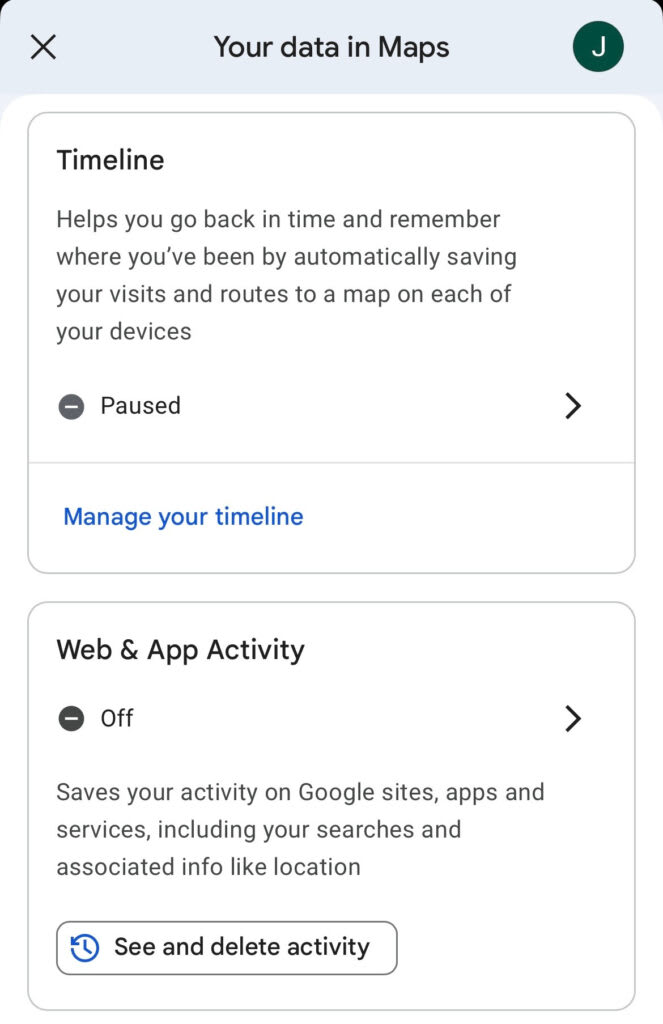
3. แตะ ข้อมูลของคุณใน Maps หรือ การตั้งค่า → ความเป็นส่วนตัว (เส้นทางที่แน่นอนอาจแตกต่างกันไปตามเวอร์ชัน)
4. มองหาการตั้งค่าที่มีป้ายกำกับว่า ไทม์ไลน์, ประวัติแผนที่ หรือ ประวัติตำแหน่ง แล้วสลับเพื่อปิดใช้งาน
หมายเหตุ: เอกสารของ Google ระบุว่าแม้ปิดไทม์ไลน์แล้ว “ก็อาจยังคงมีข้อมูลตำแหน่งที่ตั้งอื่นๆ บันทึกไว้ในบัญชี Google” หากเปิดใช้งานการตั้งค่าต่างๆ เช่น กิจกรรมบนเว็บและแอป หรือประวัติบริการค้นหาอยู่ หากต้องการแก้ไขปัญหานี้ ให้ทำตามขั้นตอนด้านบน โดยเลือก กิจกรรมบนเว็บและแอป แทน ไทม์ไลน์ และอัปเดตการตั้งค่า ประวัติบริการค้นหา
ลบไทม์ไลน์ที่มีอยู่
ประวัติการค้นหาใน Maps แยกต่างหากจากไทม์ไลน์ โดยจะบันทึกสถานที่ที่ได้ค้นหา ไม่ใช่สถานที่ที่ได้ไปเยือน
1. เปิด Google Maps → แตะไอคอนโปรไฟล์
2. แตะ ไทม์ไลน์ของคุณ หรือ ข้อมูลของคุณใน Maps → ไทม์ไลน์
3. แตะจุดสามจุด (⋮)
4. เลือก ลบวัน เพื่อลบข้อมูลของวันนี้ หรือ
5. เลือก การตั้งค่าตำแหน่งและความเป็นส่วนตัว
6. เลื่อนไปที่ ไทม์ไลน์ แล้วเลือก:
- ลบข้อมูลไทม์ไลน์ทั้งหมด
- ลบช่วงข้อมูลไทม์ไลน์
- ลบข้อมูลไทม์ไลน์โดยอัตโนมัติ
คำเตือน: ข้อมูลไทม์ไลน์ที่ลบไปแล้วจะไม่สามารถกู้คืนได้ หากต้องการเก็บประวัติไว้ ให้ส่งออกข้อมูลไทม์ไลน์ก่อนที่จะทำการลบ

วิธีลบประวัติการค้นหาใน Google Maps
ประวัติการค้นหาใน Maps แยกต่างหากจากไทม์ไลน์ โดยจะบันทึกสถานที่ที่เคยค้นหา ไม่ใช่สถานที่ที่เคยไป หากต้องการลบประวัติการค้นหา:
1. เปิด Google Maps → แตะไอคอนโปรไฟล์
2. แตะ ข้อมูลของคุณใน Maps หรือไปที่ การตั้งค่า → ตำแหน่งและความเป็นส่วนตัว
3. เลือก ประวัติแผนที่ แตะ ลบ แล้วเลือก:
- ลบวันนี้
- ลบช่วงที่กำหนดเอง
- ลบตั้งแต่เริ่มแรก
ทำไมการปิดบริการตำแหน่งที่ตั้งจึงยังไม่เพียงพอ
การปิดใช้งานบริการตำแหน่งที่ตั้งเป็นขั้นตอนที่สำคัญ แต่ยังคงมีช่องโหว่ขนาดใหญ่ แม้ว่าจะปิดทั้ง GPS, WiFi และตำแหน่งบลูทูธแล้วก็ตาม แอปและเว็บไซต์ก็ยังสามารถประมาณการตำแหน่งที่ตั้งได้โดยใช้ที่อยู่ IP
วิธีเดียวที่เชื่อถือได้ในการป้องกันการติดตามตำแหน่งด้วย IP คือการใช้ VPN โดย VPN จะกำหนดเส้นทางทราฟฟิกอินเทอร์เน็ตผ่านอุโมงค์ที่เข้ารหัสไปยังเซิร์ฟเวอร์ระยะไกล และแทนที่ที่อยู่ IP จริง ซึ่งหมายความว่าเว็บไซต์และแอปจะเห็นตำแหน่งที่ตั้งของเซิร์ฟเวอร์แทนที่จะเป็นตำแหน่งจริง ทำให้การระบุตำแหน่งทางภูมิศาสตร์ด้วย IP ไม่ทำงาน
เรียนรู้เพิ่มเติมเกี่ยวกับการทำงานของ VPN
คำถามที่พบบ่อยเกี่ยวกับบริการตำแหน่งที่ตั้ง
ใช่ สามารถค้นหาสถานที่ ดูแผนที่ และขอเส้นทางได้แม้จะปิดใช้งานบริการระบุตำแหน่ง อย่างไรก็ตาม แอปจะไม่ทราบจุดเริ่มต้น จึงไม่สามารถนำทางแบบเลี้ยวต่อเลี้ยวหรืออัปเดตทราฟฟิกแบบเรียลไทม์ให้โดยอัตโนมัติได้ จำเป็นต้องป้อนตำแหน่งปัจจุบันด้วยตนเองก่อน คุณสมบัติบางอย่าง เช่น การค้นหาร้านอาหารใกล้เคียง หรือการดูเวลาที่คาดว่าจะถึง (ETA) จะไม่สามารถใช้งานได้เช่นกันหากไม่มีการเข้าถึงตำแหน่ง
ไม่ การปิดบริการระบุตำแหน่งจะช่วยป้องกันไม่ให้แอปใช้ GPS, WiFi และ Bluetooth เพื่อระบุตำแหน่งที่แม่นยำ แต่ไม่ได้หยุดการประเมินตำแหน่งตาม IP หรือส่งผลกระทบต่อข้อมูลที่เก็บรวบรวมไปแล้ว Google ระบุว่ายังคงสามารถรับผลลัพธ์และโฆษณาตามตำแหน่งผ่านทางที่อยู่ IP ได้ นอกจากนี้ หาก กิจกรรมบนเว็บและแอป (หรือ ประวัติบริการค้นหา) ยังคงเปิดใช้งานในบัญชี Google Google อาจยังคงจัดเก็บข้อมูลตำแหน่งโดยประมาณไว้เป็นส่วนหนึ่งของกิจกรรมในวงกว้าง เพื่อย่อขนาดการติดตาม จำเป็นต้องปิดใช้งานบริการระบุตำแหน่ง จัดการการตั้งค่ากิจกรรมในระดับบัญชี และใช้ VPN
ในกรณีส่วนใหญ่ แอปจะไม่สามารถเข้าถึงพิกัด GPS ที่แม่นยำได้เมื่อปิดใช้งานบริการระบุตำแหน่ง อย่างไรก็ตาม แอปยังคงสามารถคาดเดาตำแหน่งโดยประมาณได้จาก:
ที่อยู่ IP: แสดงพื้นที่ทั่วไป (ระดับเมือง)
ชื่อเครือข่าย WiFi: เครือข่ายใกล้เคียงสามารถนำไปอ้างอิงกับฐานข้อมูลเพื่อประมาณตำแหน่งได้
ข้อมูลเสาสัญญาณเซลลูลาร์: มีให้ใช้งานสำหรับแอปใดๆ ที่มีสิทธิ์ของโทรศัพท์บนบางแพลตฟอร์ม
สัญญาณบลูทูธบีคอน: ใช้ในสภาพแวดล้อมการค้าปลีกเพื่อตรวจหาความใกล้ชิด
Microsoft เตือนอย่างชัดเจนว่าแอปของบุคคลที่สามอาจเลี่ยงผ่านบริการระบุตำแหน่งของ Windows โดยใช้วิธีการเหล่านี้ บน Android และ iOS ระบบปฏิบัติการจะควบคุมอย่างเข้มงวดมากขึ้น แต่ตำแหน่งตาม IP ยังคงมีให้ใช้งานได้ทั่วไปสำหรับแอปใดก็ตามที่เข้าถึงอินเทอร์เน็ต


