


To, že svému telefonu a aplikacím povolíte přístup k poloze, je nepochybně činí užitečnějšími. Pokud váš telefon ví, kde se nacházíte, můžete získat navigační pokyny, aktualizace počasí, vypočítat čas cesty nebo upozornit přátele a rodinu na svou polohu. Sledování polohy má však i svou odvrácenou stranu: aplikace si často vytvářejí neuvěřitelně podrobné profily o vašem každodenním pohybu a tato data pak zpeněžují.
Vypnutí služeb určování umístění a vymazání historie umístění(nové okno), nebo alespoň úprava některých nastavení, je zásadním krokem k ochraně vašich soukromých dat před třetími stranami. Níže vás provedeme tím, jak deaktivovat služby určování umístění v systémech Android, iOS a iPadOS, macOS a Windows, jak smazat a deaktivovat vaši Časovou osu Map Google, a rozebereme, proč samotné vypnutí služeb určování umístění nestačí k tomu, aby vaše umístění zůstalo skutečně soukromé.
- Proč vypnout služby určování polohy?
- Jak deaktivovat služby určování polohy v systému Android
- Jak deaktivovat služby určování polohy v systémech iOS a iPadOS
- Jak deaktivovat služby určování polohy v systému Windows
- Jak deaktivovat služby určování polohy v systému macOS
- Jak smazat a deaktivovat časovou osu, historii polohy a historii vyhledávání v Mapách Google
- Proč samotné vypnutí služeb určování polohy nestačí
- Často kladené otázky o službách určování polohy
Proč vypnout služby určování polohy?
Existuje mnoho důvodů, proč vypnout nebo upravit nastavení polohy:
Ochrana soukromí před inzerenty
Vaše zařízení ví, kde žijete a pracujete, kdy a kde nakupujete, do jaké školy chodí vaše děti a jaké lékařské kliniky navštěvujete. Výsledkem tohoto sledování je neuvěřitelně podrobný profil o každém vašem kroku, který je běžně prodáván zprostředkovatelům dat a reklamním společnostem, aby na vás mohla být cílena stále více personalizovaná reklama.
Údaje o poloze mohou být dokonce použity pro sledování cen na základě polohy (surveillance pricing), kdy průchod kolem obchodu může spustit reklamy nebo místo vašeho bydliště může ovlivnit ceny, které vidíte. To vše bez toho, abyste k tomu udělili jakýkoli smysluplný souhlas.
Ochrana soukromí před vaší vládou
V mnoha zemích mohou mít k vašim údajům o poloze přístup(nové okno) vládní úřady, a to často bez soudního příkazu. V USA bylo doloženo(nové okno), že donucovací orgány nakupují údaje o poloze od komerčních zprostředkovatelů speciálně proto, aby obešly zákonné požadavky, které by se jinak na sledování vztahovaly.
Ochrana před zneužívajícími osobami
Sdílení polohy se stalo nástrojem pro pronásledování (stalking) a nátlakovou kontrolu, kterou využívají zneužívající partneři, stalkeři nebo neoprávněné třetí strany ke sledování obětí v reálném čase. Kontrola a omezení toho, kdo může vidět vaši polohu, a deaktivace sledování na pozadí mohou odstranit kritickou úroveň viditelnosti, která by jinak mohla být zneužita.
Další zdroje:
- Uživatelská příručka osobní bezpečnosti pro zařízení Apple(nové okno)
- Digitální bezpečnost pro oběti partnerského násilí(nové okno)
- Sady nástrojů organizace National Network to End Domestic Violence (NNEDV)(nové okno)
Výdrž baterie
Pokud máte zapnuté služby určování polohy, můžete zaznamenat výrazné vybíjení baterie a zbytečné využívání mobilních dat. V režimech s vysokou přesností váš telefon neustále kontaktuje satelity GPS, sítě Wi-Fi a vysílače mobilní sítě.
Omezením přístupu k poloze pouze na nezbytné aplikace a výběrem možnosti „při používání“ namísto „vždy“ můžete prodloužit výdrž baterie a snížit spotřebu dat, aniž byste přišli o klíčové funkce.
Jak deaktivovat služby určování polohy v systému Android
Tato příručka byla vytvořena pro telefon Samsung s nadstavbou OneUI 8.5. Na jiných zařízeních se systémem Android se mohou podrobnosti mírně lišit.
Úplné vypnutí služeb určování polohy
1. Otevřete Nastavení ve svém zařízení s Androidem
2. Přejděte dolů a klepněte na Poloha (Na některých zařízeních: Přejděte na Soukromí → Správce oprávnění → Poloha)
3. Klepnutím na přepínač Poloha ji vypněte.

Poznámka: Když je poloha vypnutá, aplikace a služby nemají přístup k poloze vašeho zařízení. Přesto se vám však mohou zobrazovat místní výsledky a reklamy na základě vaší IP adresy.
Deaktivace polohy pro konkrétní aplikace
Můžete také spravovat, jak mohou konkrétní aplikace přistupovat k vašim údajům o poloze. Buď na obrazovce výše klepněte na Oprávnění aplikací, nebo:
1. Otevřete Nastavení
2. Klepněte na Aplikace nebo Aplikace a oznámení
3. Vyberte aplikaci, kterou chcete upravit
4. Klepněte na Oprávnění
5. Klepněte na Poloha
Zvolte jednu z následujících možností:
- Nepovolovat: Aplikace nemá přístup k vaší poloze
- Zeptat se pokaždé: Budete dotázáni při každém požadavku aplikace o přístup k poloze
- Povolit jen při používání aplikace: Přístup k poloze je povolen pouze tehdy, když je aplikace otevřená
- Povolit vždy: Aplikace může přistupovat k poloze i na pozadí

Na této obrazovce můžete také deaktivovat možnost Používat přesnou polohu.
Vypnutí funkce Zlepšování přesnosti polohy
Přesnost určování polohy (nazývaná také Polohové služby Google) pomáhá Vašemu zařízení získávat přesnější údaje o poloze pomocí wifi, Bluetooth a signálů mobilních vysílačů. Její deaktivace snižuje přesnost, ale zcela nezabrání sledování.
1. Přejděte do Nastavení → Poloha
2. Klepněte na Služby určování polohy → Přesnost určování polohy
3. Přepněte přepínač Zlepšení přesnosti určování polohy do polohy vypnuto
Důležité: I když je funkce Přesnost určování polohy vypnutá, Vaše zařízení může v případě povolení stále odhadovat polohu pomocí GPS.
Správa vyhledávání wifi a Bluetooth
Tyto funkce mohou odhalit Vaši polohu, i když jsou standardní polohové služby vypnuté:
1. Přejděte do Nastavení → Poloha → Služby určování polohy
2. Přepněte přepínače Vyhledávání Wi‑Fi a Vyhledávání Bluetooth do polohy vypnuto
Jak deaktivovat polohové služby v systémech iOS a iPadOS
Úplné vypnutí služeb určování polohy
1. Otevřete Nastavení
2. Klepněte na Soukromí a zabezpečení
3. Klepněte na Polohové služby
4. Přepněte přepínač Polohové služby v horní části obrazovky do polohy vypnuto
Důležité: Některé aplikace nemusí bez přístupu k poloze fungovat správně. Vypnutím této funkce resetujete oprávnění pro všechny aplikace, dokud jim přístup znovu ručně neudělíte.

Deaktivace polohy pro konkrétní aplikace
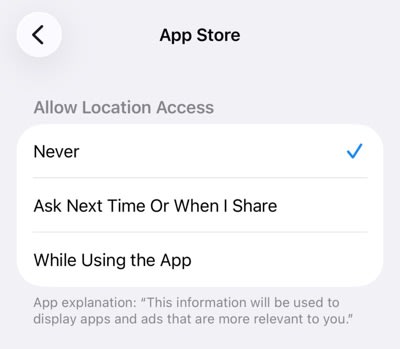
1. Přejděte do Nastavení → Soukromí a zabezpečení → Polohové služby
2. Ujistěte se, že jsou Polohové služby zapnuté
3. Přejděte dolů a najděte aplikaci, kterou chcete spravovat
4. Klepněte na název aplikace
5. Vyberte jednu z následujících možností:
- Nikdy: Aplikace nikdy nezískává údaje o poloze
- Zeptat se příště nebo při sdílení: Dotaz se zobrazí pokaždé; umožňuje jednorázový výběr
- Při používání aplikace: Poloha je přístupná pouze tehdy, když je aplikace viditelná na obrazovce
Deaktivace přesné polohy
Systém iOS 14 a novější umožňuje sdílet přibližnou polohu namísto přesné:
1. Přejděte do Nastavení → Soukromí a zabezpečení → Polohové služby
2. Vyberte aplikaci, kterou chcete upravit
3. Přepněte přepínač Přesná poloha do polohy vypnuto
Pokud je Přesná poloha deaktivována, aplikace zná Vaši přibližnou oblast (obvykle v okruhu 10 mil) namísto přesných souřadnic GPS.
Poznámka: Tuto možnost neuvidíte, pokud jste již pro danou aplikaci nastavili přístup k poloze na Nikdy.

Přečtěte si více o tom, jak zkontrolovat historii polohy na iPhonu
Jak deaktivovat polohové služby v systému Windows 11
Vypnutí polohových služeb
1. Klikněte na Start → Nastavení
2. Přejděte do Soukromí a zabezpečení → Oprávnění aplikací → Poloha
3. Přepněte přepínač Polohové služby do polohy vypnuto
Poznámka: Pokud nejste přihlášeni jako administrátor, toto nastavení se Vám nemusí zobrazit.

Deaktivace polohy pro konkrétní aplikace
1. Klikněte na Start → Nastavení
2. Přejděte do Soukromí a zabezpečení → Oprávnění aplikací → Poloha
3. Přejděte na možnost Zvolit, které aplikace mají přístup k Vaší přesné poloze
4. Přepnutím přepínačů jednotlivých aplikací do polohy vypnuto zabráníte přístupu
Poznámka: Zde se zobrazují pouze aplikace nainstalované z obchodu Microsoft Store. Desktopové aplikace třetích stran mají obecně neomezený přístup, pokud je nezablokujete jiným způsobem.

Zamezení webovým stránkám v přístupu k Vaší poloze
Microsoft Edge
1. Otevřete Microsoft Edge
2. Go to Nastavení → Oprávnění pro weby → Všechna oprávnění → → Poloha
3. Vypněte přepínač Zeptat se před přístupem nebo odeberte weby ze seznamu Povoleno zjišťovat Vaši polohu

Ostatní prohlížeče řeší oprávnění k poloze podobně prostřednictvím svého nastavení soukromí.
Jak deaktivovat polohové služby v systému macOS
Úplné vypnutí služeb určování polohy
1. Klikněte na ikonu Apple v řádku nabídek → Nastavení systému
2. Přejděte do Soukromí a zabezpečení → Polohové služby
3. V horní části okna přepněte Polohové služby do stavu VYPNUTO
Některé systémové služby (například Tísňové SOS) mohou nadále používat informace o poloze bez ohledu na toto nastavení.

Deaktivace polohy pro konkrétní aplikace
1. Klikněte na ikonu Apple → Nastavení systému
2. Přejděte do Soukromí a zabezpečení → Polohové služby
3. Ujistěte se, že jsou Polohové služby zapnuté
4. Najděte aplikaci v seznamu níže.
5. Zrušením zaškrtnutí políčka vedle názvu aplikace odvolejte její oprávnění.

Správa systémových služeb
Některé systémové služby macOS (například Najít a návrhy Siri) používají polohu nezávisle na oprávněních na úrovni aplikací:
1. Klikněte na ikonu Apple → Nastavení systému
2. Přejděte do Soukromí a zabezpečení → Polohové služby
3. Klikněte na tlačítko Detaily… vedle položky Systémové služby
4. Podle potřeby přepněte jednotlivé služby do stavu vypnuto
Poznámka: Pokud jsou již Polohové služby deaktivovány, tyto služby se deaktivují automaticky.
Jak smazat a deaktivovat Časovou osu Google Maps (dříve známou jako Historie polohy)
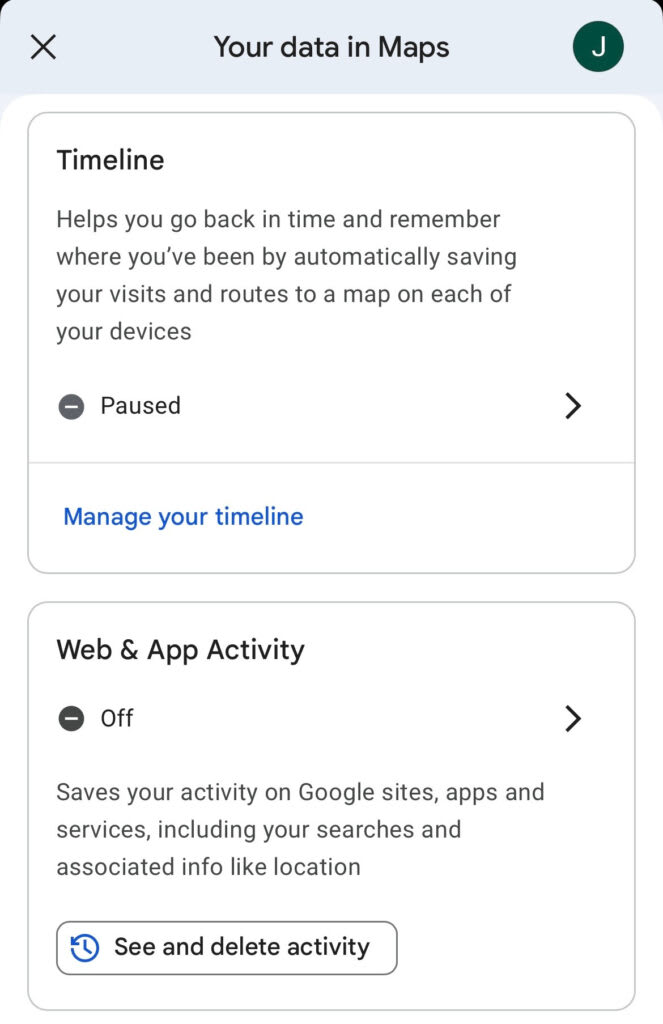
Google nedávno zásadně změnil způsob, jakým nakládá s vašimi údaji o poloze, a bude v tom pokračovat i v několika příštích měsících(nové okno). Informace o Časové ose jsou nyní ukládány lokálně ve vašem zařízení, nikoli ve vašem účtu Google, webový prohlížeč Časové osy byl zrušen a potřebná nastavení jsou nyní spravována především prostřednictvím aplikace Google Maps.
Označení v nabídce se liší podle verze aplikace, oblasti a zařízení, takže se vám může zobrazit Časová osa, Historie Map, Vaše data v Mapách nebo podobný text. Níže uvedené kroky popisují úkony, které musíte provést, bez ohledu na přesný název.
Vypnutí Časové osy / Historie Map
Tím zabráníte Googlu v zaznamenávání vašeho budoucího pohybu:
1. Otevřete aplikaci Google Maps ve svém telefonu
2. Klepněte na ikonu svého profilu (vpravo nahoře)
3. Klepněte na Vaše data v Mapách nebo Nastavení → Soukromí (přesná cesta se liší podle verze)
4. Vyhledejte nastavení označené jako Časová osa, Historie Map nebo Historie polohy a vypněte jej
Poznámka: Vlastní dokumentace společnosti Google uvádí, že i když je Časová osa vypnutá, „můžete mít ve svém účtu Google stále uložena další data o poloze“, pokud zůstanou aktivována nastavení jako Aktivita na webu a v aplikacích nebo Historie vyhledávání. Chcete-li to vyřešit, postupujte podle výše uvedených kroků, zvolte Aktivita na webu a v aplikacích namísto Časové osy a aktualizujte své nastavení pro Historii vyhledávání.
Smazání vaší stávající Časové osy
Vaše historie vyhledávání v Mapách je oddělená od Časové osy. Zaznamenává místa, která jste vyhledávali, nikoli místa, která jste navštívili.
1. Otevřete Google Maps → klepněte na ikonu svého profilu
2. Klepněte na Vaše časová osa nebo Vaše data v Mapách → Časová osa
3. Klepněte na tři tečky (⋮)
4. Chcete-li smazat dnešní data, vyberte Smazat den, NEBO
5. Vyberte Nastavení polohy a soukromí
6. Přejděte k sekci Časová osa a zvolte:
- Smazat všechna data Časové osy
- Smazat data Časové osy za určité období
- Automaticky smazat data Časové osy
Varování: Smazaná data Časové osy nelze obnovit. Pokud si chcete záznam uchovat, před smazáním data Časové osy vyexportujte.

Jak smazat historii vyhledávání v Google Maps
Vaše historie vyhledávání v Mapách je oddělená od Časové osy; zaznamenává místa, která jste vyhledávali, nikoli místa, která jste navštívili. Chcete-li smazat historii vyhledávání:
1. Otevřete Google Maps → klepněte na ikonu svého profilu
2. Klepněte na Vaše data v Mapách nebo přejděte do Nastavení → Poloha a soukromí
3. Vyberte Historie Map, klepněte na Smazat a zvolte:
- Smazat dnešek
- Smazat vlastní období
- Smazat za celou dobu
Proč vypnutí polohových služeb nestačí
Deaktivace polohových služeb je sice důležitým krokem, ale stále ponechává výraznou mezeru. I při úplném vypnutí GPS, WiFi a polohy přes Bluetooth mohou aplikace a webové stránky stále odhadnout vaši polohu pomocí vaší IP adresy.
Jediným spolehlivým způsobem, jak zabránit sledování polohy na základě IP adresy, je použití VPN. VPN směruje váš internetový provoz šifrovaným tunelem na vzdálený server a nahrazuje vaši skutečnou IP adresu. To znamená, že webové stránky a aplikace vidí polohu serveru namísto vaší, což znefunkčňuje geolokaci na základě IP adresy.
Zjistěte více informací o tom, jak VPN funguje
Časté dotazy k polohovým službám
Ano, i s deaktivovanými službami určování umístění můžete vyhledávat místa, prohlížet mapy a nechat si zobrazit trasu. Aplikace však nebude znát váš výchozí bod, takže vám nemůže automaticky poskytovat podrobnou navigaci ani aktualizace o síťovém provozu v reálném čase. Nejprve budete muset ručně zadat své aktuální umístění. Některé funkce, jako je vyhledávání restaurací v okolí nebo zobrazení předpokládaného času příjezdu (ETA), také nebudou bez přístupu k umístění fungovat.
Nikoli, vypnutím služeb určování umístění zabráníte aplikacím používat GPS, wifi a Bluetooth k určení vaší přesné polohy, ale nezabráníte tím odhadu umístění na základě IP adresy ani to neovlivní již shromážděná data. Společnost Google uvádí, že i nadále můžete prostřednictvím své IP adresy dostávat výsledky a reklamy založené na vašem umístění. Pokud navíc ve vašem účtu Google zůstane aktivovaná Aktivita na webu a v aplikacích (nebo Historie vyhledávacích služeb), může Google i nadále ukládat přibližné údaje o umístění jako součást vaší širší aktivity. Chcete-li sledování minimalizovat, musíte deaktivovat služby určování umístění, spravovat nastavení aktivity na úrovni účtu a používat VPN.
Ve většině případů nemohou aplikace přistupovat k vašim přesným souřadnicím GPS, pokud jsou služby určování umístění deaktivované. Mohou však vaše přibližné umístění odvodit pomocí:
Vaše IP adresa: Odhaluje vaši obecnou oblast (na úrovni města)
Názvy wifi sítí: Sítě v okolí lze porovnat s databázemi a odhadnout tak polohu
Údaje o buňkách mobilní sítě: Dostupné pro jakoukoli aplikaci s oprávněním k telefonu na některých platformách
Bluetooth majáky: Používají se v maloobchodním prostředí k detekci blízkosti
Microsoft výslovně varuje, že aplikace třetích stran mohou tyto metody využít k obcházení služeb určování umístění systému Windows. V systémech Android a iOS ukládají operační systémy přísnější kontroly, ale určování umístění na základě IP adresy zůstává univerzálně dostupné pro jakoukoli aplikaci s přístupem k internetu


