


Come usare Proton VPN su Android TV
- Lettura
- 4 minuti
- Categoria
- Android
If you’re on a paid Proton VPN subscription, you can download the app on your Android TV and stream content from 140+ countries. The Proton VPN Android TV app requires Android 8 or later, except for Amazon Appstore builds, which support Android 7.1 and later.
Suggerimenti per l’accesso rapido
- Open the Proton VPN app on your Android TV
- Scan the QR code with your phone
- Sign in or create your Proton VPN account
In questo articolo
- Come usare Proton VPN per Android TV
- Come configurare le impostazioni e le funzionalità VPN
- Quali dispositivi Android TV sono compatibili con Proton VPN?
Come usare Proton VPN sulla tua Android TV
Per iniziare, avrai bisogno di un account Proton con un abbonamento Proton VPN a pagamento.
- Crea il tuo account Proton VPN
- Scopri come effettuare l’upgrade di un abbonamento Proton VPN esistente(nuova finestra)
Scarica Proton VPN per Android TV
Puoi trovare l’app nell’app store della TV. In alternativa, puoi usare il tuo dispositivo mobile o computer per installare l’app sulla TV(nuova finestra).
Sign in to your account
Sign in with QR code
1. Open the Proton VPN app on your TV.
2. Point your phone at the QR code and tap the link shown on your phone’s screen.

3. If you have the Proton VPN app on your phone, it will open. Tap Sign in and sign in with your Proton Account details.

If you don’t have the app on your phone, the sign-in page will open in your browser.

Sign in with verification code
If you can’t sign in using the QR code:
1. Open the Proton VPN app on your Android TV.
2. Using your remote, select Trouble signing in?

3. You’ll see an 8-digit code on your screen.
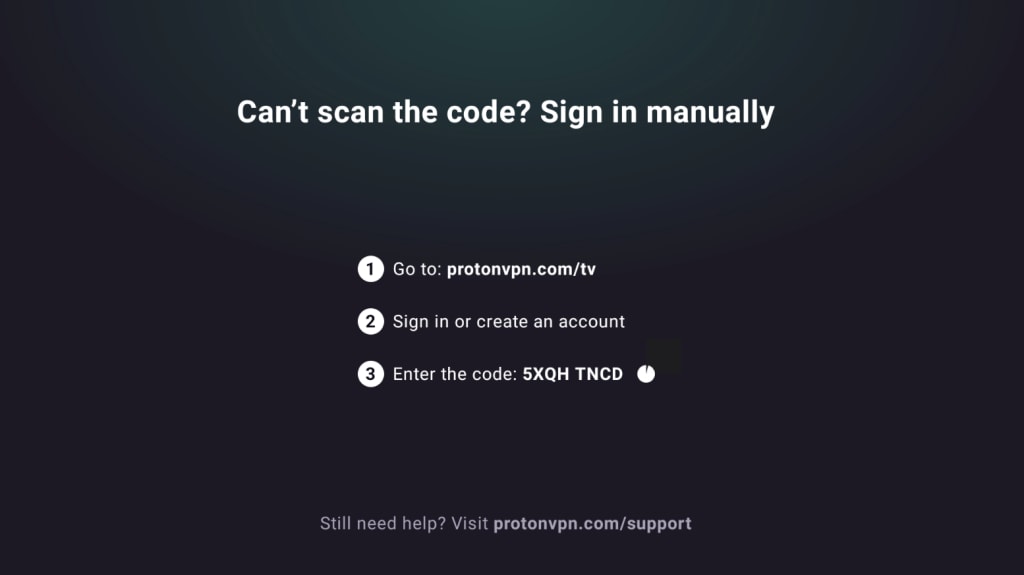
2. Prendi un altro dispositivo e vai su https://protonvpn.com/tv. Accedi al tuo account Proton.
3. Inserisci il codice a 8 cifre dallo schermo della TV, quindi seleziona Verifica codice.

Connettiti a un server VPN
Dopo aver effettuato l’accesso a un account Proton VPN a pagamento, usa il telecomando per sfogliare l’elenco dei Paesi.

Per connetterti al server più veloce in un Paese, seleziona Connetti.
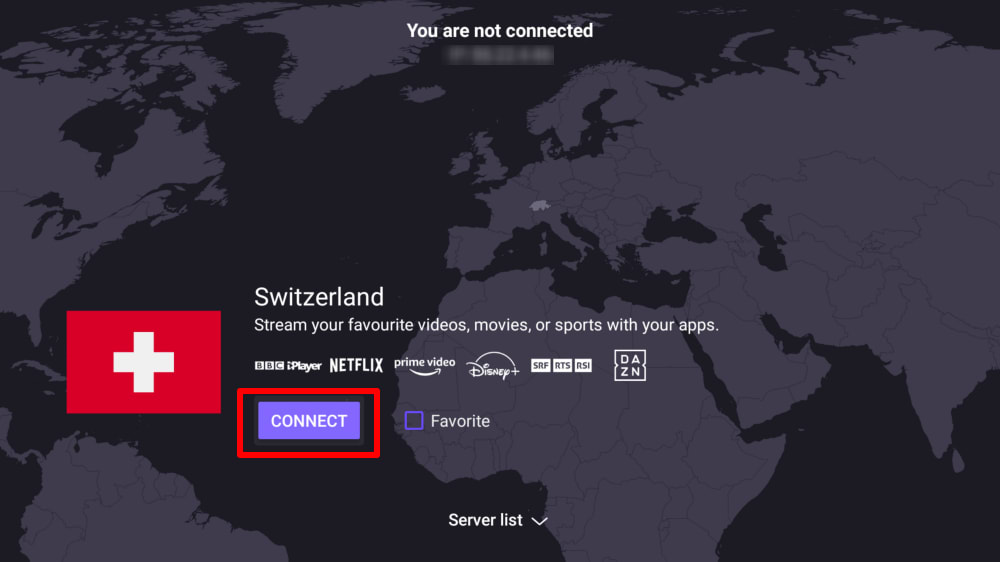
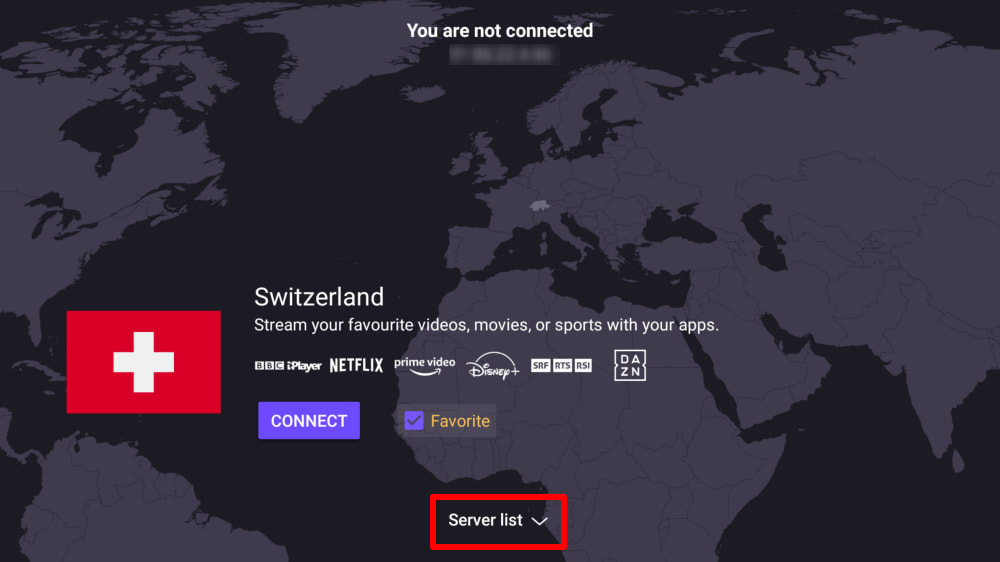
Oppure seleziona Lista dei server per vedere tutti i server in un Paese, quindi Connetti al server che preferisci.
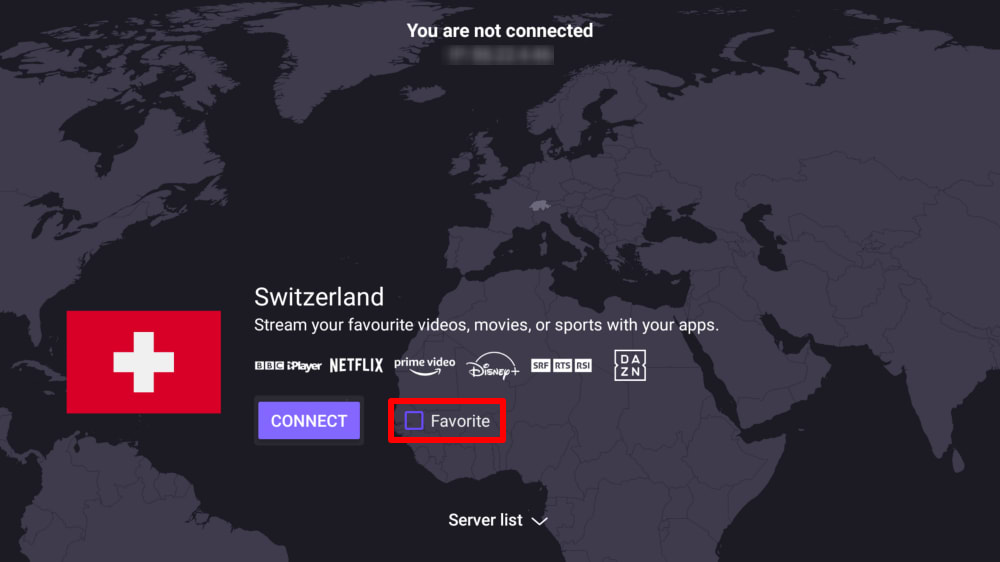
Per aggiungere un Paese al menu Connessione rapida nella schermata principale, spunta la casella Preferito.
Una volta stabilita la connessione, puoi scegliere un sito di streaming e iniziare a guardare. Se non hai mai usato una VPN per accedere ai contenuti video, dai un’occhiata alla nostra guida allo streaming.
Disconnect from a VPN server
Disconnecting from Proton VPN on Android TV takes just a few steps using your remote:
- Open the Proton VPN app on your Android TV.
- On the main screen, navigate to the currently connected server.
- Select the connected server/country and press OK (or the Select button on your remote).
- A Disconnect option will appear, select it to end the connection to the server.
Once disconnected, the app will return to the country list and no longer show an active connection.
Impostazioni e funzionalità VPN
Modifica il protocollo VPN
1. Vai su Impostazioni → Protocollo.

2. Seleziona tra i protocolli disponibili.

Proton VPN per Android TV attualmente supporta WireGuard® (UDP e TCP), OpenVPN (UDP e TCP) e Stealth.
Per impostazione predefinita, l’app utilizza lo Smart Protocol per selezionare automaticamente il protocollo migliore per la tua connessione.
Connessione automatica
Per connetterti automaticamente all’ultimo server VPN a cui ti sei connesso all’avvio del tuo dispositivo Android TV:
1. Vai su Impostazioni → Connessione automatica.

2. Imposta il pulsante Connessione automatica su on.

Funzionalità avanzate
- Come configurare NetShield su Android TV
- Come configurare lo split tunneling su Android TV
- Come configurare un DNS personalizzato su Android TV
- Come consentire le connessioni LAN su Android TV
Quali dispositivi Android TV sono compatibili con Proton VPN?
Chromecast
L’app Proton VPN è disponibile sulla chiavetta Chromecast con Google TV e su qualsiasi TV che utilizzi l’interfaccia Google TV (basata su Android).
Se hai un dispositivo solo Chromecast (di 1ª, 2ª gen., Ultra o 3ª gen.), dovrai invece installare Proton VPN sul tuo router.
Firestick
L’app è disponibile anche sui dispositivi Amazon Fire OS (“Fire TV Stick”). Tuttavia, il processo di configurazione è leggermente diverso.
Troubleshooting
Sign-in issues
Se hai effettuato l’accesso al tuo account Proton e non vedi alcun campo in cui inserire il tuo codice a 8 cifre, assicurati di trovarti su https://protonvpn.com/tv(nuova finestra) (/tv) e non su https://protonvpn.com(nuova finestra).

Ethernet issues
Alcune Android TV e box presentano un bug che causa l’interruzione delle connessioni Ethernet quando viene stabilita una connessione VPN. Si tratta di un bug noto a Google(nuova finestra) nel firmware di Android TV, che interessa tutte le app VPN. Per risolvere il problema, aggiorna il firmware della tua Android TV(nuova finestra) oppure connettiti a Internet tramite WiFi.