


如何在 Android TV 上使用 Proton VPN
- 阅读
- 2 分钟
- 类别
- Android
Download the Proton VPN app for Android TV to stream content from 140+ countries. The Proton VPN Android TV app requires Android 8 or later, except for Amazon Appstore builds, which support Android 7.1 and later.
快速登入提示
- Open the Proton VPN app on your Android TV
- Scan the QR code with your phone
- Sign in or create your Proton VPN account
本文内容
如何在 Android TV 上使用 Proton VPN
To get started, you’ll need a Proton Account. While you can install and run Proton VPN on your Android TV device with our free plan, streaming support is only available on paid Proton VPN plans.
下载适用于 Android TV 的 Proton VPN
您可以在电视的应用商店中找到该应用。或者,也可以通过使用手机或台式电脑在电视上安装该应用(新窗口)。
Sign in to your account
Sign in with QR code
1. Open the Proton VPN app on your TV.
2. Point your phone at the QR code and tap the link shown on your phone’s screen.

3. If you have the Proton VPN app on your phone, it will open. Tap Sign in and sign in with your Proton Account details.

If you don’t have the app on your phone, the sign-in page will open in your browser.

Sign in with verification code
If you can’t sign in using the QR code:
1. Open the Proton VPN app on your Android TV.
2. Using your remote, select Trouble signing in?

3. You’ll see an 8-digit code on your screen.
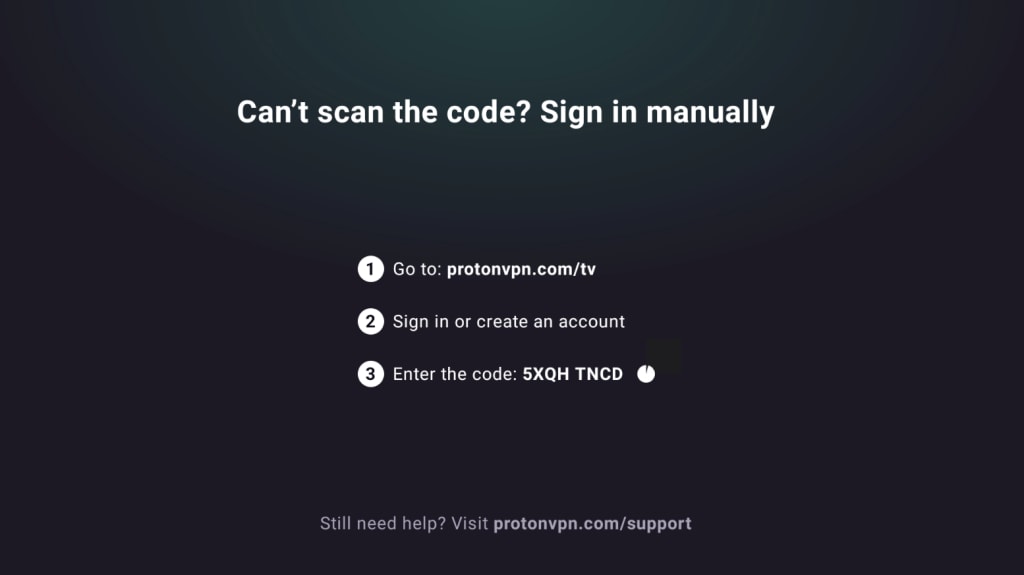
2. 拿起另一台设备,访问 https://protonvpn.com/tv。登入您的 Proton 帐户。
3. 输入电视屏幕上的 8 位代码,然后选择验证代码。

连接 VPN 服务器
登入付费 Proton VPN 帐户后,使用遥控器浏览国家/地区列表。

要连接到某个国家/地区最快的服务器,请选择连接。
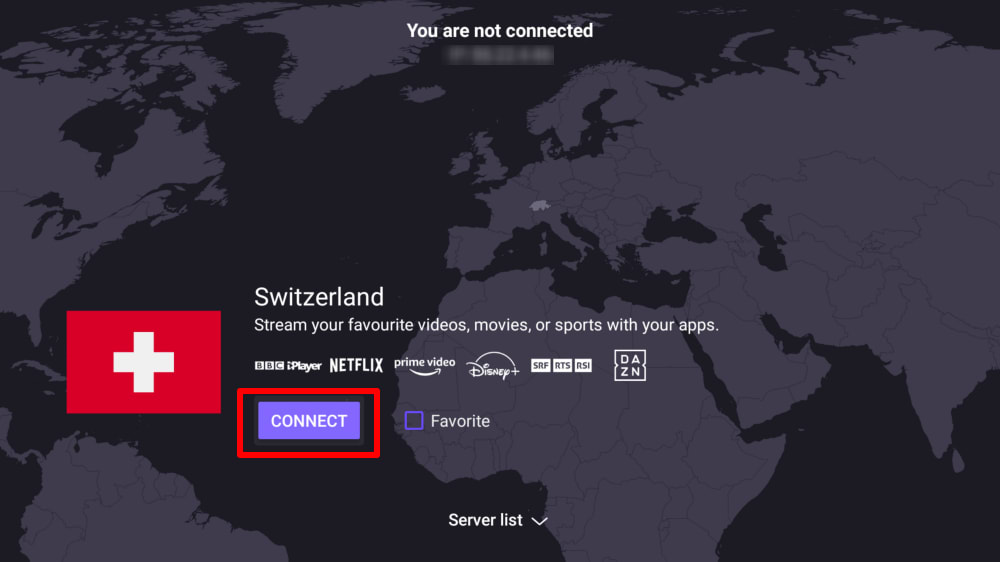
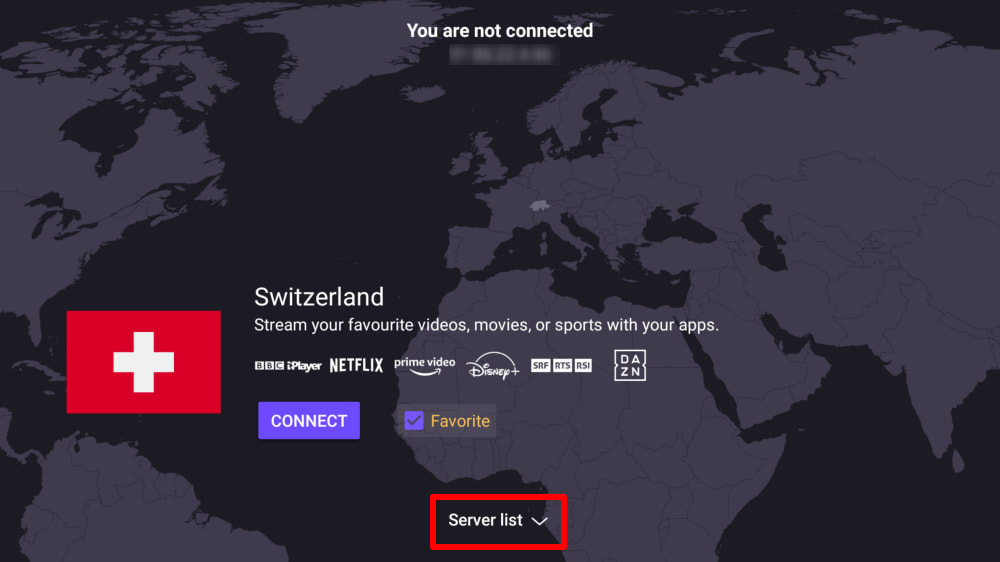
或者选择服务器列表查看某个国家/地区的所有服务器,然后连接到所选的服务器。
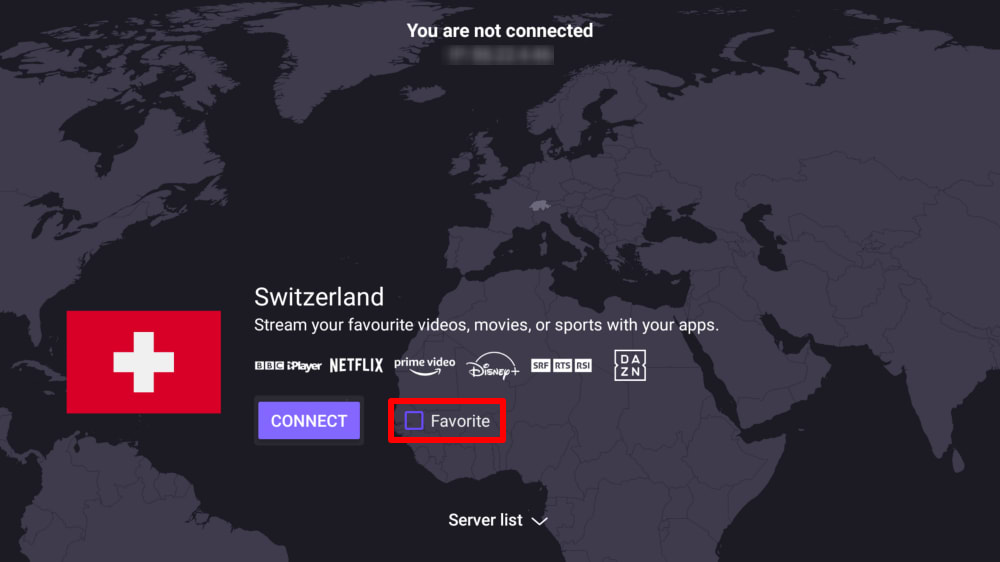
To add a country or server to the Quick connect menu on the main screen, check the Favorite box. Only one favorite can be selected at a time.
连接后,即可选择直播网站并开始观看。如果刚接触使用 VPN 访问视频内容,请查看我们的直播指南。
Disconnect
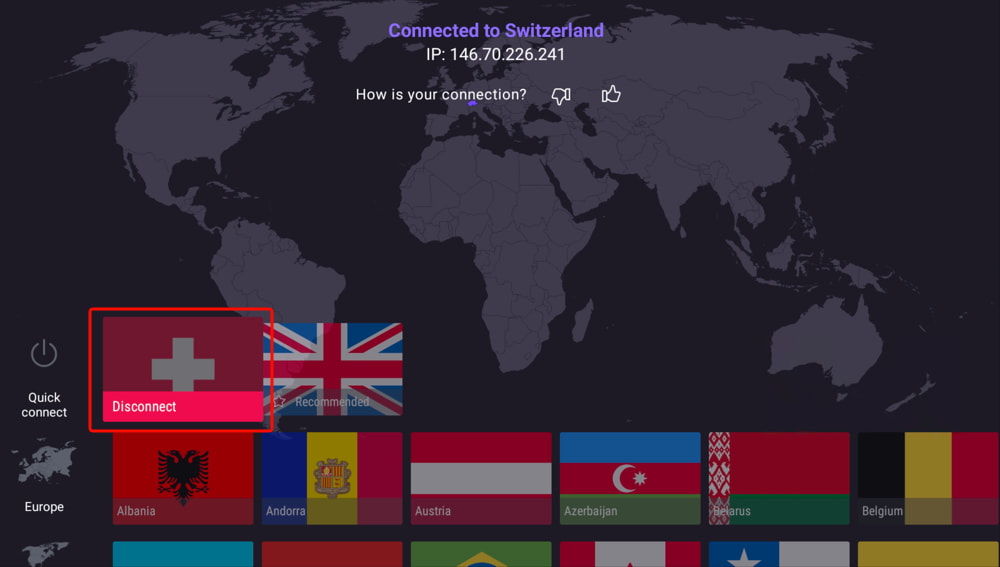
To disconnect from Proton VPN on your Android TV:
- Open the Proton VPN app
- Go to Quick connect and select the country you’re connected to.
VPN 设置和功能
更改 VPN 协议
1. 前往设置 → 协议。

2. 从可用协议中进行选择。
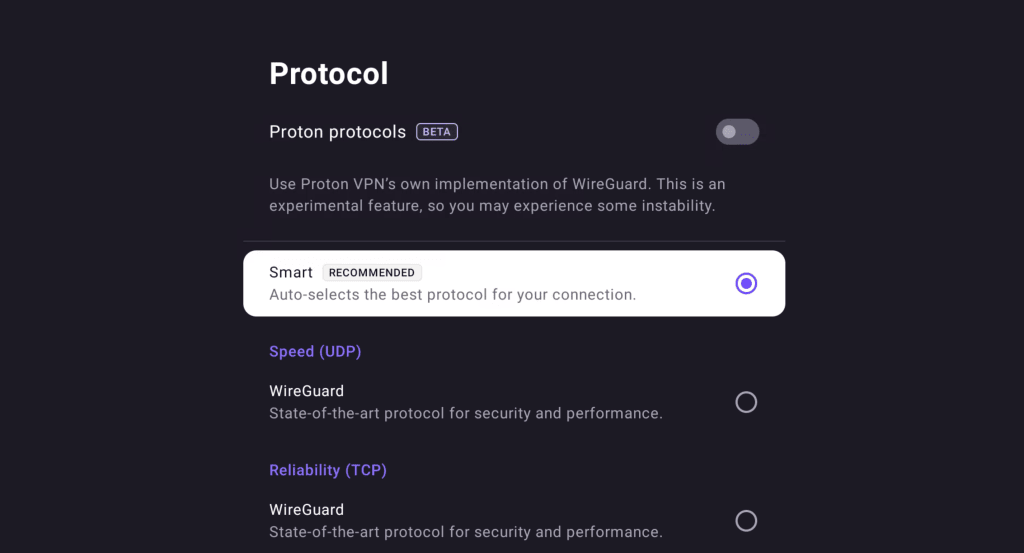
Proton VPN for Android TV currently supports WireGuard® (UDP and TCP) and Stealth. If using our beta app, you can opt to use the Proton protocols versions these.
默认情况下,应用会使用 Smart Protocol 自动为连接选择最佳协议。
自动连接
To automatically connect to your Quick Connect country when your Android TV device starts up:
1. 前往设置 → 自动连接。

2. 将自动连接按钮切换为开启。

高级功能
- 如何在 Android TV 上设置 NetShield
- 如何在 Android TV 上设置拆分隧道
- 如何在 Android TV 上设置自定义DNS
- 如何在 Android TV 上允许 LAN 连接
哪些 Android TV 设备与 Proton VPN 兼容?
Chromecast
Proton VPN 应用可用于 Chromecast with Google TV 电视棒以及任何使用 (基于 Android 的) Google TV 界面的电视。
如果您的设备仅支持 Chromecast(第 1 代、第 2 代、Ultra 或第 3 代),则需要在路由器上安装 Proton VPN。
Firestick
该应用也可用于 Amazon Fire OS (“Fire TV Stick”) 设备,但设置过程略有不同。
Troubleshooting
Sign-in issues
如果已登入 Proton 帐户但找不到输入 8 位代码的位置,请确保访问的是 https://protonvpn.com/tv(新窗口) (/tv),而不是 https://protonvpn.com(新窗口)。

Ethernet issues
部分 Android TV 和电视盒存在一个问题:在建立 VPN 连接时会导致以太网连接断开。这是 Android TV 固件中Google 已知的一个问题(新窗口),会影响所有 VPN 应用。要解决此问题,可以更新 Android TV 固件(新窗口),或使用 WiFi 连接互联网。