


Android TV에서 Proton VPN을 사용하는 방법
- 읽기
- 2분
- 카테고리
- Android
If you’re on a paid Proton VPN subscription, you can download the app on your Android TV and stream content from 140+ countries. The Proton VPN Android TV app requires Android 8 or later, except for Amazon Appstore builds, which support Android 7.1 and later.
빠른 로그인 팁
- Open the Proton VPN app on your Android TV
- Scan the QR code with your phone
- Sign in or create your Proton VPN account
이 문서의 내용
Android TV에서 Proton VPN을 사용하는 방법
시작하려면 유료 Proton VPN 구독이 있는 Proton 계정이 필요합니다.
Android TV용 Proton VPN 다운로드
TV의 앱 스토어에서 앱을 찾으실 수 있습니다. 또는 모바일이나 데스크톱을 사용하여 TV에 앱을 설치(새 창)할 수도 있습니다.
Sign in to your account
Sign in with QR code
1. Open the Proton VPN app on your TV.
2. Point your phone at the QR code and tap the link shown on your phone’s screen.

3. If you have the Proton VPN app on your phone, it will open. Tap Sign in and sign in with your Proton Account details.

If you don’t have the app on your phone, the sign-in page will open in your browser.

Sign in with verification code
If you can’t sign in using the QR code:
1. Open the Proton VPN app on your Android TV.
2. Using your remote, select Trouble signing in?

3. You’ll see an 8-digit code on your screen.
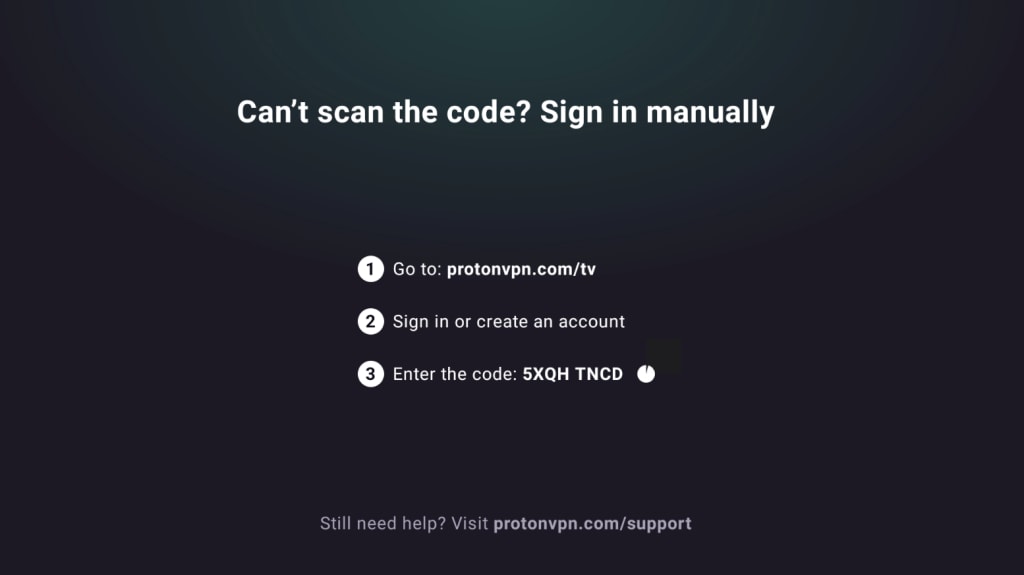
2. 다른 기기를 준비하고 https://protonvpn.com/tv로 이동합니다. Proton 계정에 로그인합니다.
3. TV 화면에 표시된 8자리 코드를 입력한 다음 코드 인증을 선택합니다.

VPN 서버에 연결
유료 Proton VPN 계정에 로그인한 후, 리모컨을 사용하여 국가 목록을 찾아보세요.

해당 국가의 가장 빠른 서버에 연결하려면 연결을 선택합니다.
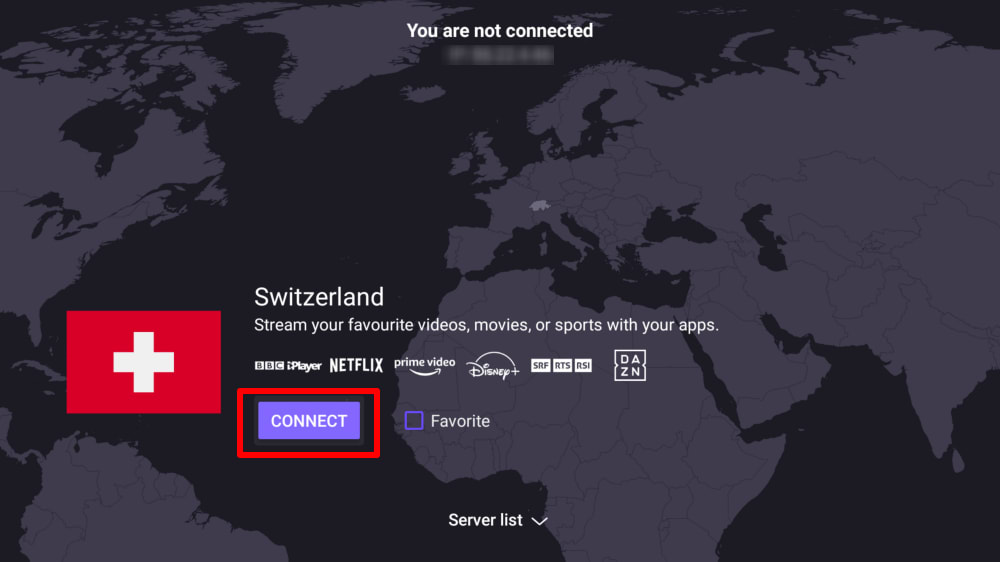
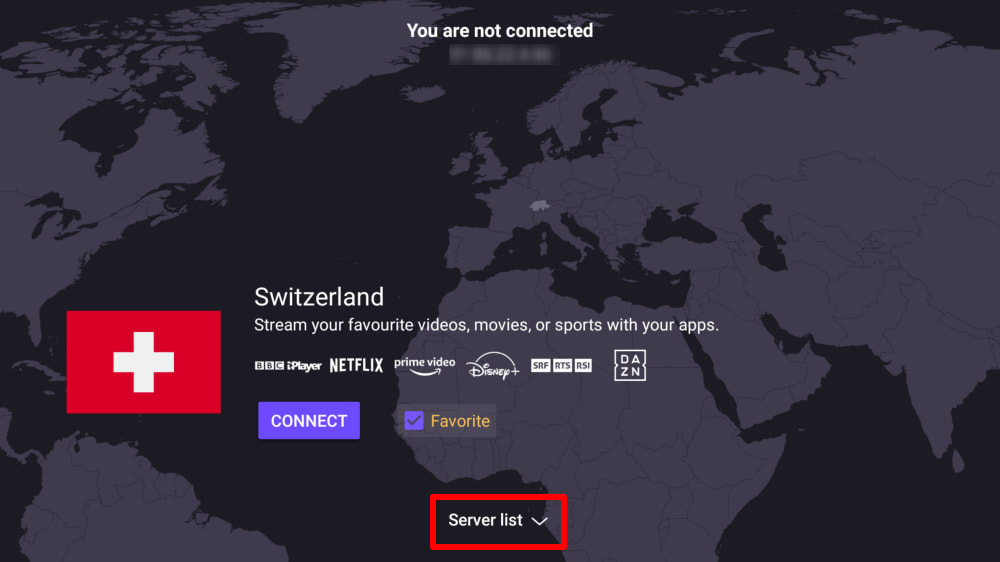
또는 서버 목록을 선택하여 해당 국가의 모든 서버를 확인한 다음, 원하는 서버에 연결합니다.
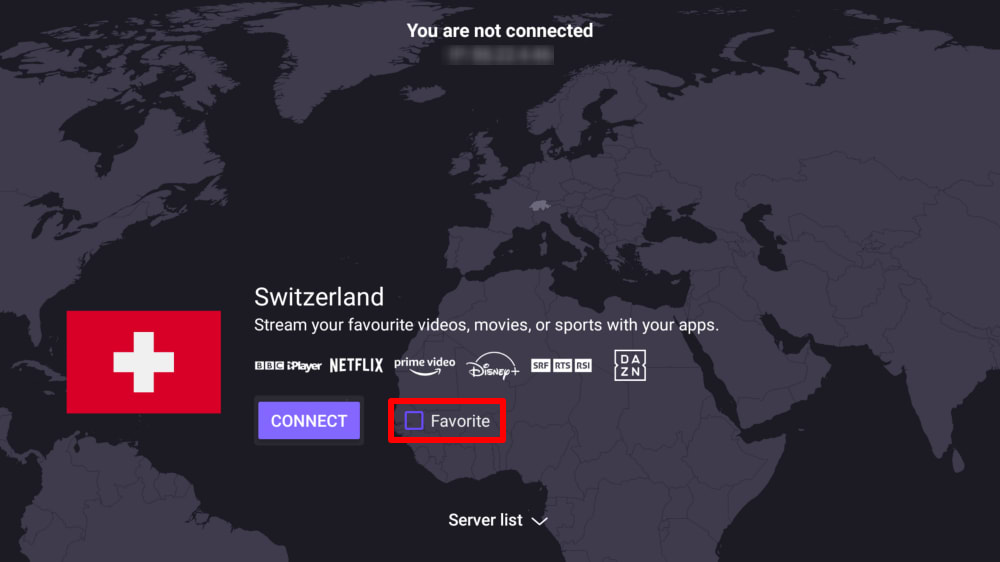
메인 화면의 빠른 연결 메뉴에 국가를 추가하려면 선호 상자에 체크합니다.
연결되면 스트리밍 사이트를 선택하여 시청을 시작할 수 있습니다. 비디오 콘텐츠에 액세스하기 위해 VPN을 처음 사용하시는 경우, Proton의 스트리밍 가이드를 확인해 보세요.
Disconnect from a VPN server
Disconnecting from Proton VPN on Android TV takes just a few steps using your remote:
- Open the Proton VPN app on your Android TV.
- On the main screen, navigate to the currently connected server.
- Select the connected server/country and press OK (or the Select button on your remote).
- A Disconnect option will appear, select it to end the connection to the server.
Once disconnected, the app will return to the country list and no longer show an active connection.
VPN 설정 및 기능
VPN 프로토콜 변경
1. 설정 → 프로토콜로 이동합니다.

2. 사용 가능한 프로토콜 중에서 선택합니다.
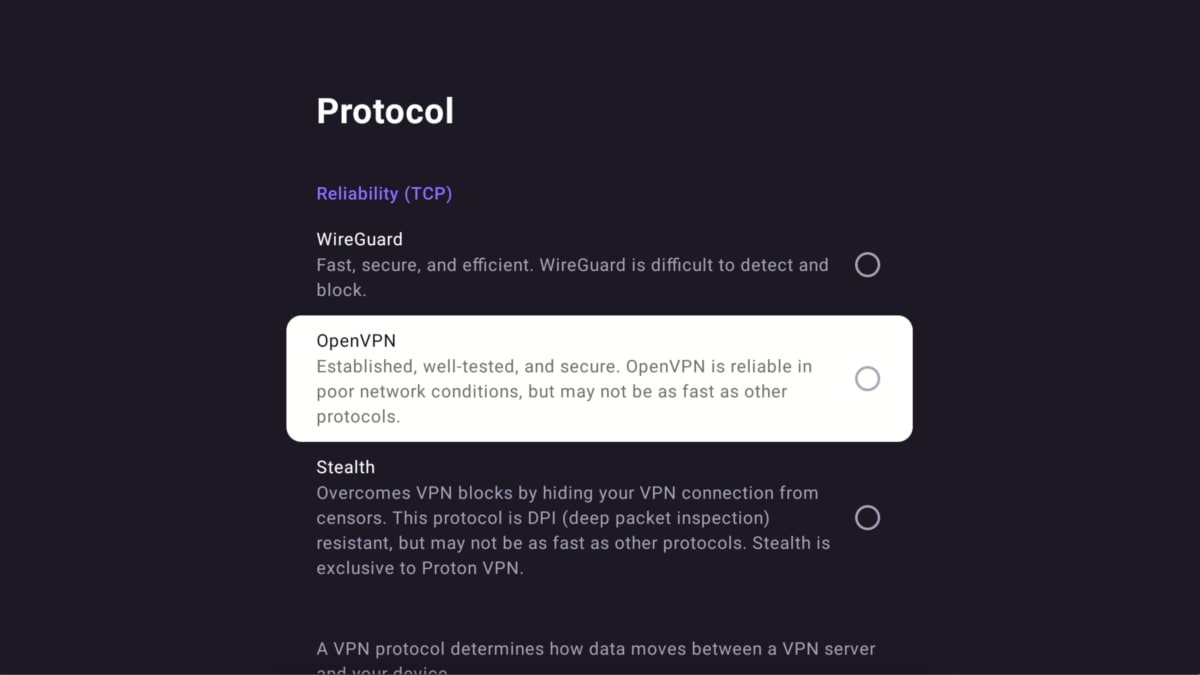
Android TV용 Proton VPN은 현재 WireGuard®(UDP 및 TCP), OpenVPN(UDP 및 TCP), Stealth를 지원합니다.
기본적으로 앱은 Smart Protocol을 사용하여 연결에 가장 적합한 프로토콜을 자동으로 선택합니다.
자동 연결
Android TV 기기가 시작될 때 마지막으로 연결했던 VPN 서버에 자동으로 연결하려면 다음 단계를 따르세요.
1. 설정 → 자동 연결로 이동합니다.

2. 자동 연결 버튼을 켬으로 토글합니다.

고급 기능
- Android TV에서 NetShield 설정하는 방법
- Android TV에서 분할 터널링 설정하는 방법
- Android TV에서 사용자 지정 DNS 설정하는 방법
- Android TV에서 LAN 연결을 허용하는 방법
Proton VPN과 호환되는 Android TV 기기는 무엇인가요?
Chromecast
Proton VPN 애플리케이션은 Google TV 스틱이 탑재된 Chromecast 및 (Android 기반) Google TV 인터페이스를 사용하는 모든 TV에서 사용할 수 있습니다.
Chromecast 전용 기기(1세대, 2세대, Ultra 또는 3세대)를 사용하시는 경우, 대신 라우터에 Proton VPN을 설치해야 합니다.
Firestick
이 앱은 Amazon Fire OS(“Fire TV Stick”) 기기에서도 사용할 수 있습니다. 다만 이를 위한 설정 과정은 약간 다릅니다.
Troubleshooting
Sign-in issues
귀하의 Proton 계정에 로그인했으나 8자리 코드를 입력할 곳이 보이지 않는 경우, https://protonvpn.com/tv(새 창) (/tv)에 접속해 있으며 절대 https://protonvpn.com(새 창)이 아니어야 함을 확인해 주시기 바랍니다.

Ethernet issues
일부 Android TV 및 셋톱박스에는 VPN 연결이 설정될 때 이더넷 연결이 끊어지는 버그가 있습니다. 이는 Android TV 펌웨어에서 Google에 알려진 버그(새 창)이며, 모든 VPN 앱에 영향을 미칩니다. 이 문제를 해결하려면 Android TV의 펌웨어를 업데이트(새 창)하거나 WiFi를 사용하여 인터넷에 연결하십시오.