


Comment utiliser Proton VPN sur Android TV
- Lecture
- 5 minutes
- Catégorie
- Android
If you’re on a paid Proton VPN subscription, you can download the app on your Android TV and stream content from 140+ countries. The Proton VPN Android TV app requires Android 8 or later, except for Amazon Appstore builds, which support Android 7.1 and later.
Astuces de connexion rapide
- Open the Proton VPN app on your Android TV
- Scan the QR code with your phone
- Sign in or create your Proton VPN account
Dans cet article
- Comment utiliser Proton VPN sur Android TV
- Comment configurer les paramètres et les fonctionnalités du VPN
- Quels appareils Android TV sont compatibles avec Proton VPN ?
Comment utiliser Proton VPN sur votre Android TV
Pour commencer, vous aurez besoin d’un compte Proton doté d’un abonnement Proton VPN payant.
- Créer votre compte Proton VPN
- Découvrez comment changer un abonnement Proton VPN existant(nouvelle fenêtre)
Télécharger Proton VPN pour Android TV
Vous trouverez l’application dans le magasin d’applications de votre téléviseur. Vous pouvez également utiliser votre mobile ou votre ordinateur pour installer l’application sur votre téléviseur(nouvelle fenêtre).
Sign in to your account
Sign in with QR code
1. Open the Proton VPN app on your TV.
2. Point your phone at the QR code and tap the link shown on your phone’s screen.

3. If you have the Proton VPN app on your phone, it will open. Tap Sign in and sign in with your Proton Account details.

If you don’t have the app on your phone, the sign-in page will open in your browser.

Sign in with verification code
If you can’t sign in using the QR code:
1. Open the Proton VPN app on your Android TV.
2. Using your remote, select Trouble signing in?

3. You’ll see an 8-digit code on your screen.
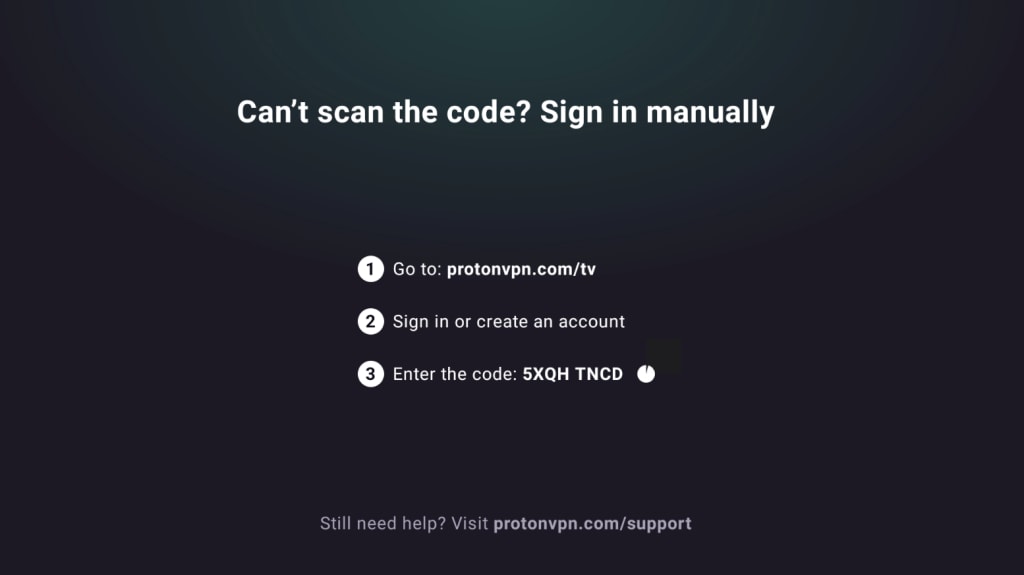
2. Prenez un autre appareil et accédez à https://protonvpn.com/tv. Connectez-vous à votre compte Proton.
3. Saisissez le code à 8 chiffres affiché sur l’écran de votre téléviseur, puis sélectionnez Vérifier le code.

Se connecter à un serveur VPN
Une fois connecté à un compte Proton VPN payant, utilisez votre télécommande pour parcourir la liste des pays.

Pour vous connecter au serveur le plus rapide d’un pays, sélectionnez Se connecter.
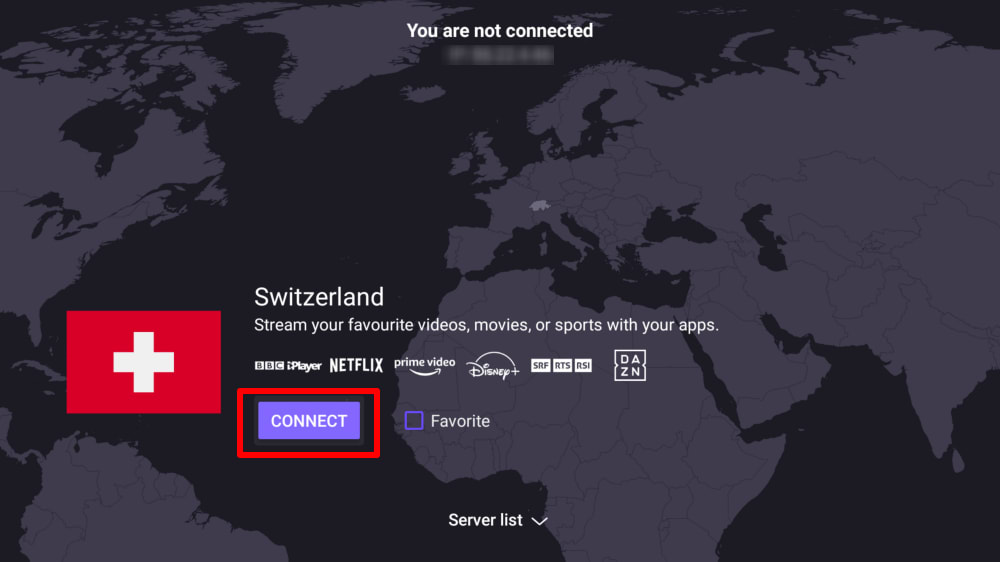
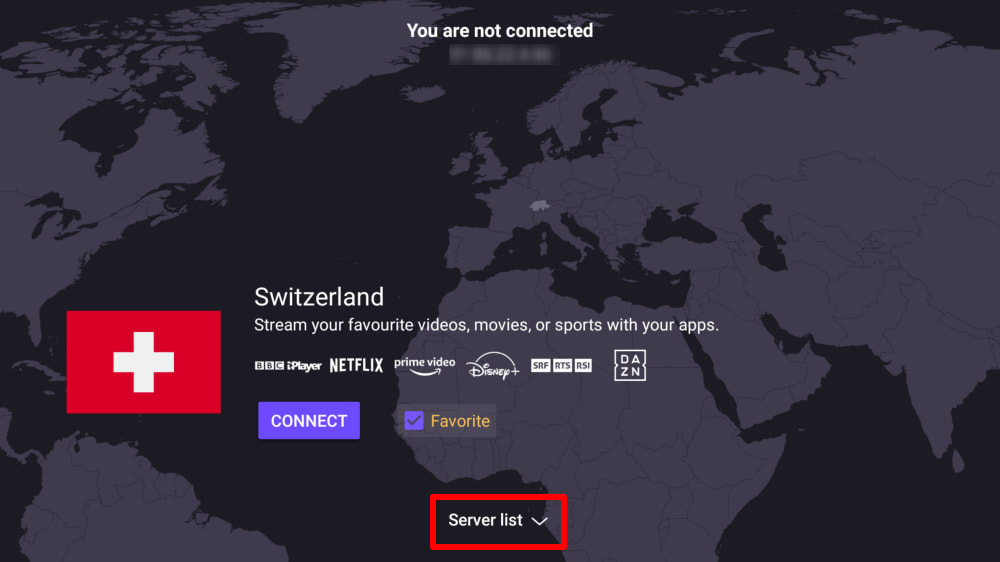
Ou sélectionnez Liste de serveurs pour voir tous les serveurs d’un pays, puis Se connecter au serveur de votre choix.
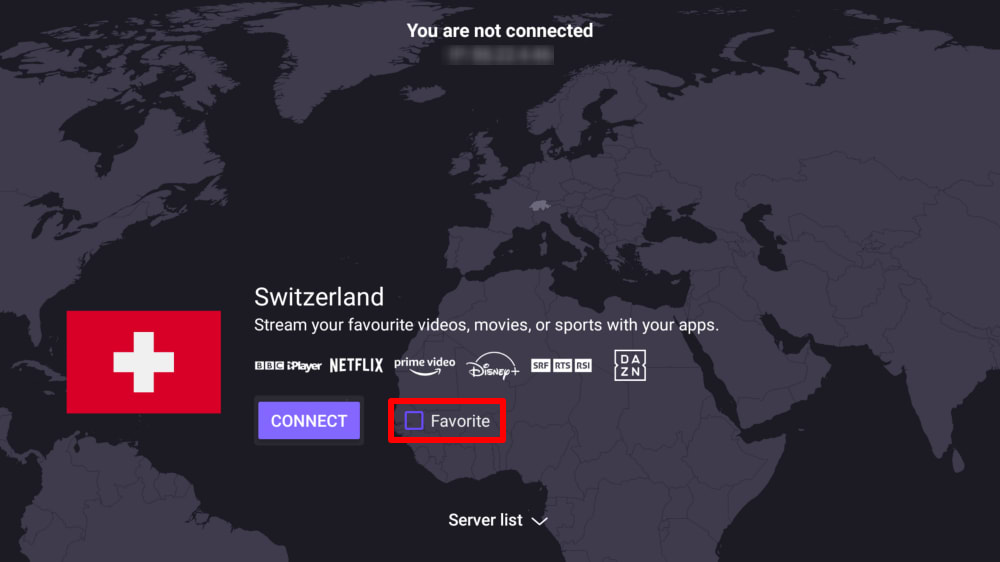
Pour ajouter un pays au menu Connexion rapide sur l’écran principal, cochez la case Favori.
Une fois connecté, vous pouvez choisir un site de streaming et commencer à regarder. Si vous utilisez un VPN pour la première fois pour accéder à du contenu vidéo, consultez notre guide de streaming.
Disconnect from a VPN server
Disconnecting from Proton VPN on Android TV takes just a few steps using your remote:
- Open the Proton VPN app on your Android TV.
- On the main screen, navigate to the currently connected server.
- Select the connected server/country and press OK (or the Select button on your remote).
- A Disconnect option will appear, select it to end the connection to the server.
Once disconnected, the app will return to the country list and no longer show an active connection.
Paramètres et fonctionnalités du VPN
Changer de protocole VPN
1. Accédez à Paramètres → Protocole.

2. Sélectionnez l’un des protocoles disponibles.
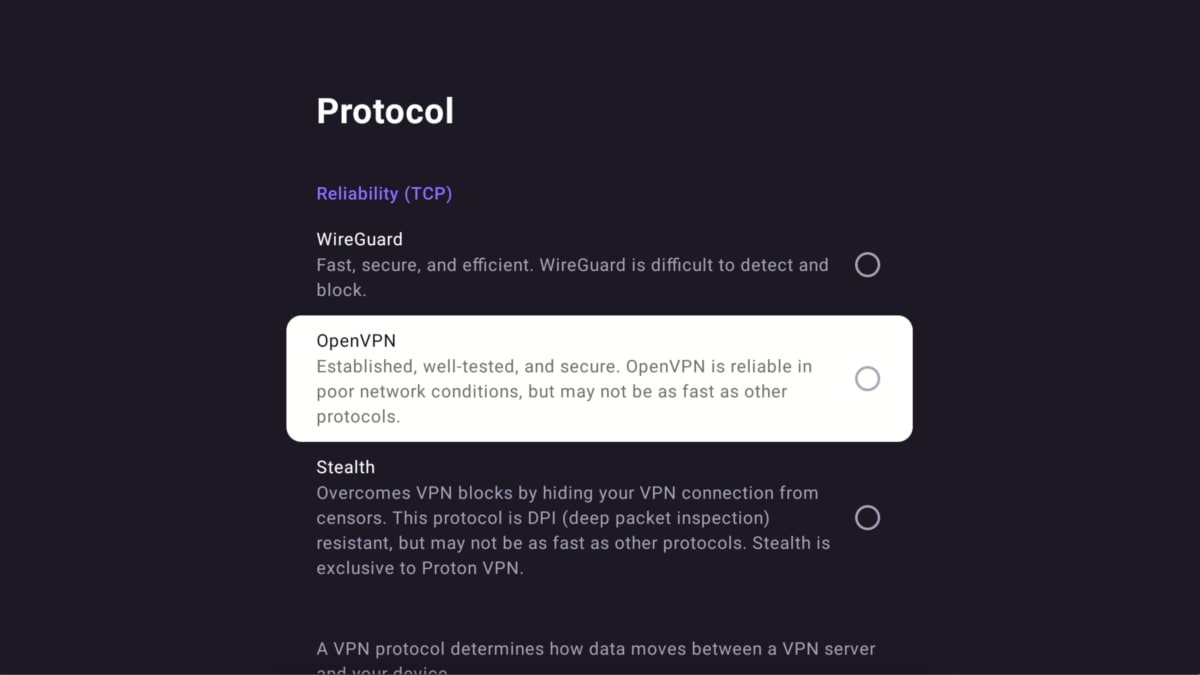
Proton VPN pour Android TV prend actuellement en charge WireGuard® (UDP et TCP), OpenVPN (UDP et TCP) et Stealth.
Par défaut, l’application utilise Smart Protocol pour sélectionner automatiquement le meilleur protocole pour votre connexion.
Connexion automatique
Pour vous connecter automatiquement au dernier serveur VPN auquel vous étiez connecté au démarrage de votre appareil Android TV :
1. Accédez à Paramètres → Connexion automatique.

2. Basculez le bouton de connexion automatique sur activé.

Fonctionnalités avancées
- Comment configurer NetShield sur Android TV
- Comment configurer le split tunneling sur Android TV
- Comment configurer un DNS personnalisé sur Android TV
- Comment autoriser les connexions LAN sur Android TV
Quels appareils Android TV sont compatibles avec Proton VPN ?
Chromecast
L’application Proton VPN est disponible sur la clé Chromecast avec Google TV et sur tous les téléviseurs qui utilisent l’interface Google TV (basée sur Android).
Si vous possédez un appareil Chromecast uniquement (1re génération, 2e génération, Ultra ou 3e génération), vous devrez plutôt installer Proton VPN sur votre routeur.
Firestick
L’application est également disponible sur les appareils Amazon Fire OS (“Fire TV Stick”). Cependant, le processus de configuration est légèrement différent.
Troubleshooting
Sign-in issues
Si vous vous êtes connecté à votre compte Proton et que vous ne voyez aucun endroit où saisir votre code à 8 chiffres, assurez-vous d’être sur https://protonvpn.com/tv(nouvelle fenêtre) (/tv) et non sur https://protonvpn.com(nouvelle fenêtre).

Ethernet issues
Certains boîtiers et téléviseurs Android TV présentent un bug qui entraîne la déconnexion de l’Ethernet lorsqu’une connexion VPN est établie. Il s’agit d’un bug connu de Google(nouvelle fenêtre) dans le micrologiciel d’Android TV, et il affecte toutes les applications VPN. Pour résoudre ce problème, mettez à jour le micrologiciel de votre Android TV(nouvelle fenêtre) ou connectez-vous à Internet à l’aide du wifi.