


如何在 Android TV 上使用 Proton VPN
- 閱讀
- 2 分鐘
- 類別
- Android
If you’re on a paid Proton VPN subscription, you can download the app on your Android TV and stream content from 140+ countries. The Proton VPN Android TV app requires Android 8 or later, except for Amazon Appstore builds, which support Android 7.1 and later.
快速登入提示
- Open the Proton VPN app on your Android TV
- Scan the QR code with your phone
- Sign in or create your Proton VPN account
本文內容
如何在您的 Android TV 上使用 Proton VPN
若要開始使用,您需要一個擁有付費 Proton VPN 訂閱的 Proton 帳號。
下載適用於 Android TV 的 Proton VPN
您可以在電視的應用程式商店中找到該應用程式。或者,您也可以使用行動裝置或電腦在電視上安裝該應用程式(新視窗)。
Sign in to your account
Sign in with QR code
1. Open the Proton VPN app on your TV.
2. Point your phone at the QR code and tap the link shown on your phone’s screen.

3. If you have the Proton VPN app on your phone, it will open. Tap Sign in and sign in with your Proton Account details.

If you don’t have the app on your phone, the sign-in page will open in your browser.

Sign in with verification code
If you can’t sign in using the QR code:
1. Open the Proton VPN app on your Android TV.
2. Using your remote, select Trouble signing in?

3. You’ll see an 8-digit code on your screen.
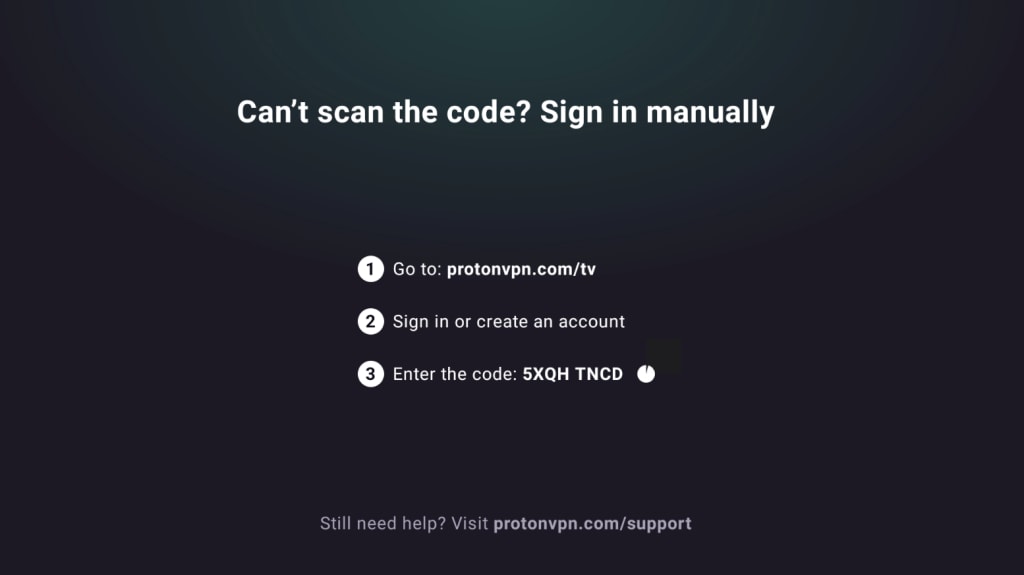
2. 使用其他裝置並前往 https://protonvpn.com/tv。登入您的 Proton 帳號。
3. 輸入電視螢幕上的 8 位數代碼,然後選取驗證代碼。

連線至 VPN 伺服器
登入付費的 Proton VPN 帳號後,使用遙控器瀏覽國家清單。

若要連線至某個國家中最快速的伺服器,請選取連線。
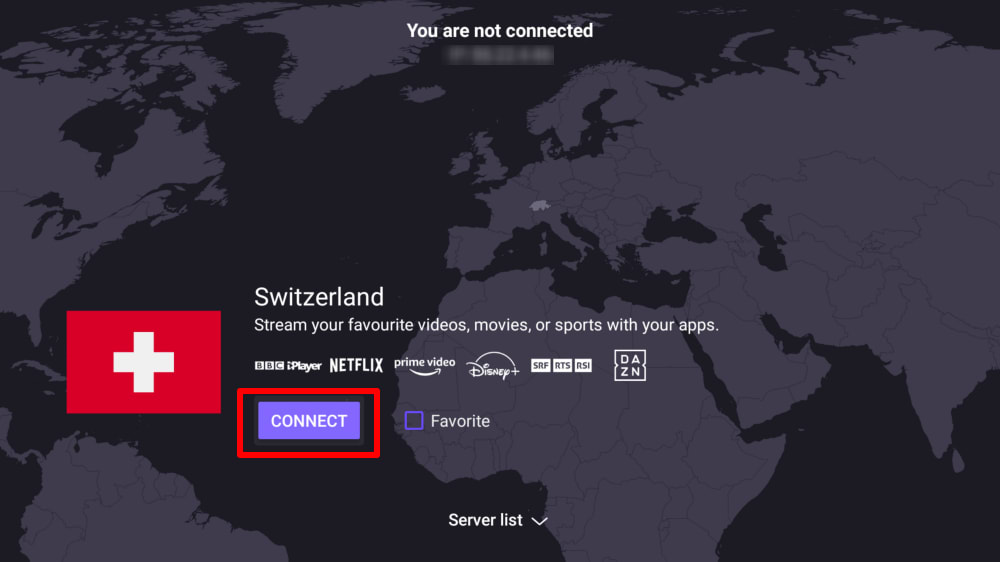
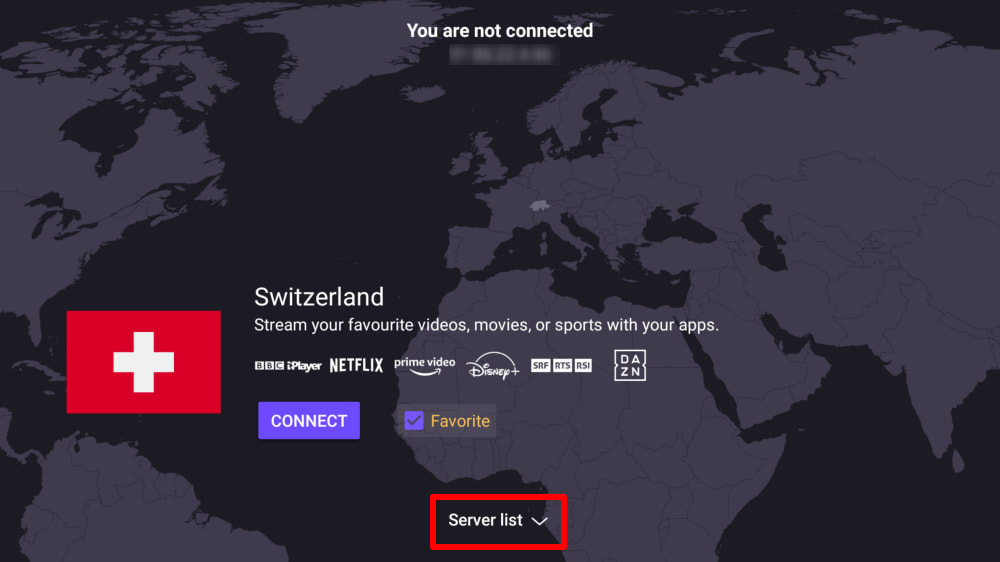
或選取伺服器列表以查看該國家的所有伺服器,然後連線至您選擇的伺服器。
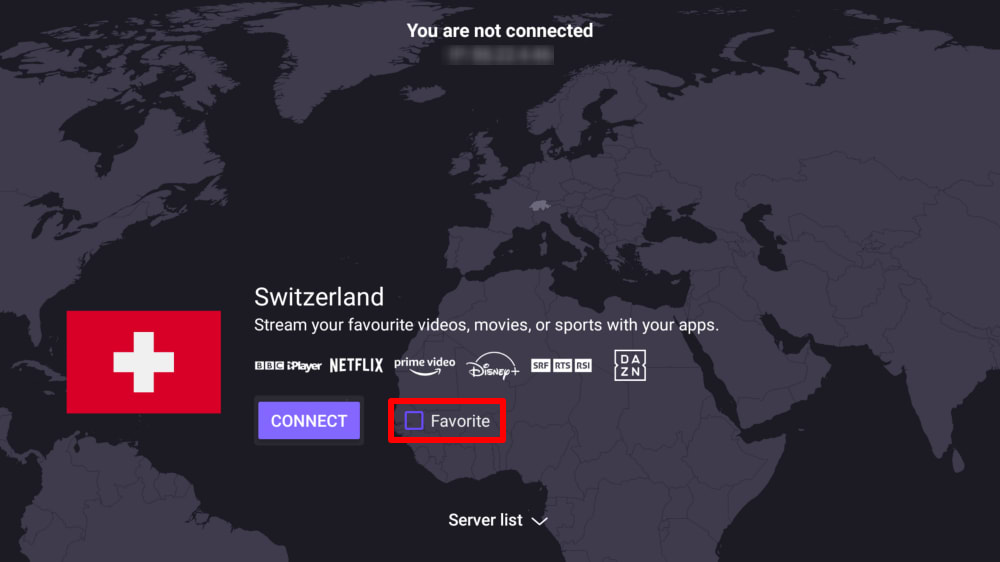
若要將國家加入主畫面上的快速連線選單,請勾選最愛方塊。
連線後,您可以選擇串流網站並開始觀看。如果您是第一次使用 VPN 存取影片內容,請參閱我們的 串流指南。
Disconnect from a VPN server
Disconnecting from Proton VPN on Android TV takes just a few steps using your remote:
- Open the Proton VPN app on your Android TV.
- On the main screen, navigate to the currently connected server.
- Select the connected server/country and press OK (or the Select button on your remote).
- A Disconnect option will appear, select it to end the connection to the server.
Once disconnected, the app will return to the country list and no longer show an active connection.
VPN 設定與功能
變更 VPN 協定
1. 前往設定 → 協定。

2. 從可用的協定中進行選取。
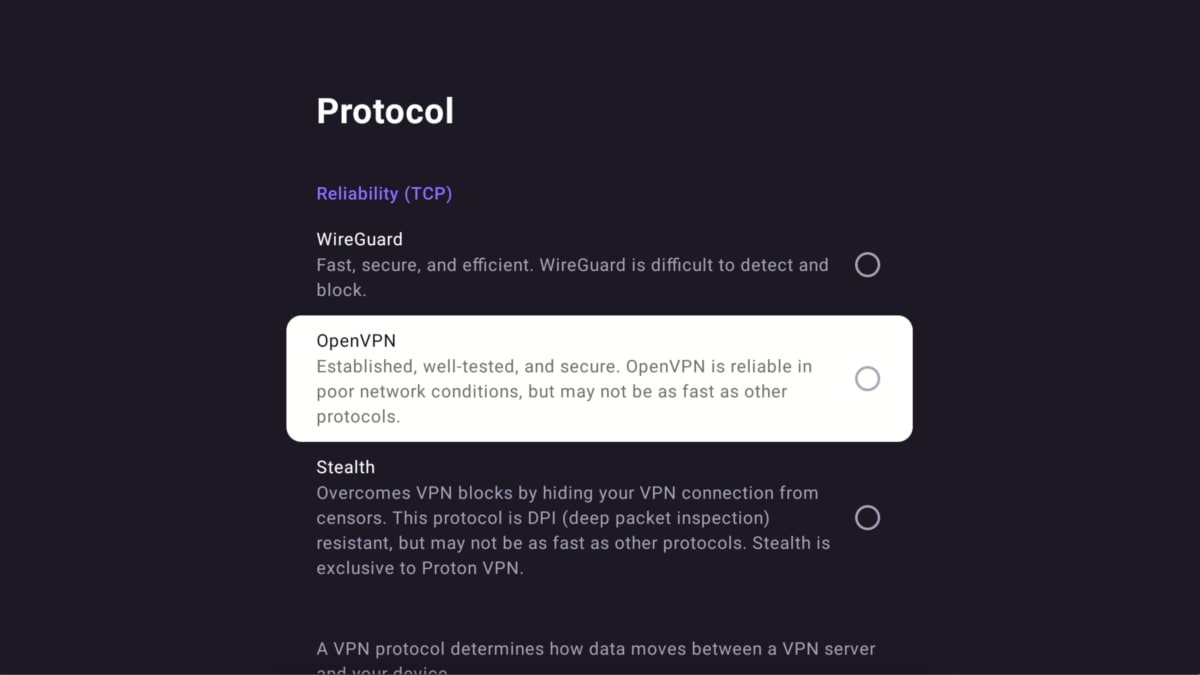
Android TV 版 Proton VPN 目前支援 WireGuard® (UDP 及 TCP)、OpenVPN (UDP 及 TCP) 以及 Stealth。
預設情況下,應用程式會使用 Smart Protocol 自動選取最適合您連線的協定。
自動連線
若要在您的 Android TV 裝置啟動時,自動連線上一次連線的 VPN 伺服器:
1. 前往設定 → 自動連線。

2. 將 自動連線 按鈕切換至開啟。

進階功能
哪些 Android TV 裝置與 Proton VPN 相容?
Chromecast
Proton VPN 應用程式可在支援 Google TV 的 Chromecast 電視棒以及任何使用(基於 Android 系統的)Google TV 介面的電視上使用。
若您使用的是僅支援 Chromecast 的裝置(第 1 代、第 2 代、Ultra 或 第 3 代),則需要改為在路由器上安裝 Proton VPN。
Firestick
該應用程式也可在 Amazon Fire OS(「Fire TV Stick」)裝置上使用。但此裝置的設定流程略有不同。
Troubleshooting
Sign-in issues
如果您已登入您的 Proton 帳號,但找不到任何可以輸入 8 位數代碼的地方,請確保您是在 https://protonvpn.com/tv(新視窗) (/tv),而非 https://protonvpn.com(新視窗)。

Ethernet issues
部分 Android TV 和電視盒存在一個錯誤,在建立 VPN 連線時會導致乙太網路連線中斷。這是 Google 已知的 Android TV 韌體錯誤(新視窗),且會影響所有 VPN 應用程式。如要解決此問題,請更新您的 Android TV 韌體(新視窗),或使用 WiFi 連線至網際網路。