


Android TVでProton VPNを使用する方法
- 閲覧中
- 2 分
- カテゴリー
- Android
If you’re on a paid Proton VPN subscription, you can download the app on your Android TV and stream content from 140+ countries. The Proton VPN Android TV app requires Android 8 or later, except for Amazon Appstore builds, which support Android 7.1 and later.
クイックサインインのヒント
- Open the Proton VPN app on your Android TV
- Scan the QR code with your phone
- Sign in or create your Proton VPN account
この記事の内容
Android TVでProton VPNを使用する方法
開始するには、有料のProton VPNサブスクリプションが有効なProtonアカウントが必要です。
Android TV用Proton VPNのダウンロード
テレビのアプリストアでアプリを見つけることができます。あるいは、モバイル端末またはデスクトップを使用して、テレビにアプリをインストールする(新しいウィンドウ)こともできます。
Sign in to your account
Sign in with QR code
1. Open the Proton VPN app on your TV.
2. Point your phone at the QR code and tap the link shown on your phone’s screen.

3. If you have the Proton VPN app on your phone, it will open. Tap Sign in and sign in with your Proton Account details.

If you don’t have the app on your phone, the sign-in page will open in your browser.

Sign in with verification code
If you can’t sign in using the QR code:
1. Open the Proton VPN app on your Android TV.
2. Using your remote, select Trouble signing in?

3. You’ll see an 8-digit code on your screen.
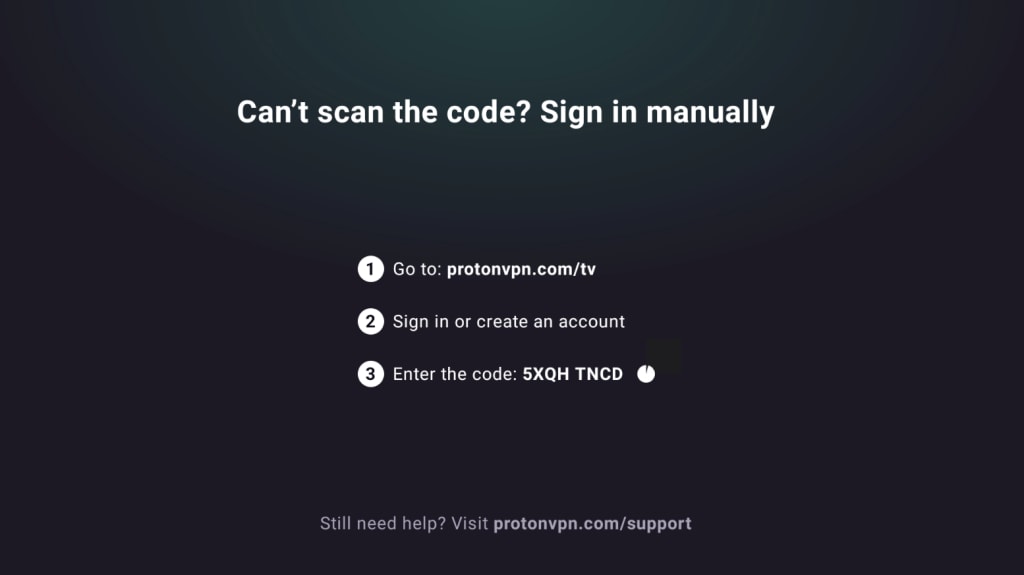
2. 別のデバイスを用意し、https://protonvpn.com/tvにアクセスします。Protonアカウントにサインインします。
3. テレビ画面に表示されている8桁のコードを入力し、コードを検証を選択します。

VPNサーバーに接続する
有料のProton VPNアカウントにサインインしたら、リモコンを使用して国リストを参照します。

国内の最速サーバーに接続するには、接続を選択します。
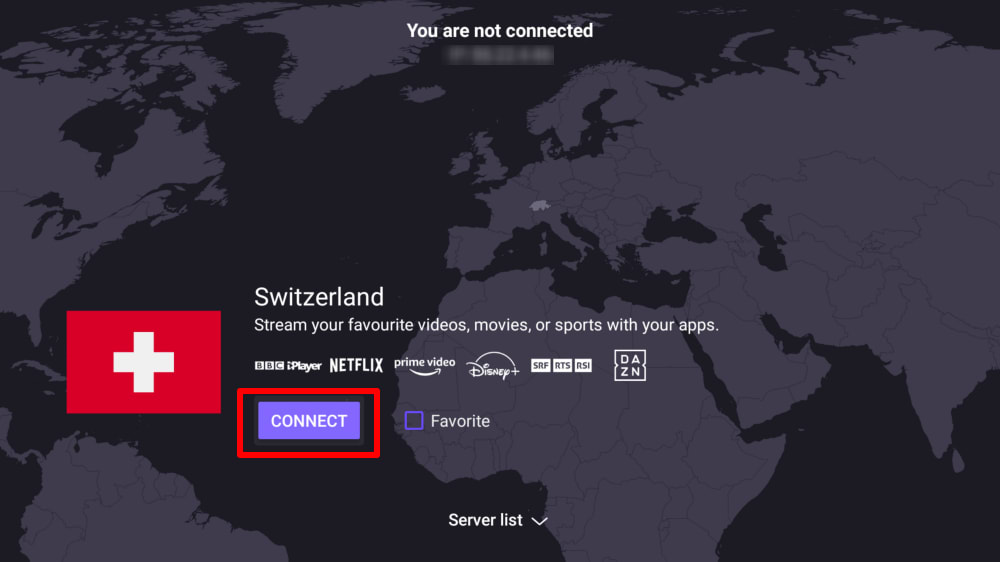
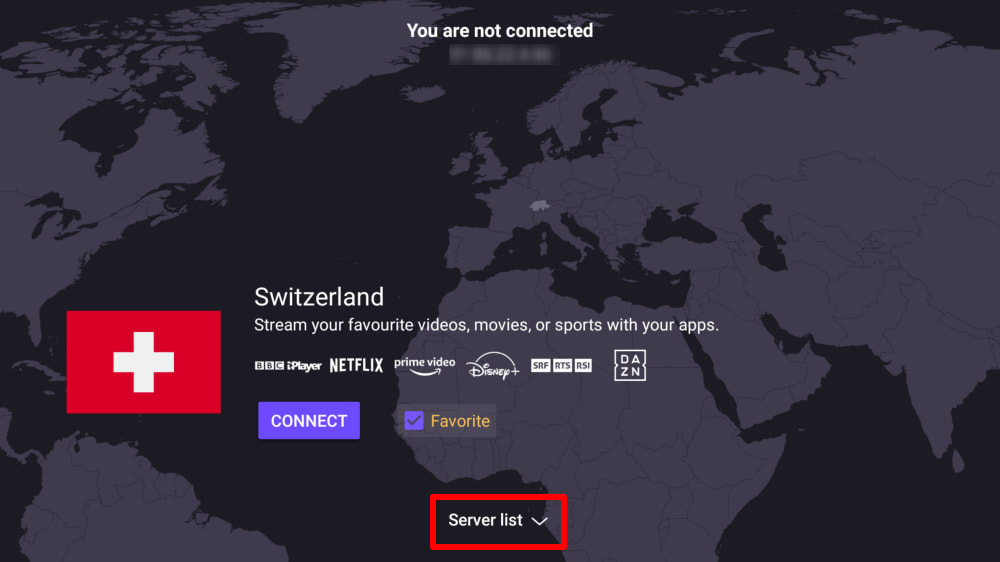
または、サーバーリストを選択して国内のすべてのサーバーを表示し、選択したサーバーに接続します。
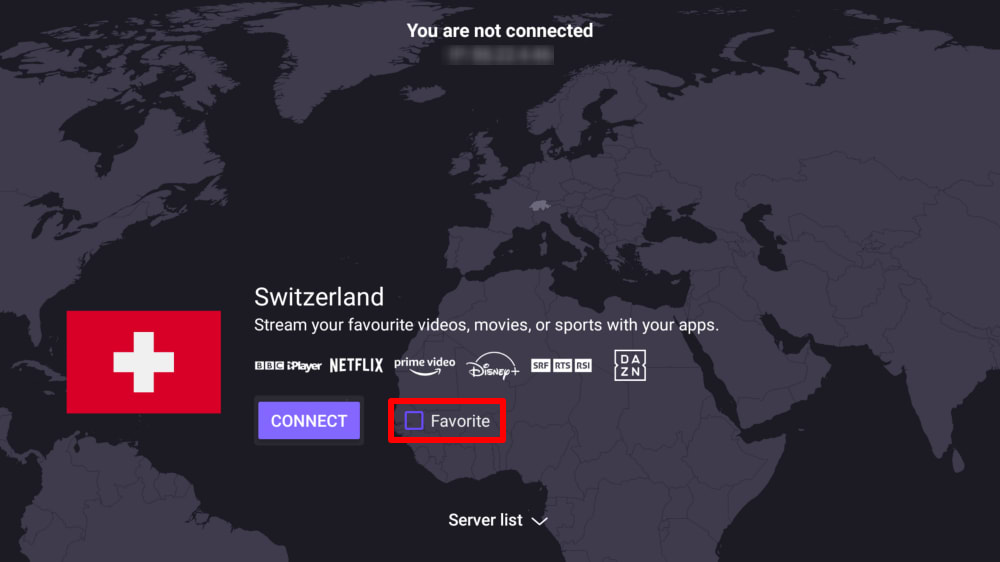
メイン画面のクイック接続メニューに国を追加するには、お気に入りボックスにチェックを入れます。
接続されたら、ストリーミングサイトを選択して視聴を開始できます。VPNを使用して動画コンテンツにアクセスするのが初めての場合は、弊社の ストリーミングガイドをご確認ください。
Disconnect from a VPN server
Disconnecting from Proton VPN on Android TV takes just a few steps using your remote:
- Open the Proton VPN app on your Android TV.
- On the main screen, navigate to the currently connected server.
- Select the connected server/country and press OK (or the Select button on your remote).
- A Disconnect option will appear, select it to end the connection to the server.
Once disconnected, the app will return to the country list and no longer show an active connection.
VPNの設定と機能
VPNプロトコルの変更
1. 設定 → プロトコルに移動します。

2. 利用可能なプロトコルから選択します。
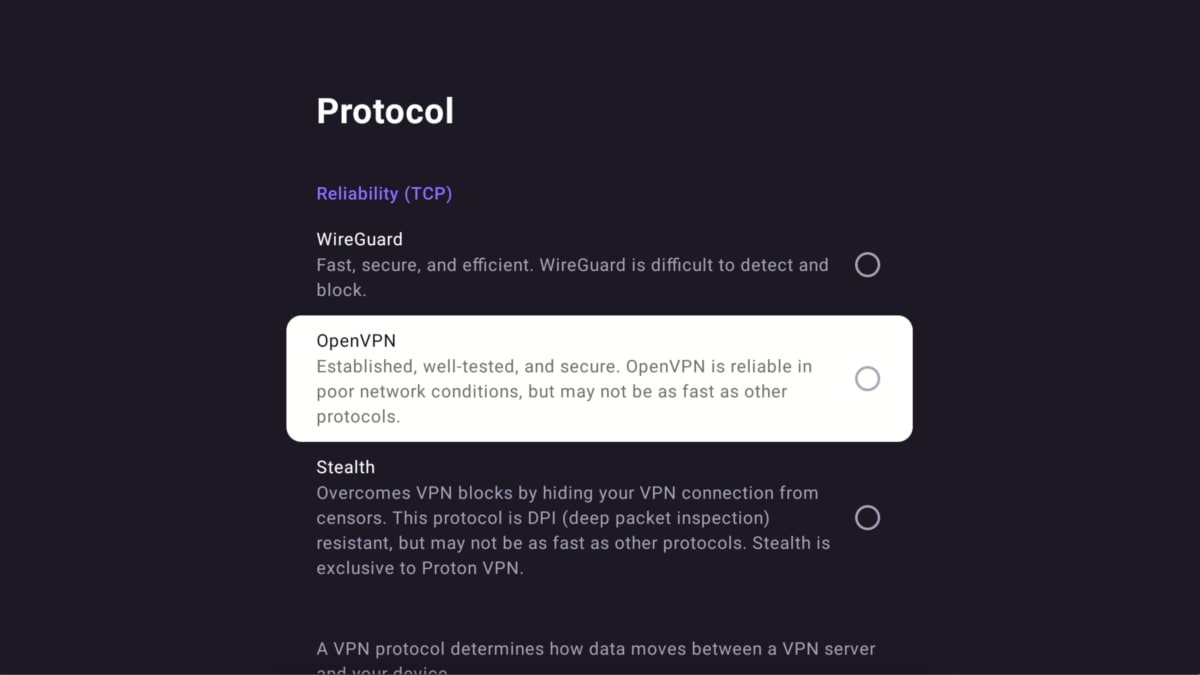
Android TV用Proton VPNは現在、WireGuard®(UDPおよびTCP)、OpenVPN(UDPおよびTCP)、およびStealthをサポートしています。
デフォルトでは、アプリはSmart Protocolを使用して、接続に最適なプロトコルを自動的に選択します。
自動接続
Android TVデバイスの起動時に、最後に接続したVPNサーバーに自動的に接続するには:
1. 設定 → 自動接続に移動します。

2. 自動接続ボタンをオンに切り替えます。

高度な機能
- Android TVでNetShieldをセットアップする方法
- Android TVでスプリットトンネルをセットアップする方法
- Android TVでカスタム DNSをセットアップする方法
- Android TVでLAN への接続を許可する方法
どのAndroid TVデバイスがProton VPNと互換性がありますか?
Chromecast
Proton VPN アプリは、Chromecast with Google TVスティック、および(Androidベースの)Google TVインターフェースを使用するすべてのテレビでご利用いただけます。
Chromecast専用デバイス(第1世代、第2世代、Ultra、または第3世代)をお持ちの場合は、代わりにルーターにProton VPNをインストールする必要があります。
Firestick
このアプリはAmazon Fire OS(「Fire TV Stick」)デバイスでもご利用いただけます。ただし、セットアップ手順は多少異なります。
Troubleshooting
Sign-in issues
Protonアカウントにサインインしても8桁のコードを入力する場所が表示されない場合は、https://protonvpn.com/tv(新しいウィンドウ)(/tv)にアクセスしており、決してhttps://protonvpn.com(新しいウィンドウ)ではないことをご確認ください。

Ethernet issues
一部のAndroid TVやテレビボックスには、VPN接続が確立されるとイーサネット接続が切断されるバグがあります。これはAndroid TVファームウェアにおけるGoogleが認識しているバグ(新しいウィンドウ)であり、すべてのVPNアプリに影響します。この問題を解決するには、Android TVのファームウェアを更新する(新しいウィンドウ)か、Wi-Fiを使用してインターネットに接続してください。