


Så installerar du Proton VPN GUI-appen på Fedora
- Lästid
- 4 min
- Kategori
- Linux
I den här artikeln beskriver vi hur du använder Proton VPN Linux GUI-appen på ditt Fedora-system. Vår GUI-app stöder officiellt den senaste stabila Fedora-versionen som kör skrivbordsmiljön GNOME. För närvarande är detta Fedora 44.
Den kan fungera i andra Fedora-skrivbordsmiljöer (som KDE), men supporten för dessa kan vara begränsad.
Observera att vi också erbjuder Proton VPN CLI, ett kommandoradsverktyg som körs från Linux-terminalen.
Lär dig hur du installerar och använder Proton VPN Linux CLI
För att installera GUI-appen, öppna ett terminalfönster och:
1. Ladda ner paketet som innehåller arkivkonfigurationen och nycklarna som krävs för att installera Proton VPN-appen. Ange:
wget "https://repo.protonvpn.com/fedora-$(cat /etc/fedora-release | cut -d' ' -f 3)-stable/protonvpn-stable-release/protonvpn-stable-release-1.0.4-1.noarch.rpm"
2. Installera Proton VPN-arkivet som innehåller appen. Kör:
sudo dnf install ./protonvpn-stable-release-1.0.4-1.noarch.rpm && sudo dnf check-update --refresh
3. Installera appen. Kör:
sudo dnf install proton-vpn-gnome-desktop
Som en del av installationsprocessen kommer du att bli ombedd att acceptera en OpenPGP-nyckel. För att göra detta när du uppmanas till det, tryck på y .
- UserID : “Proton Technologies AG (Fedora 44) <opensource@proton.me>”
Fingeravtryck: 6929133BDE1CE1CFA9EDB286D84176F6844830D4
Från : https://repo.protonvpn.com/fedora-44-stable/public_key.asc(nytt fönster)
Obs: Detta fingeravtryck är endast korrekt för den senaste versionen av Fedora (v. 44). Om du använder en äldre version av Fedora kommer fingeravtrycket att vara ett annat.
Ikon i systemfältet (valfritt)
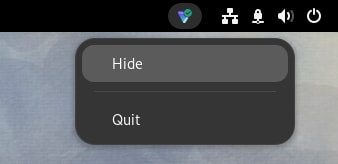
Som standard stöder inte GNOME-skrivbordet ikoner i systemfältet. För att aktivera denna funktion:
1. Kör:
sudo dnf install libappindicator-gtk3 gnome-shell-extension-appindicator gnome-extensions-app
2. Starta om din dator.
3. När du har gjort detta öppnar du appen Tillägg och ser till att AppIndicator och KStatusNotifierItem Support är markerat som på innan du öppnar appen.

En varning om att använda pip och PyPI
Anmärkningar
1. Så här tar du bort den officiella Linux-appen
För att avinstallera Linux-appen, öppna en terminal och ange:
sudo dnf remove proton-vpn-gnome-desktop protonvpn-stable-release
2. Så här inaktiverar du din kill switch efter att du har avinstallerat appen
Du kan enkelt stänga av din kill switch i vår Linux-app, men det är inte möjligt om du redan har avinstallerat den. I så fall kan du ta bort din kill switch och återställa internetåtkomsten på följande sätt:
a) Identifiera Proton VPN-anslutningsnamn genom att köra kommandot:
nmcli connection show --active
Detta visar en lista över ditt systems aktiva anslutningar.
b) Leta efter anslutningar med pvpn- Detta inkluderar vanligtvis pvpn-killswitch och pvpn-ipv6leak-protection, och kan även inkludera pvpn-routed-killswitch. Ta bort alla dessa anslutningar med följande kommando:
nmcli connection delete [connection name]
Till exempel:
nmcli connection delete pvpn-killswitch
c) Kör följande kommando igen för att kontrollera att alla Proton VPN-anslutningar har tagits bort:
nmcli connection show --active
Om du ser några Proton VPN-anslutningar kvar tar du bort dem enligt beskrivningen ovan.
3. Prova vår beta-Linux-app
Betaversionen av vår Linux-app ger dig åtkomst till nya funktioner innan de släpps offentligt, men den är fortfarande under utveckling. Genom att använda betaversionen och dela din feedback kan du hjälpa oss att hitta och åtgärda fel.
Om du redan har installerat Linux-appen aktiverar du beta-åtkomst genom att helt enkelt öppna appen, gå till Inställningar och slå på brytaren för Beta-åtkomst.

Om du inte har installerat Linux-appen än kan du antingen installera appen och sedan aktivera beta-åtkomst (enligt ovan), eller så kan du installera beta-appen direkt genom att öppna ett terminalfönster och:
1. Ladda ner beta-paketet. Ange:
wget "https://repo.protonvpn.com/fedora-$(cat /etc/fedora-release | cut -d' ' -f 3)-unstable/protonvpn-beta-release/protonvpn-beta-release-1.0.4-1.noarch.rpm"
2. Installera Proton VPN-betaarkivet som innehåller appen. Kör:
sudo dnf install ./protonvpn-beta-release-1.0.4-1.noarch.rpm && sudo dnf check-update --refresh
3. Installera appen. Kör:
sudo dnf install proton-vpn-gnome-desktop
Som en del av installationsprocessen kommer du att bli ombedd att acceptera en OpenPGP-nyckel. För att göra detta när du uppmanas till det, tryck på y .
- UserID : “Proton Technologies AG (Fedora 44) <opensource@proton.me>”
Fingeravtryck: 6929133BDE1CE1CFA9EDB286D84176F6844830D4
Från : https://repo.protonvpn.com/fedora-44-unstable/public_key.asc(nytt fönster)
Obs: Detta fingeravtryck är endast korrekt för den senaste versionen av Fedora (v. 44). Om du använder en äldre version av Fedora kommer fingeravtrycket att vara ett annat.
Så tar du bort beta-appen för Linux
För att avinstallera beta-appen för Linux, öppna en terminal och ange:
sudo dnf remove proton-vpn-gnome-desktop protonvpn-beta-release