


如何在 macOS 上手动配置 WireGuard
- 阅读
- 0 分钟
- 类别
- macOS
WireGuard® 是一种快速、轻量且安全的 VPN 协议,我们的官方 macOS 应用默认使用该协议
我们强烈建议您在 Mac 上使用我们的官方应用。它提供了连接到我们服务器的最简单方式,并让您受益于 Proton VPN 的许多高级功能。例如:
也可以使用第三方客户端在 macOS 上手动配置 WireGuard。在本指南中,我们将向您展示如何使用 macOS 版官方 WireGuard(新窗口) VPN 客户端在 Mac 上配置 WireGuard。
在 macOS 上手动配置 WireGuard 的一个优势是,我们的 WireGuard 配置文件支持端口转发
如何在 macOS 上手动配置 WireGuard
1. 从 macOS 应用商店下载(新窗口)并安装官方 WireGuard VPN 客户端
2. 登入 account.protonvpn.com,前往下载 → WireGuard 配置,然后下载 WireGuard 配置文件。
了解如何从 Proton VPN 下载 WireGuard 配置文件
3. 运行官方 WireGuard VPN 客户端,然后点击其在 macOS 菜单栏中的图标 → Import Tunnel(s) from File…
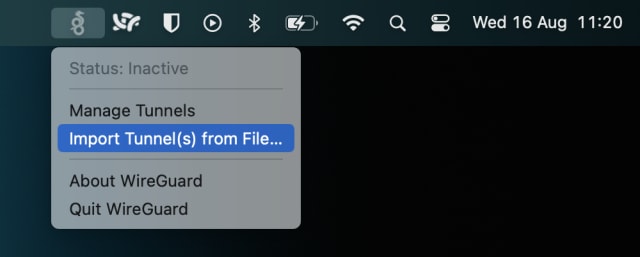
4. 选择您在第 2 步中下载的 WireGuard 配置文件 (.conf) → 导入。在确认对话框中,点击允许。

5. 确保您刚刚下载的配置已被选中,然后点击激活。

您的隐私现在已由 Proton VPN 保护!要管理您的 WireGuard 隧道,请点击 macOS 菜单栏中的 WireGuard 图标 → Manage Tunnels。点击+,按照上述步骤添加任意数量的 WireGuard 配置

访问我们的免费安全 IP 扫描器以确认 VPN 连接是否正常工作。
