


How to set up Proton VPN on Apple TV
- Reading
- 3 mins
- Category
- Proton VPN apps
This guide shows you how to install the Proton VPN app on your Apple TV, sign in, and connect to a server.
The Proton VPN app for Apple TV is available to everyone with a paid Proton VPN subscription. In most cases, you’ll also need an account with the streaming service you wish to watch. Note that so you’ll need an Apple TV running tvOS 17+.
How to set up Proton VPN on Apple TV
To install Proton VPN on your Apple TV:
1. Open the App Store app, search for Proton VPN, and select Get to download the app.
2. Launch Proton VPN from your Home Screen.
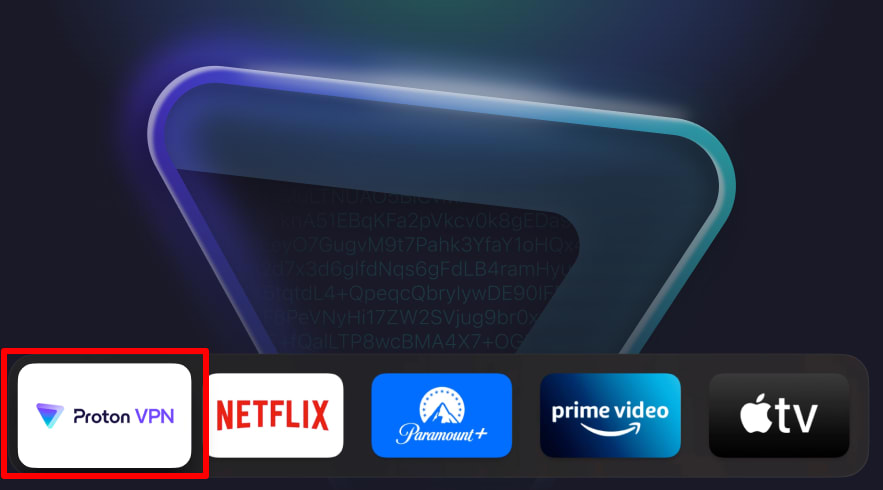
3. Follow the instructions on your TV screen, and click Agree and continue when prompted.
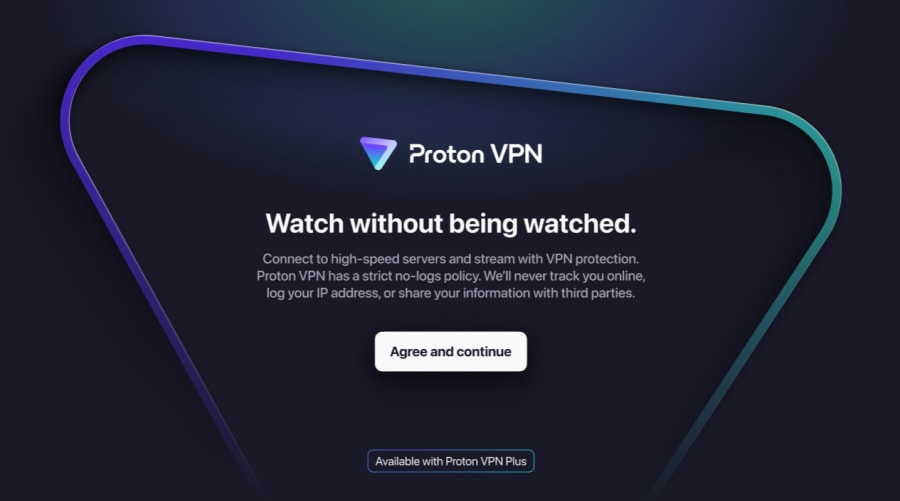
4. A code will be displayed on your TV screen.
5. In a browser on another device, go to protonvpn.com/appletv(new window) and sign in with your Proton Account username and password.
6. Enter enter the code displayed on your TV when prompted.
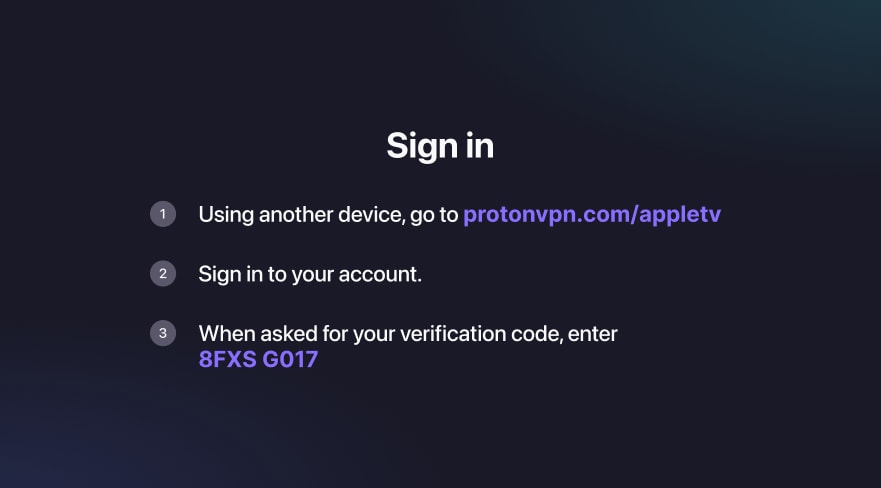
Once you have verified the code, you can start using Proton VPN to watch your favorite content.
How to connect to a server
Use your remote to select a country, or select Fastest country to automatically connect to the fastest server for your location.
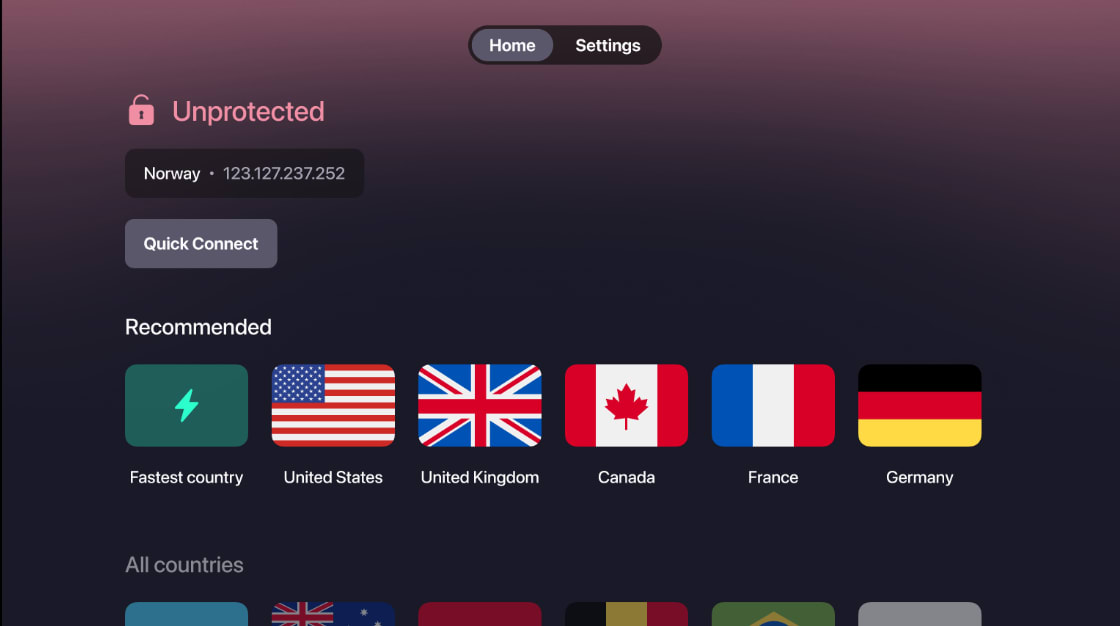
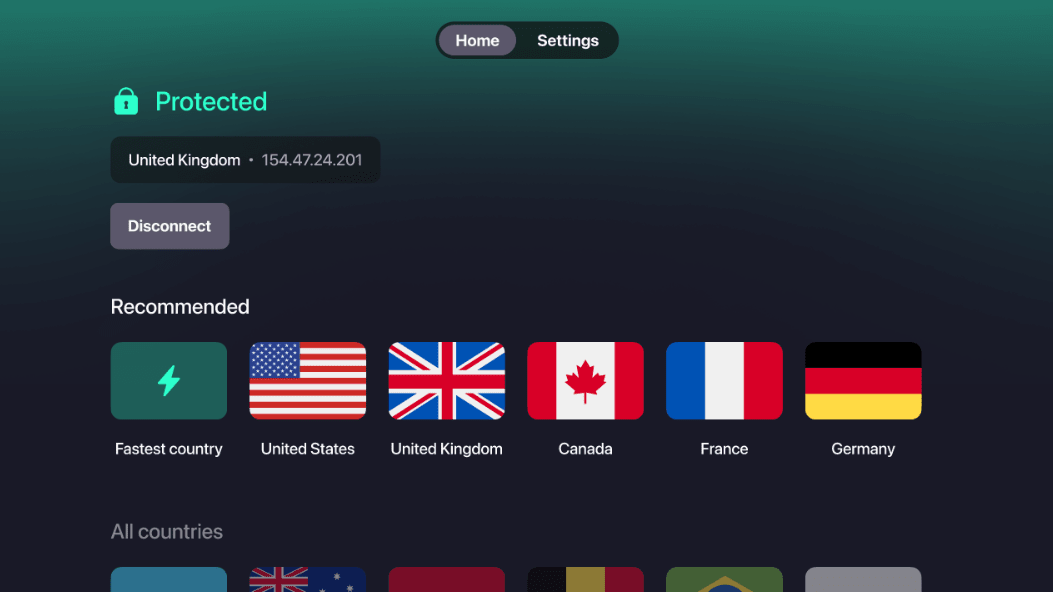
To connect to a particular city (where supported), long press on any country to see all available locations and select the one you want.

If you’re having issues with Apple TV streaming while connected to Proton VPN, visit our streaming troubleshooting guide for help.