


How to use Shortcuts with Proton VPN for iOS
- Reading
- 8 mins
- Category
- Proton VPN apps
Our iOS and iPadOS apps work with Apple Shortcuts. With Shortcuts, you can create one-tap actions, automate actions based on triggers, or run actions with Siri.
Custom Shortcuts
Shortcuts can be:
- Added to your Home screen for simple one-tap access
- Included as an Action during Automation
- Run using Siri
In the following example, we’ll create a Shortcut for connecting to a US server for streaming your favorite services while on vacation.
1. Create a new Shortcut
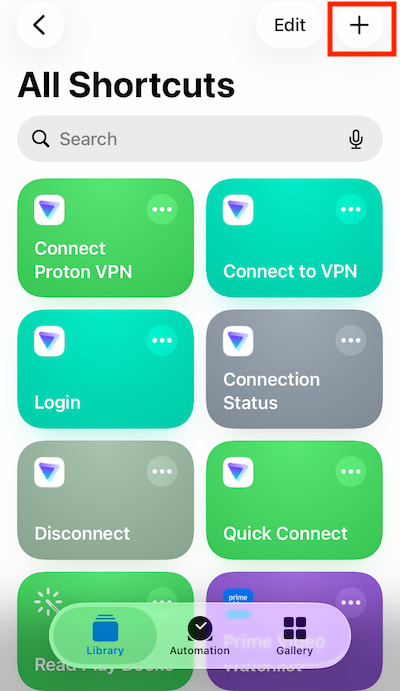
Open the Shortcuts app and tap the + icon.
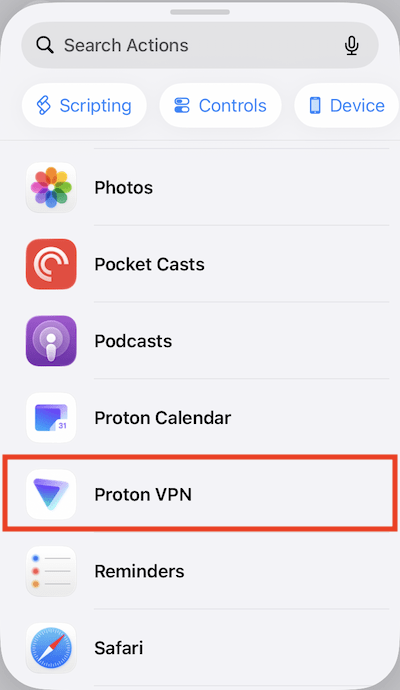
Scroll down your apps and select Proton VPN.
2. Add an action
Select the Connect to region action.

3. Configure the action
Tap on the variables and select options from the menu.
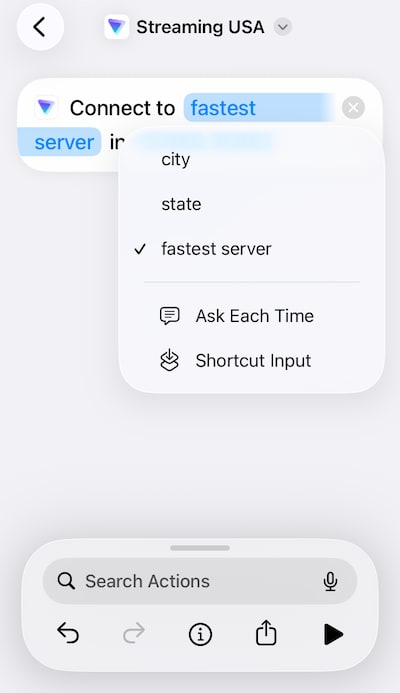
In our example, we want to connect to the fastest server in the United States.

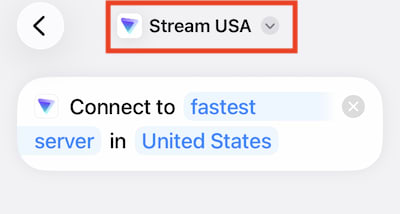
Tap the Shortcut’s title to rename it and change its icon. The title is also the command that Siri will respond to (so for this example, you would say “Hey Siri, Stream USA”).
5. Test your shortcut
Tap the Play (▶) button.

More examples
Connect to a UK server and automatically open the BBC iPlayer app
You can add multiple Actions to build complex Shortcuts. New Actions appear at the bottom of the Actions list. To re-order them, Long-press on an Action to drag-and-drop it to the desired position in the logic flow.
Action 1: Connect to fastest server in United Kingdom.
Action 2: Open BBC iPlayer (Tap the Search Actions field → Open App → BBC iPlayer)

Disconnect me from Proton VPN
This example shows how you can use the get connection status. Action to build complex shortcuts.
Action 1: Proton VPN → Get connection status.
Action 2: If Connected → Disconnect from VPN → Speak “Disconnected from VPN”.
Action 3: Otherwise → Speak “You’re not connected to Proton VPN”.
Siri voice commands
You can ask Siri(new window) to trigger a number of actions related to Proton VPN. These include:
1. Connect to VPN
Ask Siri to:
- Connect Proton VPN
- Connect with Proton VPN
- Protect me Proton VPN
- Connect to Proton VPN
- Start Proton VPN
- Proton VPN connect
Connect to a specific country, city, or state
Ask Siri to:
- Connect to [country] with Proton VPN
- Connect to [city] with Proton VPN
- Connect to [state] with Proton VPN
- Connect Proton VPN to [country]
- Connect Proton VPN to [city]
- Connect Proton VPN to [state]
Disconnect from VPN
Ask Siri to:
- Disconnect Proton VPN
- Disconnect from Proton VPN
- Turn off Proton VPN
- Proton VPN disconnect
Get connection status
Ask Siri to:
- Am I protected by Proton VPN
- Is Proton VPN connected
- Proton VPN status
- Show Proton VPN status
Run a custom Shortcut
Use your Shortcut titles as Siri commands.
Automations
Automations are Shortcuts that run automatically when a specific trigger happens. Think of them as: When [trigger] happens → automatically do [action].
In the following example, we’ll create an Automation for automatically connecting to the best Proton VPN server for your location when you leave home.
How to create an Automation
1. Open Automations.
Open the Shortcuts app, go to the Automations tab, and select New Automation (or + icon to the top right if you’ve already created custom Automations).

2. Create a Trigger.
This is the event that starts the Automation.
Select the Wi-Fi trigger.
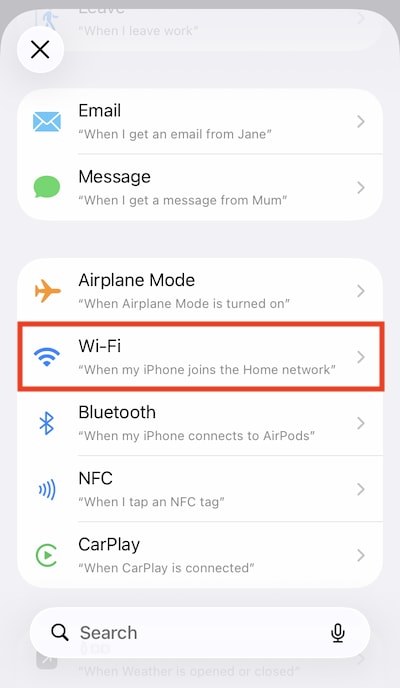
3. Configure your Trigger settings.
- Tap Network and select your home WiFi network from the list.
- Select Is Disconnected (so the action is triggered when you leave your home WiFi network).
- Select Run immediately for full automation (rather than asking for conformation each time)
- Select Next.
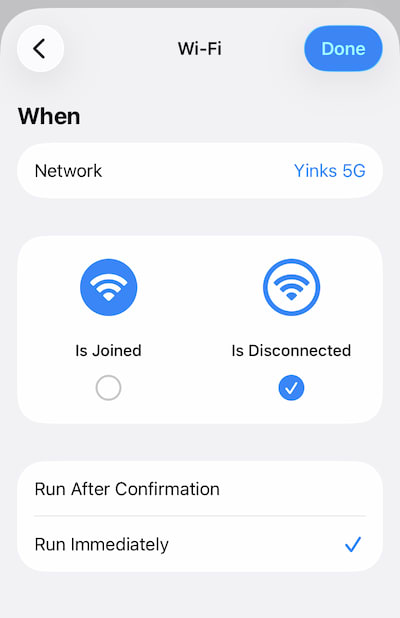
4. Add an Action. These are what your iPhone does when the trigger happens. Actions can include using custom Shortcuts that you’ve created. You can stack multiple actions in sequence.
Go to My Shortcuts to see the full list of available action shortcuts.

Select the Proton VPN Quick Connect shortcut and tap Done.

Your Automation is now created and can be viewed in the Shortcuts → Automations tab.
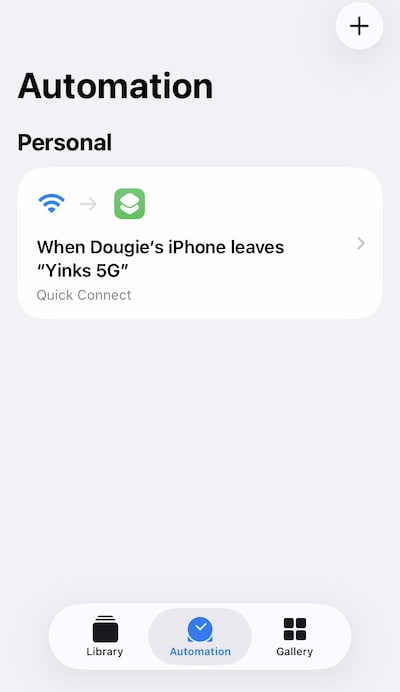
Note that your device must be unlocked for Automation Actions to run. A workaround for this is to configure the Automation to Run After Confirmation, which will prompt you to unlock your device so the Actions can run.
More examples
Auto-disconnect from Proton VPN when you connect to a network where protection is provided at the router level:
- Trigger: Wi-Fi
- Trigger settings: Is Joined, Run Immediately
- Action: Disconnect
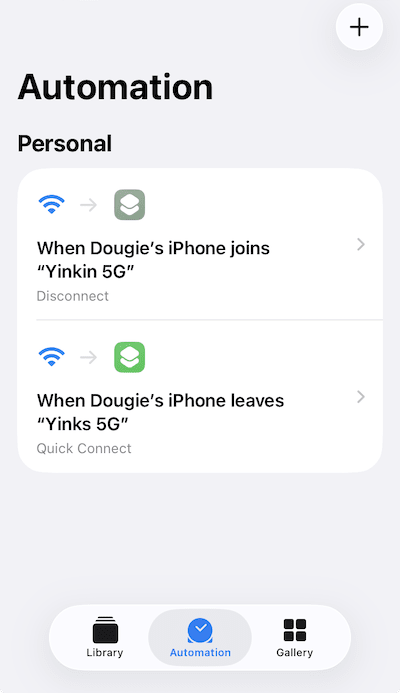
How to add a Shortcut to your Home screen
1. Open the Shortcuts app and go to the Library tab.
2. Locate your Shortcut and long-press it.
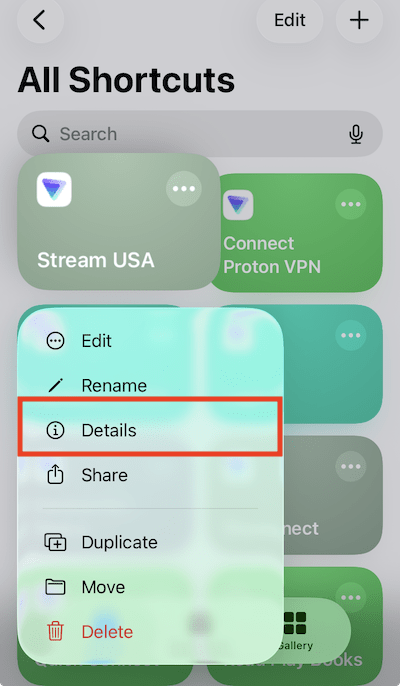
- Tap Add to Home Screen.

You can now run your Shortcut from your Home screen with one tap.

Troubleshooting
Siri doesn’t recognize commands
- Make sure Siri is on(new window).
- Currently, Proton VPN’s Siri commands are English-only. Commands in other languages may not work.
- For the Connect to region command to work, you must first sign-in to the app, close it, and then open it again. You need do this only once.
- We’re investigating an issue where older iPads fail to recognize our Siri commands.
Can’t connect to a specific region
You need a paid Proton VPN plan to connect to a specific country, city, or state.
Technical limitations with iOS mean we can’t simply remove the Connect to Region Actions for people on Proton. Choose the Connect to VPN Action instead.