


如何在 iOS 上将 Proton VPN 与 OpenVPN Connect 配合使用
- 阅读
- 1 分钟
- 类别
- iOS
Our app for iOS and iPadOS allows you to choose between the WireGuard®, WireGuard TCP, and Stealth VPN protocols (Stealth is based on WireGuard). If enabled, Smart Protocol will choose the best option for you.
我们强烈建议您在 iPhone 或 iPad 上使用我们的 iOS/iPad 应用。 它提供了连接到我们服务器的最简便方式,并让您能够享受 Proton VPN 的众多高级功能。例如:
- 终止开关
- WireGuard、WireGuard TCP 和 Stealth VPN 协议
- Smart Protocol
- DNS 泄露保护(新窗口)
- NetShield 广告屏蔽器
- 中等 NAT
- VPN Accelerator
- iOS 小组件
获取适用于 iPhone 和 iPad 的 Proton VPN(新窗口)
在 Proton VPN,我们建议使用 WireGuard 而非 OpenVPN,但您也可以使用 OpenVPN Connect 应用在 iPhone 或 iPad 上手动配置 OpenVPN。 本文将向您介绍具体操作方法。
如何在 iOS 和 iPadOS 上手动配置 OpenVPN
要在 iPhone 或 iPad 上手动配置 OpenVPN:
- 查找您的 OpenVPN 登录凭证
- 将所需的 OpenVPN 配置文件下载到您的设备
- 使用下载的配置文件配置 OpenVPN Connect
查找您的 OpenVPN 登录凭证
Your OpenVPN username and password are different to your Proton VPN account username or password. To find them, log in to account.protonvpn.com and go to ≡(if on an iPhone) → Account→ Username→ OpenVPN username.
If you would like to use our NetShield DNS filtering feature, append the suffix +f1 to your username to block malware, or +f2 to block malware, ads, and trackers (for example, 123456789+f2).
下载所需的 OpenVPN 配置文件
On your iPhone or iPad, log in to account.protonvpn.com and go to ≡(if on an iPhone) → Downloads→ OpenVPN configuration files. Then:
1. 选择平台(选择 iOS)
2. 选择协议。在 OpenVPN UDP 或 OpenVPN TCP 之间进行选择。UDP 速度更快,建议在大多数情况下使用;而 TCP 更为可靠,可以绕过某些审查措施。
3. Select config file and download. Select the type of config file you wish to download. The list of available files will dynamically change based on the type you select. Tap the Action→ Download button next to the specific config file you want.
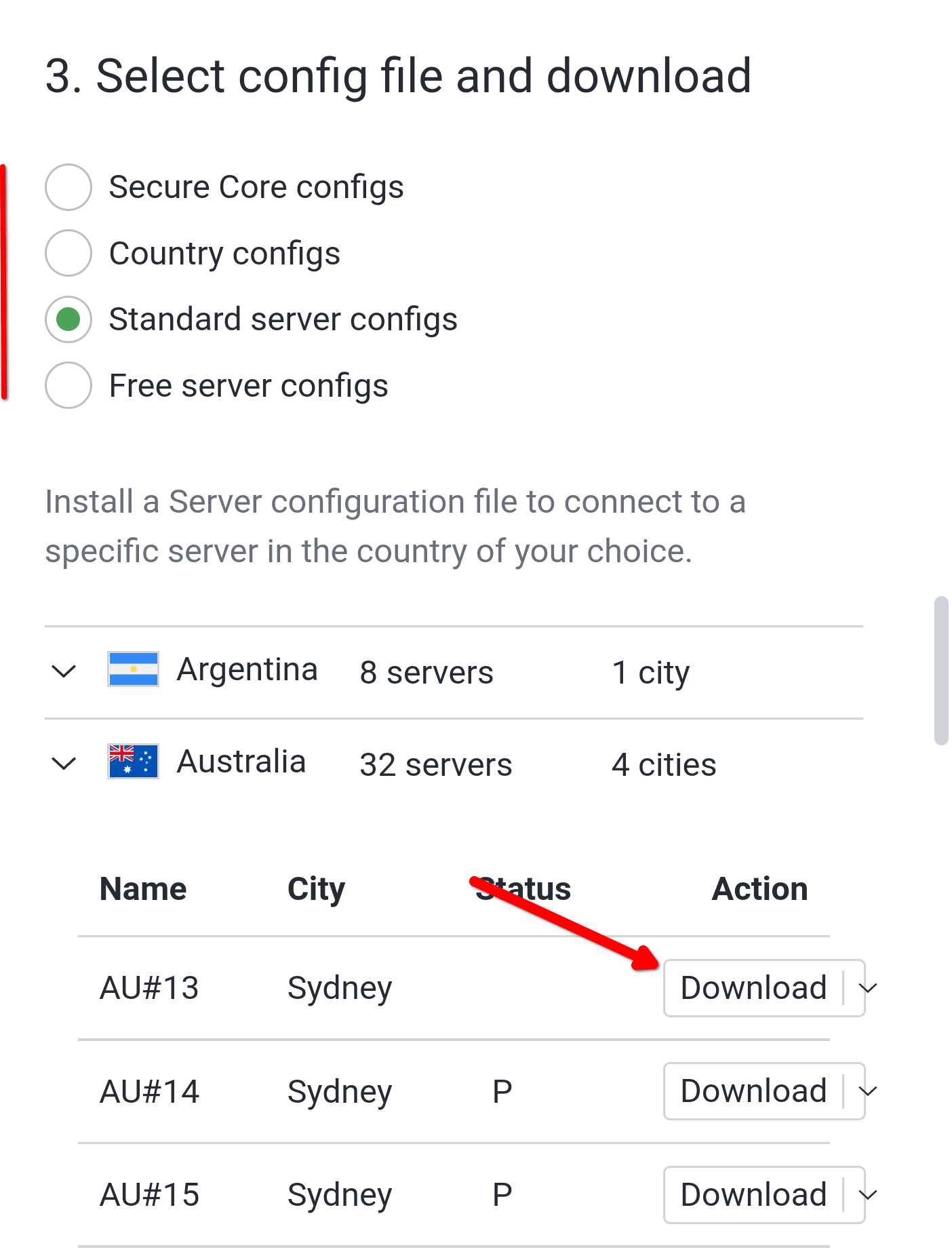
- Secure Core — 我们特别的 Secure Core VPN 服务器。请选择出口位置以及您的连接将要路由经过的 Secure Core 服务器(via)。
- 国家/地区 — 系统会自动将您连接到所选国家/地区的服务器。
- 标准服务器 — 指定单个服务器,按国家/地区排序。在 Status 列中,Plus 服务器标有 P,P2P 服务器标有双箭头图标,而 Tor 服务器 标有洋葱图标。
- 免费服务器 — 供我们的 Free 套餐用户使用的服务器。
使用 OpenVPN Connect 设置 Proton VPN
1. 从 App Store 下载 OpenVPN Connect(新窗口)。
2. 打开 iOS Files 应用 → Downloads 文件夹,选择刚下载的 .ovpn config file,并将其分享给 OpenVPN 应用。
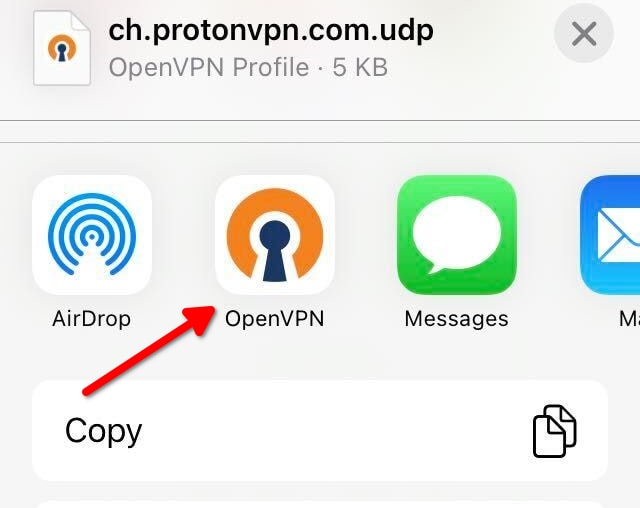
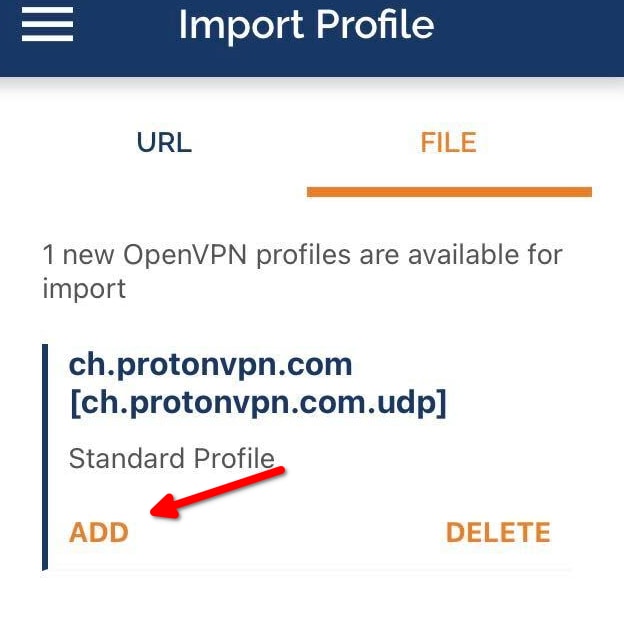
3. OpenVPN Connect 将会打开,并告知您有一个新的 OpenVPN 配置文件可供导入。轻点 Add 将其导入。
4. 填写所导入配置文件的详细信息:
- 配置文件名称 — 您可以保留原样,也可以重命名为更易于识别的名称(例如 Proton VPN 瑞士)
- 用户名 — 您的 OpenVPN 用户名(并非您的帐户用户名 — 请参见上文)
- 保存密码 — 您的 OpenVPN 密码(并非您的帐户密码)。Proton VPN 的 OpenVPN 密码非常安全(也就是说很长),因此我们建议您勾选此选项并输入密码,以便您每次都能轻松登录。
- 导入后连接 — 顾名思义(至少在理论上是如此)
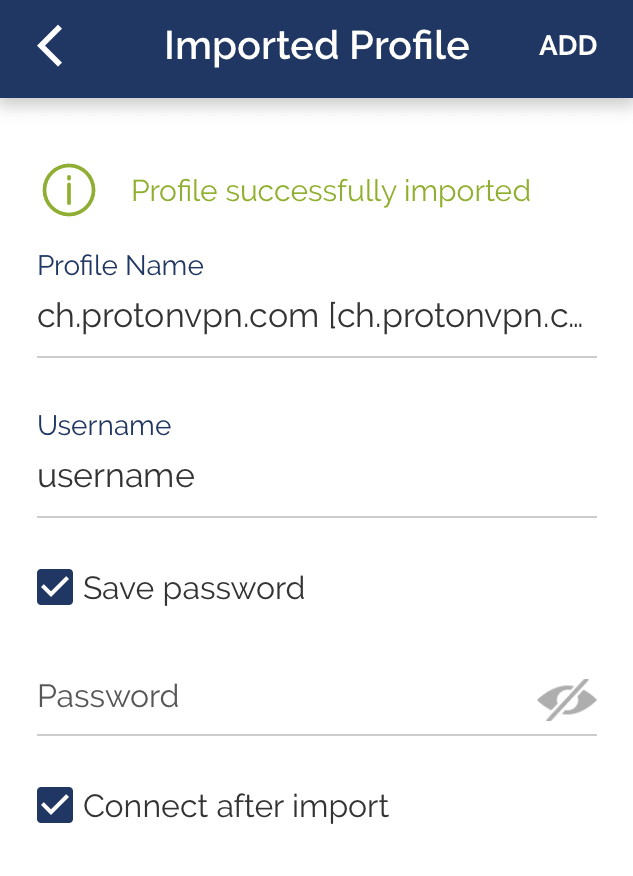
完成后轻点 Add,允许 OpenVPN 添加 VPN 配置,并使用生物识别功能确认您的身份。
5. 如果应用在导入后(或在其他任何时间)未自动连接,请将刚导入的配置文件的开关切换为开启,并在收到提示时轻点 Yes 以允许 OpenVPN 启用 VPN 连接。您只需执行此操作一次。
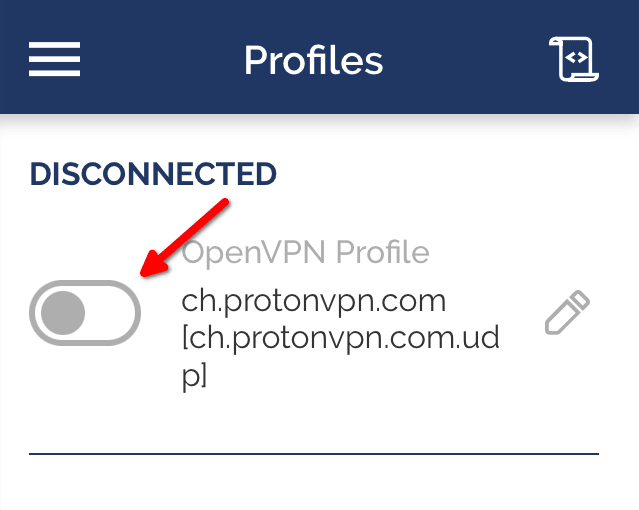
要断开 Proton VPN,请选择您当前正在使用的连接,并将开关关闭。
相关文章