


P2P(peer-to-peer)服务器
- 阅读
- 1 分钟
- 类别
- 开始使用
Proton VPN 的 P2P 服务器支持点对点文件共享。这意味着您可以在不向共享相同文件的人显示真实 IP 地址的情况下进行 BT 下载。了解更多关于 BT 下载的信息
| 套餐 | 平台 |
| 适用于所有 Proton VPN 付费套餐。获取 Plus | Windows、macOS、Android、Linux |
注意:我们的 iPhone 和 iPad 应用也提供 P2P 服务器。但是,iOS App Store 目前不允许使用 BT 客户端应用。
本文内容
P2P 的工作原理
Proton VPN 的 P2P 服务器经过专门配置,可支持点对点流量,包括 BitTorrent 连接。
当您连接到 P2P 服务器时,您的种子下载流量会经过 VPN 服务器。下载和分享相同文件的其他人看到的是 VPN 服务器的 IP 地址,而不是您的真实 IP 地址
在 Proton VPN 应用中,P2P 服务器标有 ⇄ 图标。
连接到 P2P 服务器
Windows 和 Android
1. 打开 Proton VPN。
2. 前往 Countries,然后选择 P2P 标签页。
3. 连接到列表中的国家/地区、城市或服务器。
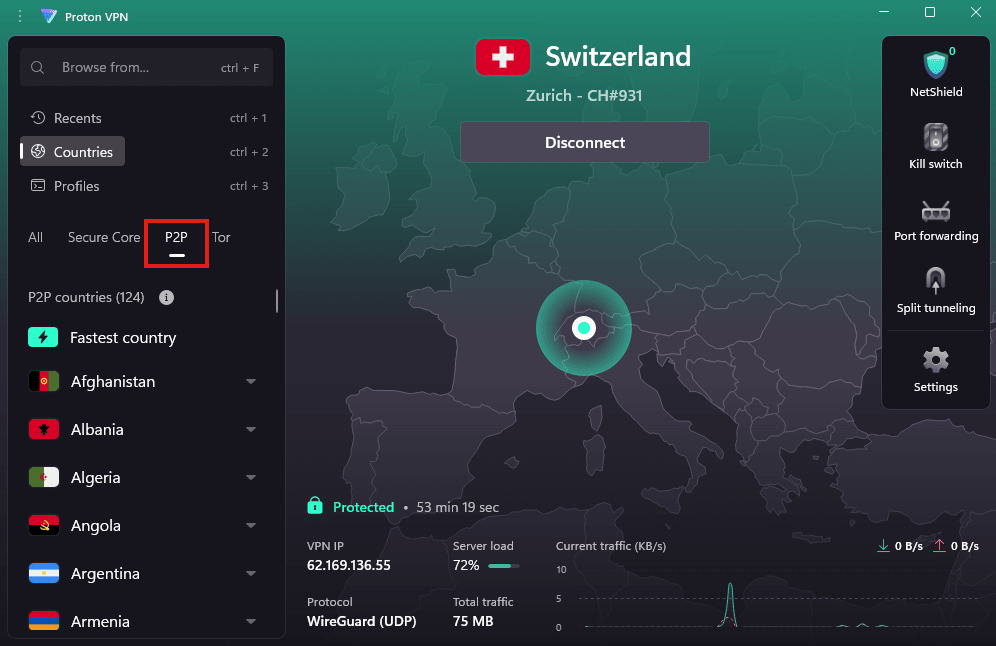
您现已连接到 P2P 服务器,可以安全地进行 BT 下载。
macOS 和 Linux
1. 打开 Proton VPN 并前往 Countries。
2. 连接到任何标有 P2P 图标(⇄)的国家/地区、城市或服务器。

您现已连接到 P2P 服务器,可以安全地进行 BT 下载。
将种子流量绑定到 Proton VPN
某些 BitTorrent 应用(如 qBittorrent 和 Vuze)允许您将种子流量绑定到 Proton VPN,使其仅在连接到 VPN 时才能工作。绑定可防止种子流量在 VPN 连接之外被发送或接收
只有在 BT 客户端设置中选择了正确的连接,此功能才会生效。如果选择常规互联网连接而不是 Proton VPN,即使已启用终止开关,也可能会在进行 BT 下载时暴露真实 IP 地址
如何将 BitTorrent 客户端绑定到 Proton VPN
以下说明以 qBittorrent 为例作为种子客户端,但绑定功能适用于任何支持 Network interface 设置的 BitTorrent 客户端。
注意:qBittorrent 使用一项名为 Network interface 的设置来控制种子流量使用哪个连接。默认情况下,该设置为 Any interface,这意味着 qBittorrent 不局限于 Proton VPN。为防止 IP 泄露,请在 Network interface 设置中选择 Proton VPN 接口。
Windows
1. 打开 Proton VPN 并连接到任意服务器。
2. 记下 VPN 协议。

3. 打开 qBittorrent,前往 Tools → Options… → Advanced → Network interface。
4. 选择:
- 如果您使用的是 OpenVPN,请选择 ProtonVPN TUN
- 如果您使用的是 WireGuard® 或 Stealth,请选择 ProtonVPN
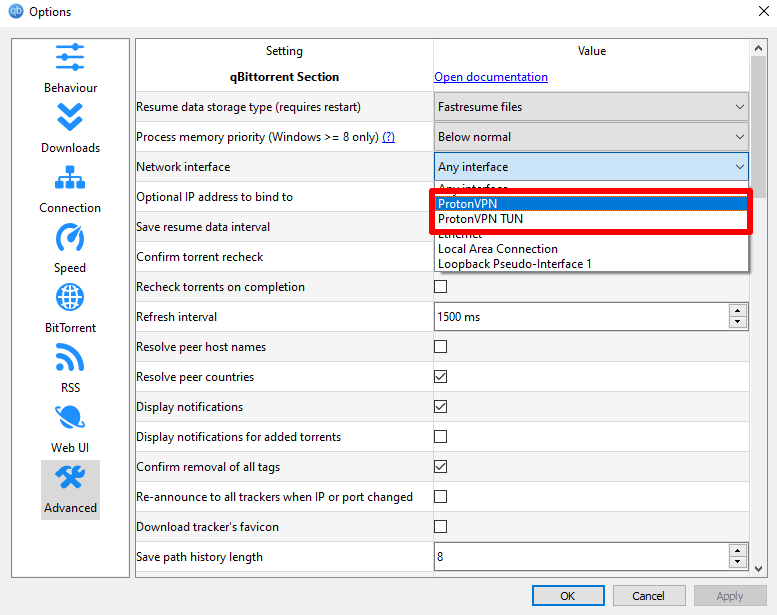
5. 点击 OK。
注意:如果您更改 VPN 协议,则还需要更新 qBittorrent 中的 Network interface 设置
macOS
1. 断开 Proton VPN 连接。
2. 打开终端并输入:
ifconfig
请保持此终端窗口处于打开状态。
3. 打开 Proton VPN 并连接到任意服务器。
4. 打开一个新的终端窗口并输入:
ifconfig
5. 比较连接 Proton VPN 前后终端的输出。查找仅在连接到 Proton VPN 时才出现的新接口。这就是 Proton VPN 接口
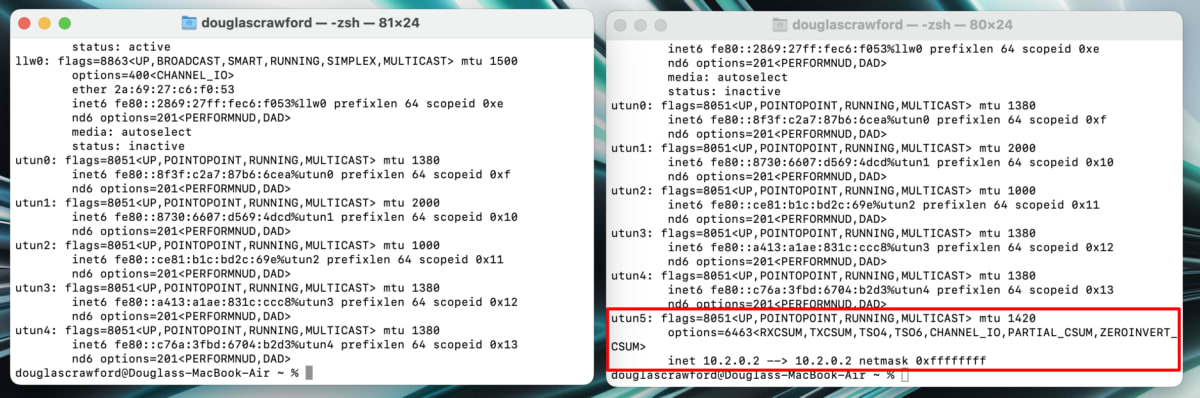
在上面的示例中,VPN 接口名为 utun5。
6. 打开 qBittorrent,前往菜单栏 → qBittorrent → Preferences → Advanced → Network interface
7. 在下拉菜单中,选择在步骤 5 中确定的接口。
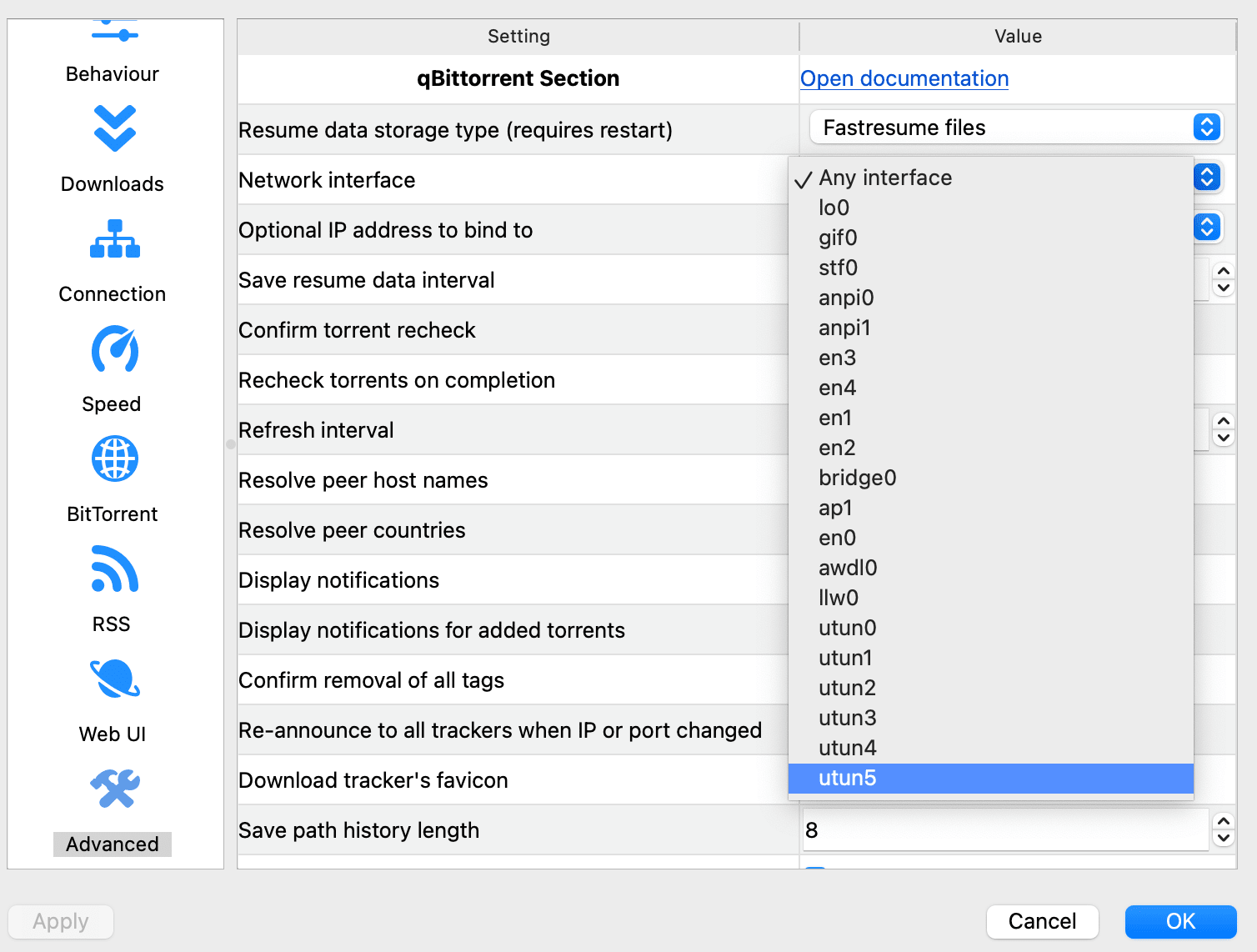
8. 点击 OK。
请注意,如果您更改 VPN 协议,则还需要在 qBittorrent 中重新更改 Network interface 设置。
Linux
1. 连接到 Proton VPN。
2. 打开 qBittorrent,前往 Tools → Preferences → Advanced → Network interface
3. 选择:
- 如果您使用的是 OpenVPN,请选择 tun0
- 如果您使用的是 WireGuard®,请选择 proton0
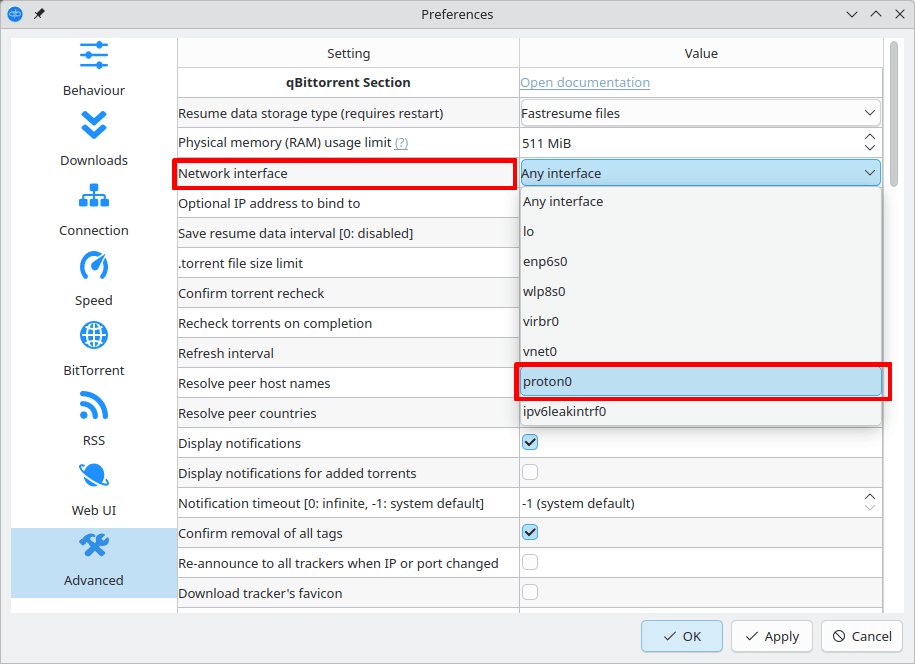
4. 点击 OK。
注意:如果您更改 VPN 协议,则还需要更新 qBittorrent 中的 Network interface 设置。