Profiles
- Reading
- 13 mins
If you regularly use the same Proton VPN settings, you can save them as a connection profile for easier access. With a profile, you can define your location, protocol, and a range of other VPN settings depending on what device you’re using.
Plans
VPN Plus, Proton Unlimited(new window), and all other paid Proton VPN plans.
Platforms
Windows, macOS, iOS and iPadOS Android, Linux
In this article:
Windows
Create a profile
1. Open Proton VPN and go to the Profiles tab.
2. Click + New profile.

3. Give your profile a name and select an icon from the dropdown menu.

4. Select a connection type: Standard, Secure Core, P2P, or Gateway (for organization users).
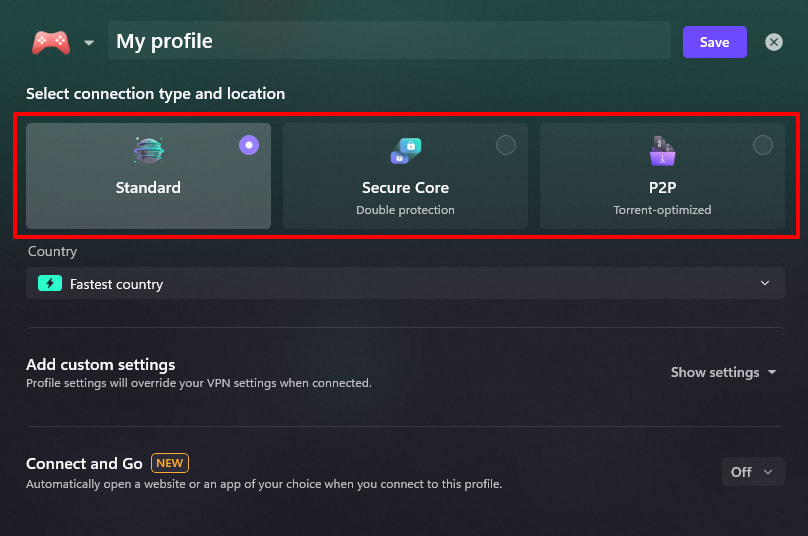
5. Select a location (optional).
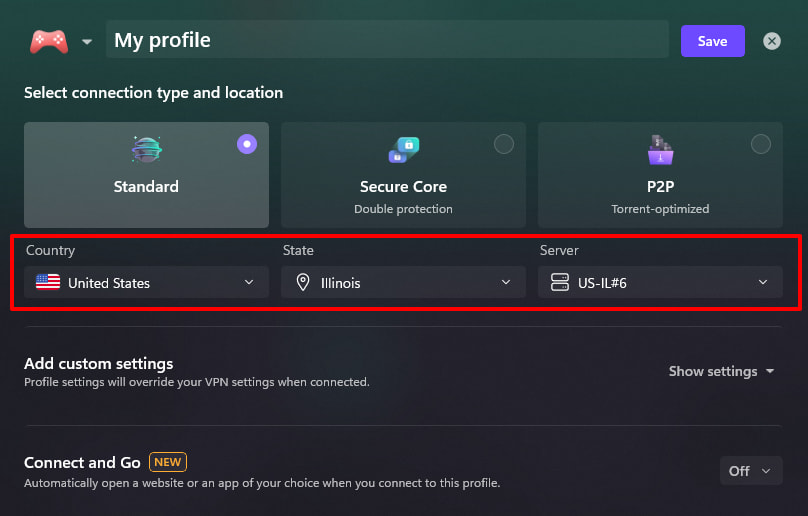
- Standard and P2P connections: Select a Country, City or State, and Server.
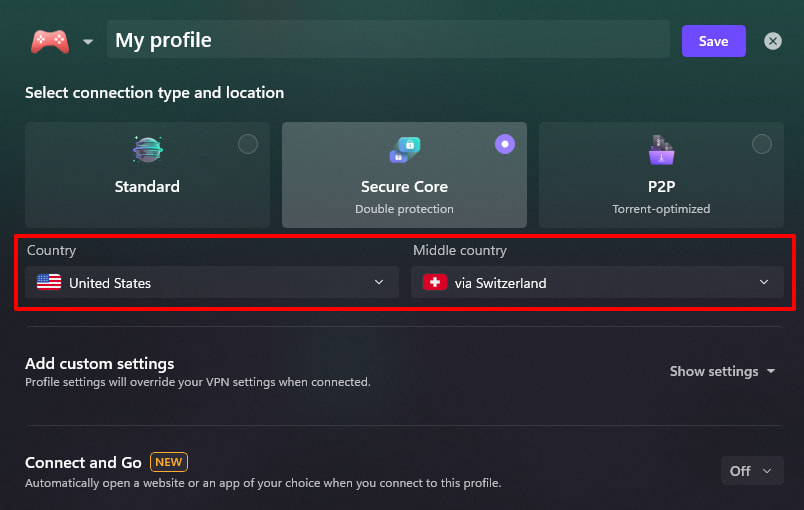
- Secure Core connections: Select a destination Country and a Middle country.
- If you’re part of a Proton VPN organization with Gateways, you can select a Gateway and a dedicated server within that Gateway.
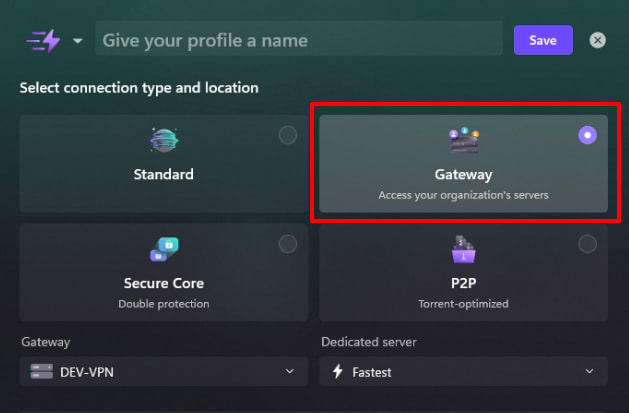
If you don’t select a location, you’ll be connected to the fastest server in your selection. This also applies at the country, city, and Gateway level. For example:
- If you select France but you don’t specify a city, your profile will connect to the fastest French server.
- If you select France and Paris but you don’t specify a server, your profile will connect to the fastest server in Paris.
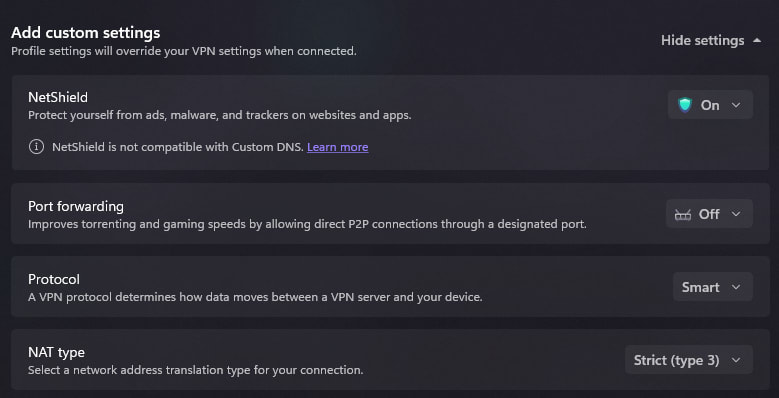
6. Add custom settings (optional)
Click Show settings (under Add custom settings) to configure:
7. Configure Connect and Go (optional)
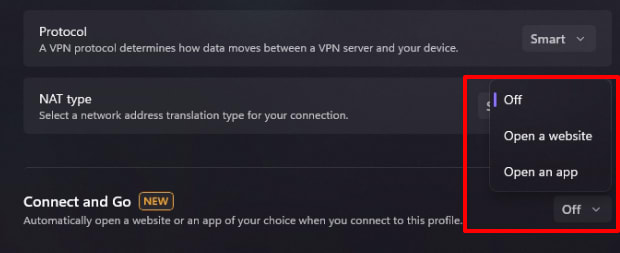
This feature automatically opens a website or app when you connect to your profile.
To add a website:
- Click Off.
- Select Open a website from the dropdown menu.
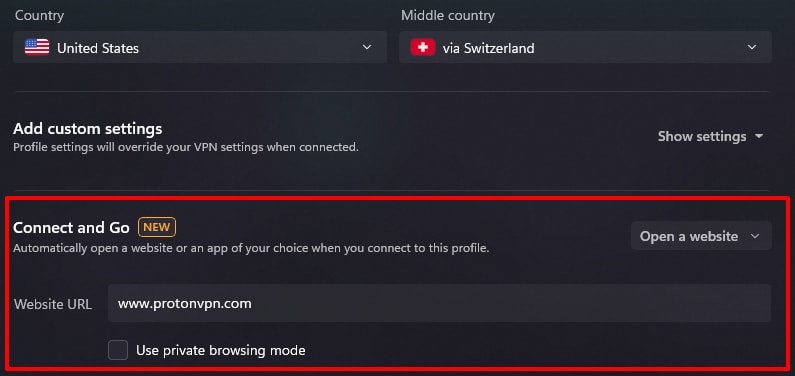
- Enter the URL of the website you want to open.
- To open the website in private browsing (Incognito) mode, check Use private browsing mode.
To open an app:
- Click Off
- Select Open an app from the dropdown menu.
- Click App and select the app you want to open.

Click Save Profile when you’re done.
Connect to a profile
- Open Proton VPN and click the Profiles tab.
- Click on a profile to connect to it.

Recently used profiles are shown in the Recents tab. You can also Pin a profile to keep it in Recents.
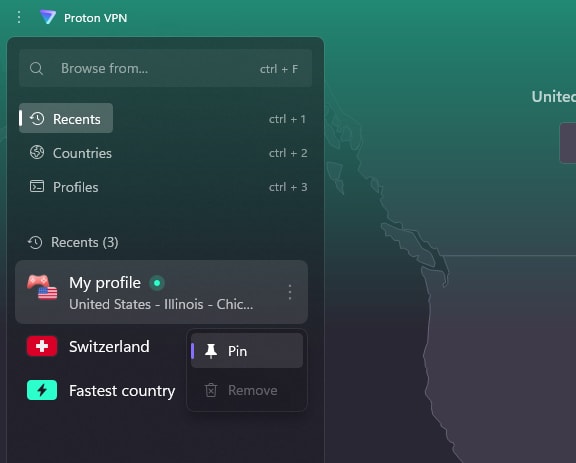
Learn more about how to use the Proton VPN Windows app
Manage profiles
- Open Proton VPN and go to the Profiles tab.
- Find the profile you want to make changes to and click the 3 dots (⋮).
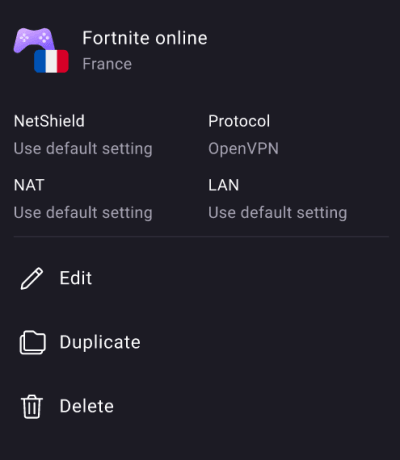
- From here you can Edit, Duplicate, or Delete your profile.

macOS
Create a profile
1. Open Proton VPN. Go to the Profiles tab and click Create Profile.
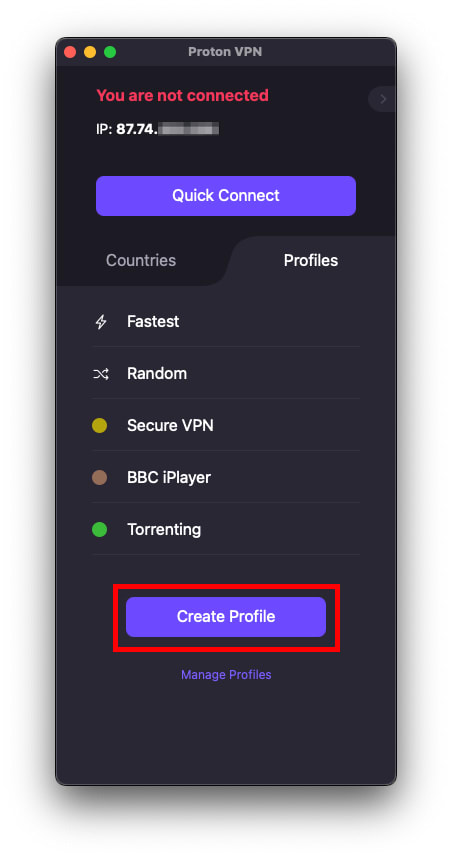
2. Give your profile a name and select a color to help identify it.
3. Customize your connection from the following options:
- Feature: Select a connection type from Standard, Secure Core, P2P, or Tor
- Country: Select a country from the list.
- Server: Fastest, Random, or a particular server. For Secure Core profiles, you can also select a middle country for your connection to route through.
- Protocol
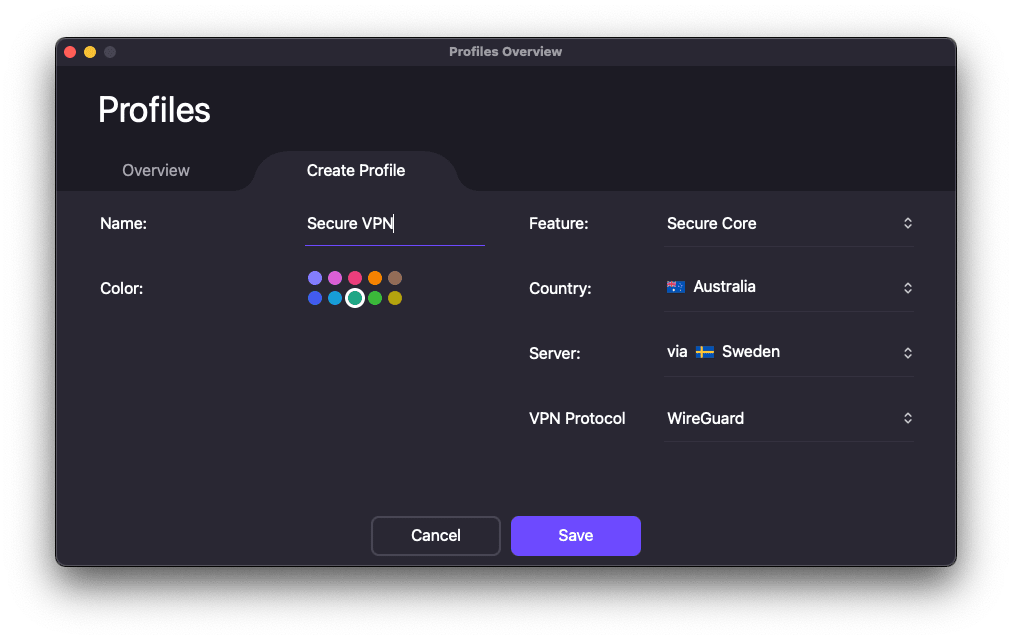
4. Click Save.
Connect to a profile
- Open Proton VPN and go to the Profiles tab.
- Find the profile you want to connect to and click Connect.

Manage profiles
- Open Proton VPN and go to the Profiles tab.
- Click Manage profiles.
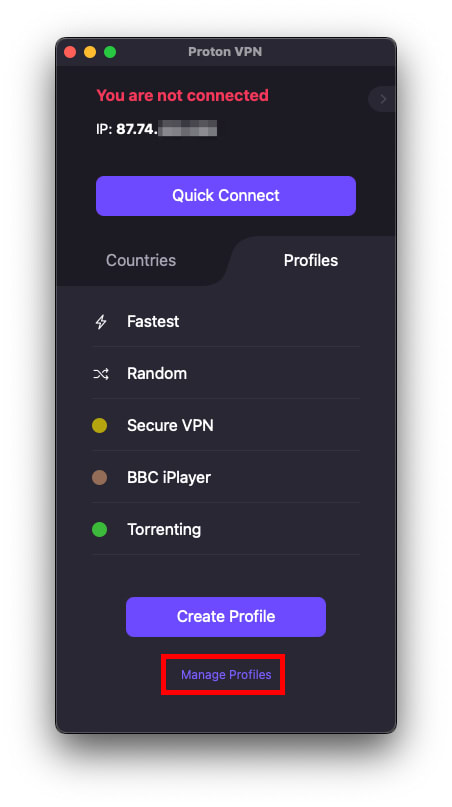
3. Find the profile you want to manage. From here, you can Edit or Delete the profile.

Close the window when you’re done.
Android
Create a profile
- Open Proton VPN and go to the Profiles tab.
- Tap Create profile.
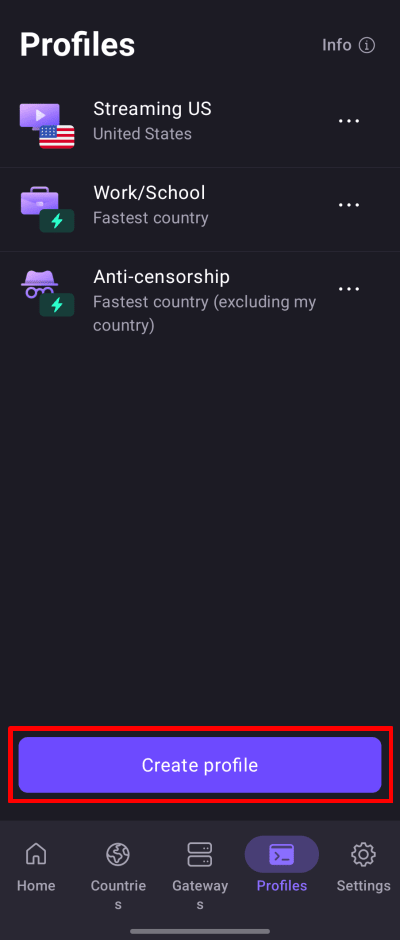
3. Give your profile a name, then select a color and icon. Tap Next.
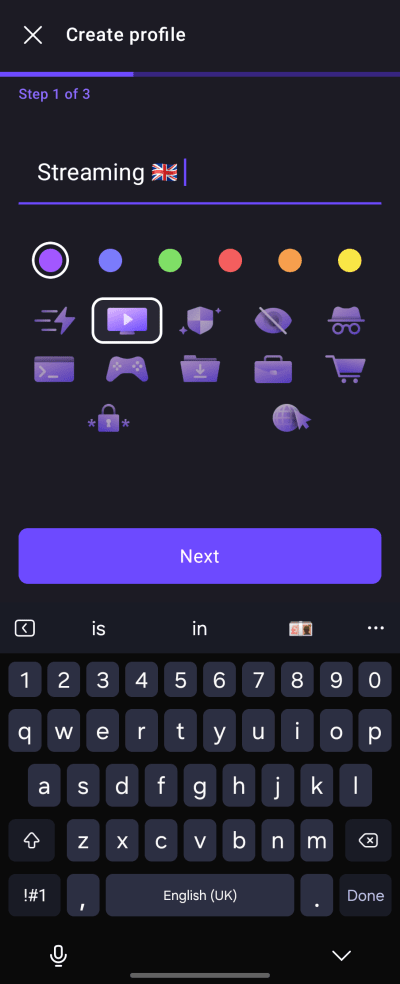
4. Select a location and connection type:
- Connection type: Standard, Secure Core, P2P, or Tor
- Location: You can select a country, city, and server. If you don’t select a city or server, you’ll be connected to the fastest one.
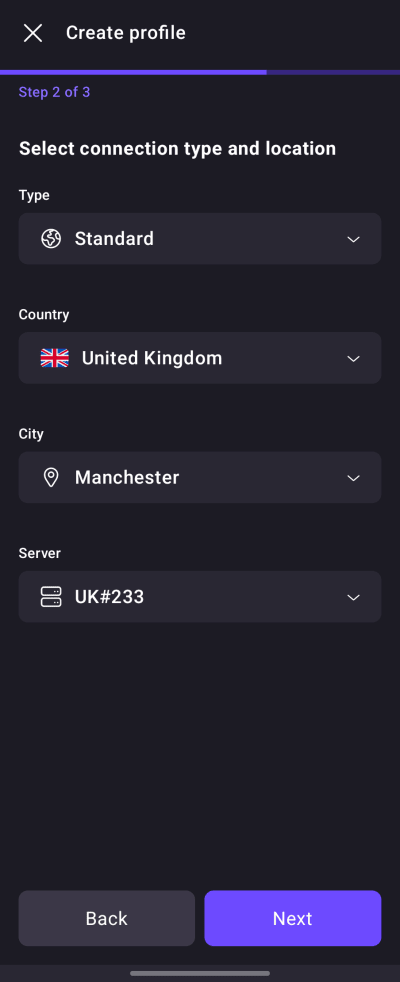
- Secure Core profiles: Select a (destination) country. The app will automatically select a Middle country (Switzerland, Sweden, and Iceland). Some destination countries have more than 1 middle country available. If so, you can change it.

- If you’re part of a Proton VPN organization that has Gateways, you can also select the Gateway and dedicated server. If you don’t select a server, you’ll be connected to the fastest one.
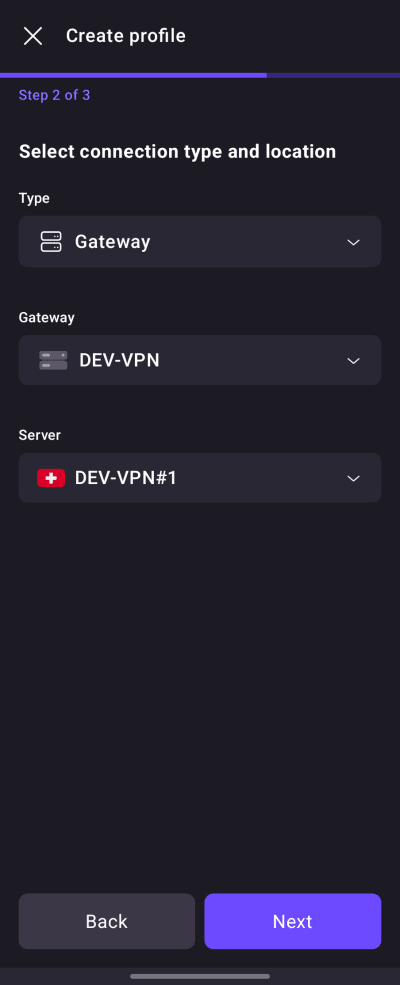
Tap Next when you’re done.
5. Customize VPN settings.

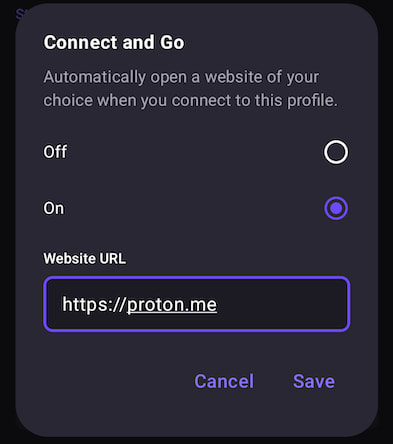
6. Configure Connect and Go (optional)
This feature automatically opens a website or app when you connect to your profile. To add a website:
- First, tap Off to open Connect and Go settings. An overlay will appear.
- Then select On to enable the feature.
- Enter the URL of the website you want to automatically open.
- Tap Save to confirm.
Tap Save to finish creating your new profile.
Connect to a profile
- Open Proton VPN and go to the Profiles tab.
- Tap the profile you want to connect to.

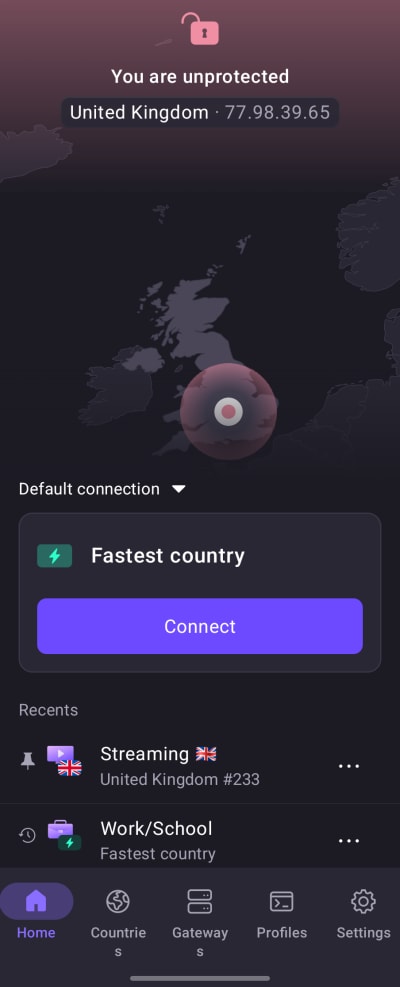
Recently used profiles are shown in the Recents section of the Home tab. You can also Pin a profile to keep it in Recents.
Learn more about how to use the Proton VPN Android app
Manage profiles
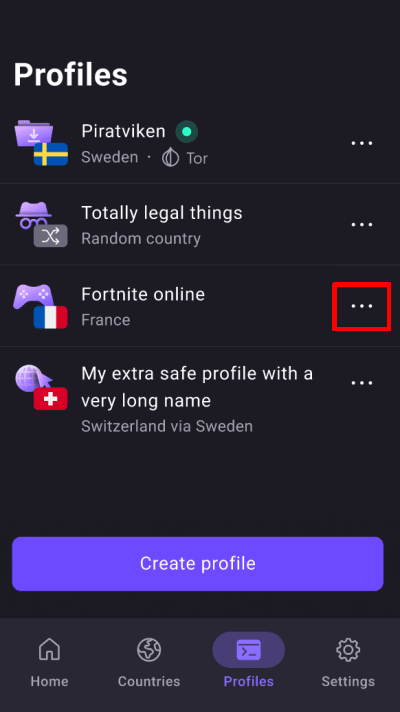
- Open Proton VPN and go to the Profiles tab.
- Find the profile you want to make changes to and tap the three dots (…).
3. From here you can Edit, Duplicate, or Delete the profile.
How to make a profile your default connection
- Connect to the profile so it shows in your Recents list, then disconnect.
- On the home screen, tap Default connection ⏷.
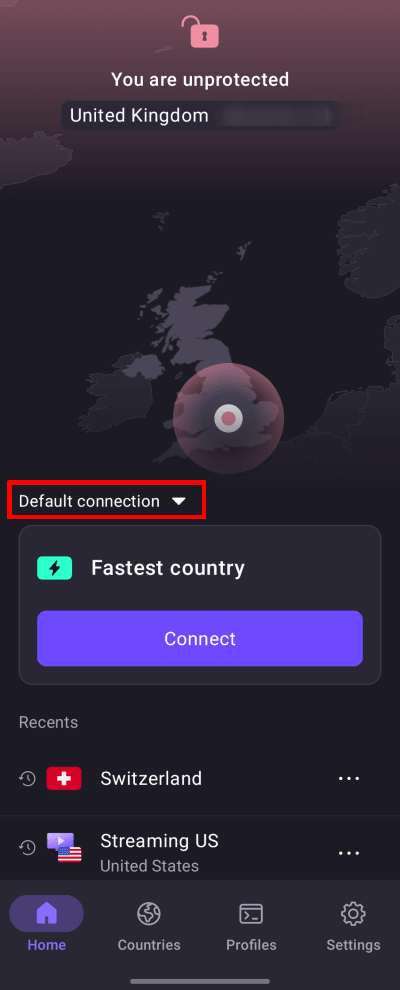
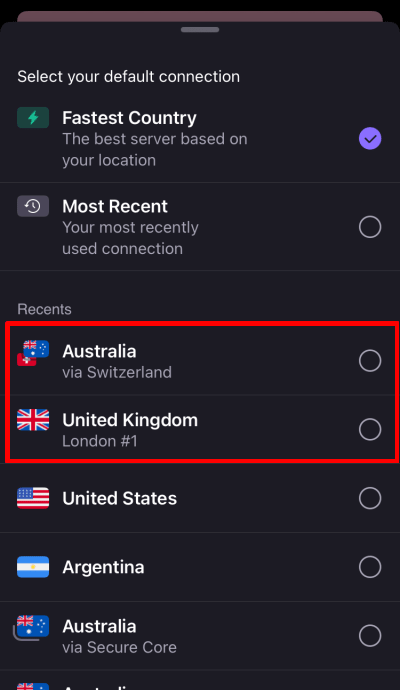
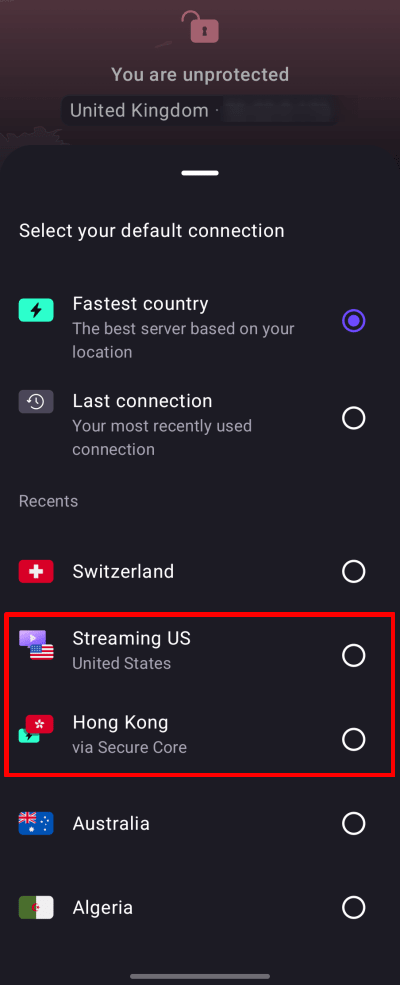
3. Scroll to Recents and tap the profile you want as your default connection.
iOS and iPadOS
Create a profile
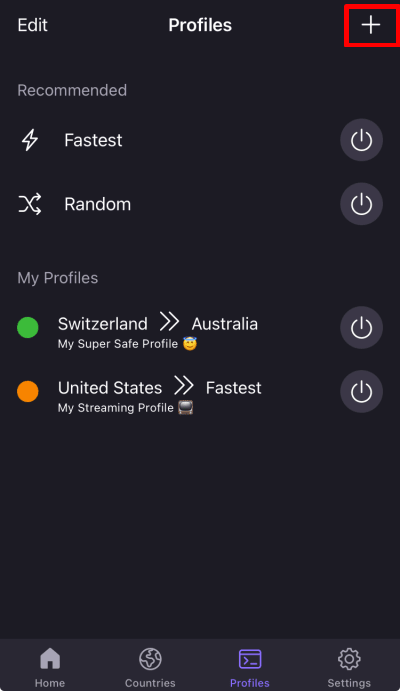
1. Open Proton VPN. Go to Profiles tab and tap + (Add profile).
2. Give your profile a name and choose a color to help identify it.
3. Customize your profile:
- Secure Core: Enable the Secure Core toggle to create a Secure Core profile.
- Country: Choice of more than 110 countries
- Server: Select Fastest, Random, or a particular server. For Secure Core profiles, you can also select a middle country.
- Protocol

4. Tap Save.
Connect to a profile
- Open Proton VPN and go to the Profiles tab.
- Find the profile you want to connect to and tap Connect (power button).
Recently used profiles are also shown in the Recents section of the Home tab. You can also Pin a profile to keep it in your Recents list.

Manage profiles
- Open Proton VPN and go to the Profiles tab.
- From here, you can:
- Edit a profile: tap Edit then select the profile you’d like to edit.
- Delete a profile: Swipe left on the profile and tap Delete.
How to make a profile your default connection
- Connect to the profile so it shows in your Recents list, then disconnect.
- On the home screen, tap Default connection ⏷.
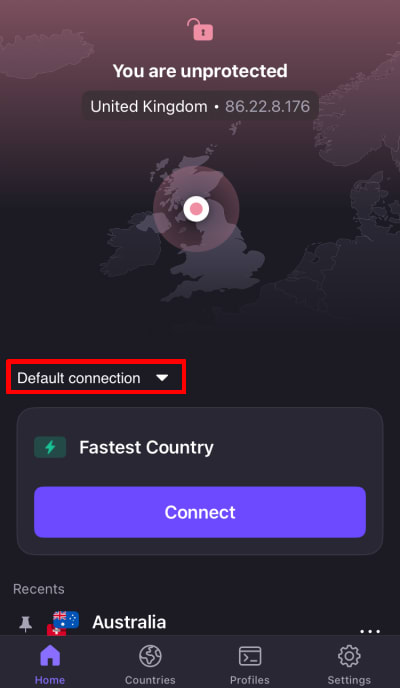
3. Scroll to Recents and select your profile.