


Kill switch
- Reading
- 5 mins
Kill switch protects your IP address and DNS activity by blocking all internet traffic on your device if your VPN connection drops.
Plans
All Proton VPN plans including Proton Free
Platforms
Windows, macOS, iOS and iPadOS Android, Linux
How it works
Kill switch is a security feature that stops your real IP address from being exposed to the internet.
If your VPN connection is lost, it blocks all internet traffic on your device until you’re reconnected. You won’t be able to use the Internet until Proton VPN reconnects, but your IP address and DNS queries are safe from being leaked to the open internet.
In most cases, kill switch also protects you while switching between different VPN servers.
- Standard kill switch is only activated when your connection drops by accident. So it doesn’t block your internet connection if you deliberately disconnect.
- Advanced kill switch (available on Windows and Linux) only allows internet access when connected to Proton VPN, no exceptions. Advanced kill switch stays active even when you restart your device.
How to enable kill switch
Windows
1. Open Proton VPN and select Kill switch from the right side bar.

2. Turn on the Kill switch toggle.

3. Click Apply to confirm.

macOS
Important note: On macOS, kill switch has two known limitations:
- When switching servers, there’s a brief period where your real IP address may be exposed. We’re working to fix this.
- Some DNS requests from Apple services can bypass the VPN, even with the kill switch enabled.
- Open Proton VPN. Click the Kill switch (switch icon) in the Countries tab.
- Click Kill switch On.

iOS and iPadOS
Important notes:
- Some DNS requests from Apple services can bypass the VPN, even with kill switch enabled.
- When kill switch is enabled, you won’t be able to connect to devices in your local network.
- Open Proton VPN and select Settings from the navigation bar.
- Scroll to Security Options and enable the Kill switch toggle.

Android
Important notes:
- Kill switch is not available for Android 7.x or earlier.
- On Android, this feature works more like advanced kill switch than standard kill switch.
- Open Proton VPN and select Settings from the navigation bar.
- Scroll to Features and tap Kill switch.
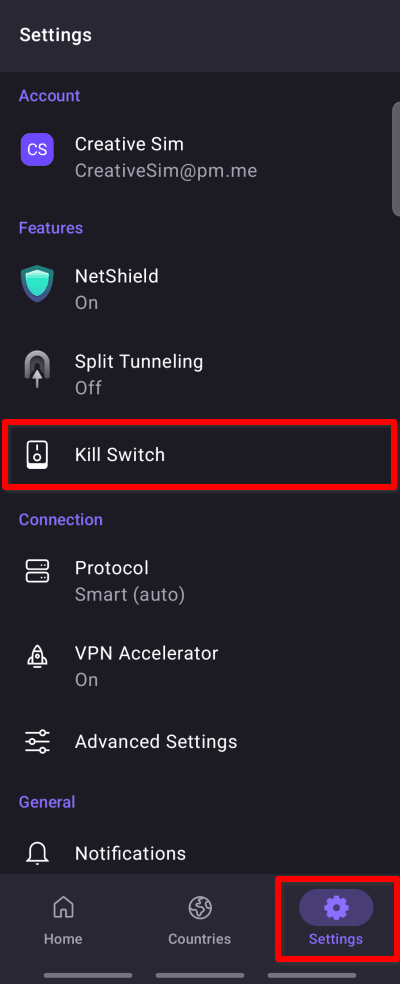
3. Tap Settings to open your device settings.

4. Find Proton VPN and tap the gear (⚙️) icon.
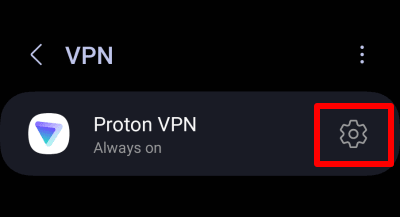
5. Enable the Always-on VPN and Block connections without VPN toggles.

Linux (GUI) app
- Open Proton VPN and go to Menu > Settings > Features.
- Enable the Kill switch toggle.

Linux CLI
Open a terminal window and run:
protonvpn config set kill-switch standard
To turn the kill switch off, run:
protonvpn config set kill-switch off