


Update your Windows system clock
- Reading
- 3 mins
- Category
- Windows
It’s important that the time and date on your Windows device is correct. The wrong time settings could lead to an error that stops you connecting to Proton VPN.
How to set the correct time on your Windows device
- Windows 11
- Windows 10
- Alternative method (all versions)
Windows 11
1. Open the Settings app and go to Time & Language → Date & time.

2. Make sure Set the time zone automatically and Set the time automatically are both On.
3. Click Sync now.

Your system clock should now be up to date.
Windows 10
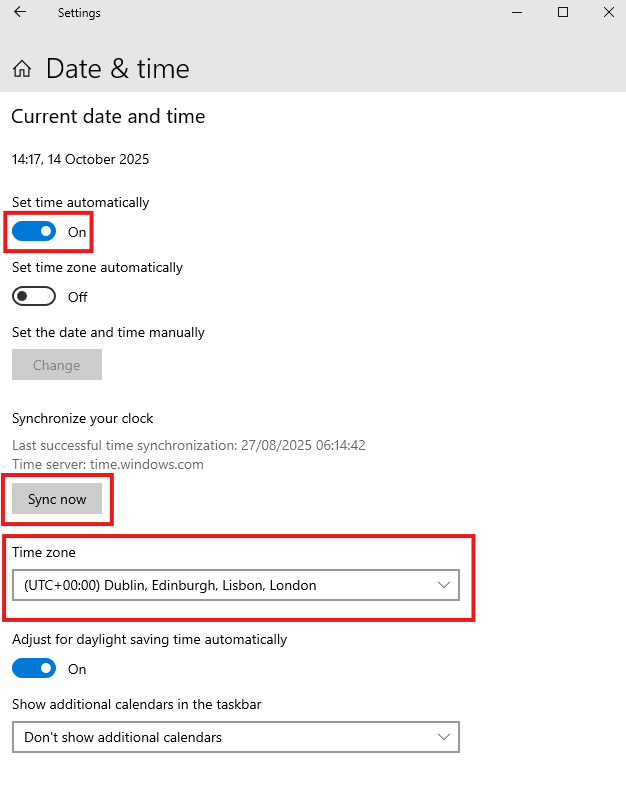
1. Go to Start → Settings → Time & Language → Date & time.
2. Make sure that:
- Set time automatically is On.
- The Time zone for your location is correct.
3. Click Sync now.
Your system clock should now be up to date.
Alternative method
This works for all versions of Windows, including older ones.
1. Open the control panel by typing “control panel” in the Windows search bar.
2. For Windows 10, go to Clock and Region > Date and Time. For Windows 11, go to Date and Time.
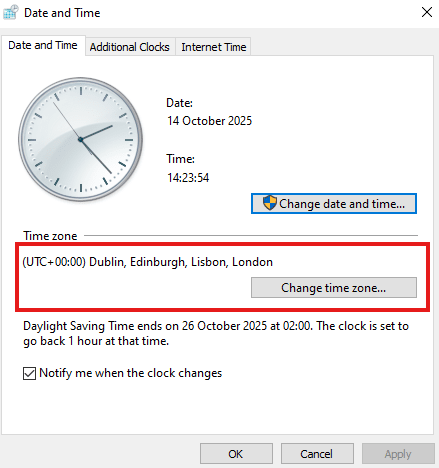
3. Go to the Date and Time tab and make sure the Time zone is correct for your location.
If it’s incorrect, click Change time zone… and select your time zone.
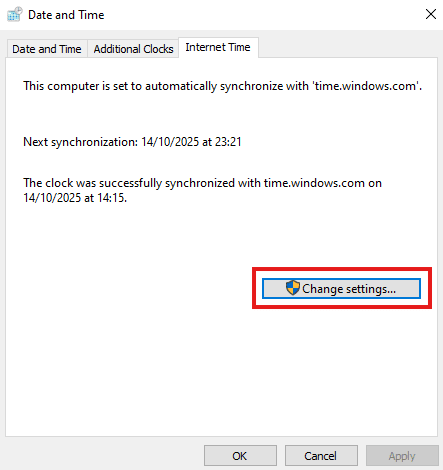
4. Now go to the Internet Time tab and click Change settings…
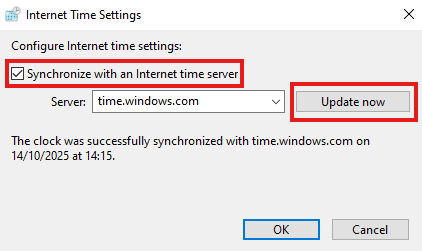
5. Check the box that says Synchronize with an internet time server and click Update now.
Your system clock should now be up to date.