


Port forwarding
- Reading
- 9 mins
- Category
- Port forwarding
Port forwarding allows incoming connections from the internet to reach your device through Proton VPN’s firewall. Learn more about how port forwarding works
| Plans | Platforms |
| All paid Proton VPN plans. Get VPN Plus | Windows, macOS, Linux |
In this article
- How port forwarding works
- Enable port forwarding
- Configure port forwarding in your BitTorrent client
- Port forwarding security considerations
- A note about online port checkers
How port forwarding works
A port is a numbered doorway that allows specific apps on your device to send and receive information over the internet. When you use a VPN, it acts like a locked gate, blocking any incoming connections you didn’t specifically ask for.
Port forwarding creates a controlled path through that gate. It’s mainly used for P2P apps like BitTorrent, but it can also improve performance for online gaming. When you turn it on, the VPN server picks a random port number and opens it for incoming traffic. Any data sent to that port is passed through the VPN connection to your device.
Opening a port carries a small risk. See port forwarding security considerations for more details.
Enable port forwarding
Before you get started
- These instructions explain how to connect to a P2P (peer-to-peer) VPN server and enable port forwarding. You must be connected to a P2P server for port forwarding to work.
- Once you’ve enabled port forwarding, you’ll need to configure it in your torrent app.
- Port forwarding is not compatible with NAT type 2 (moderate NAT).
Windows
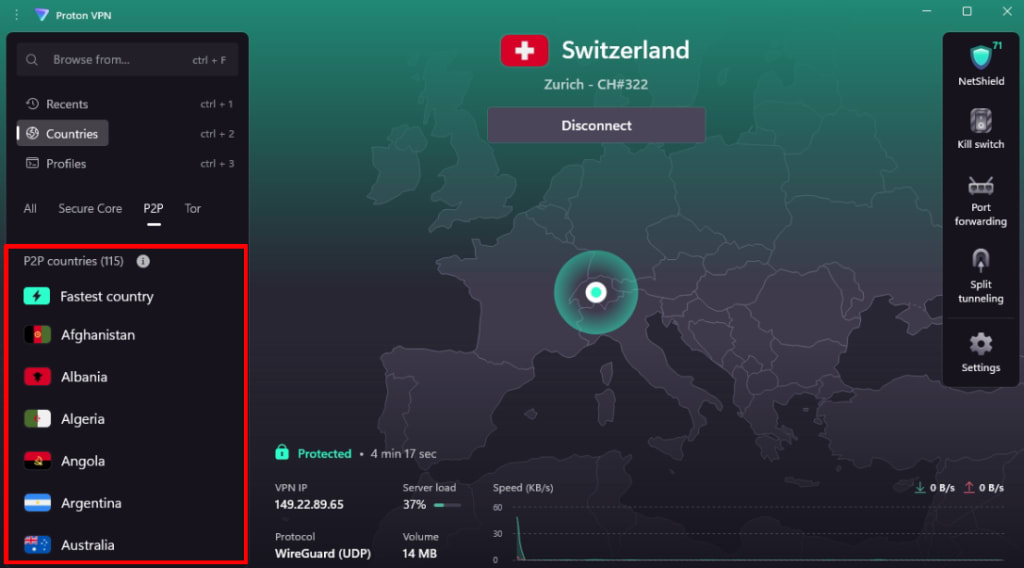
1. Open Proton VPN and select the Countries → P2P tab on the left sidebar.
2. Connect to any country, city, or server from the list.
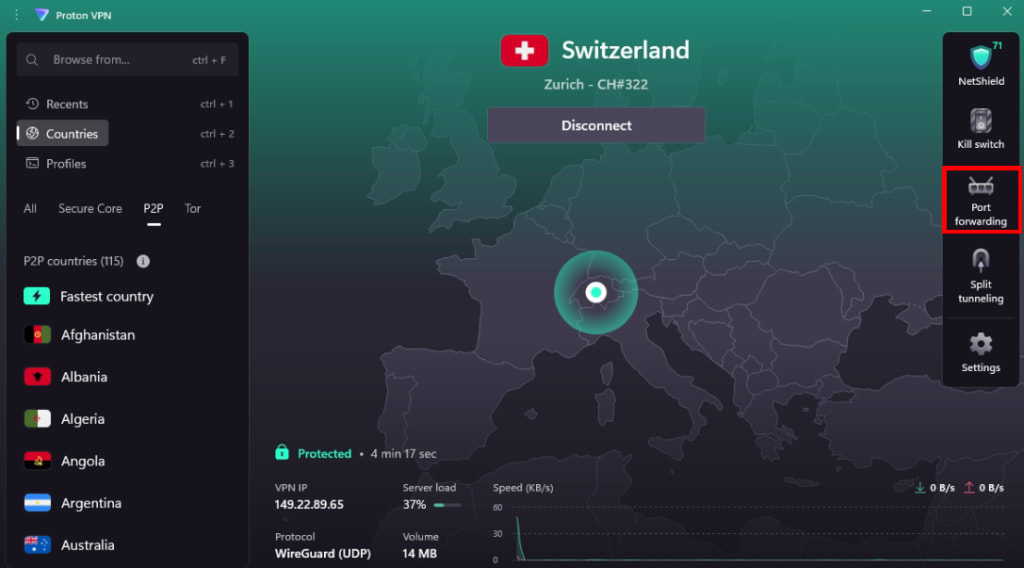
3. Click Port forwarding on the right sidebar.
4. Toggle the Port forwarding switch on. Click Apply.
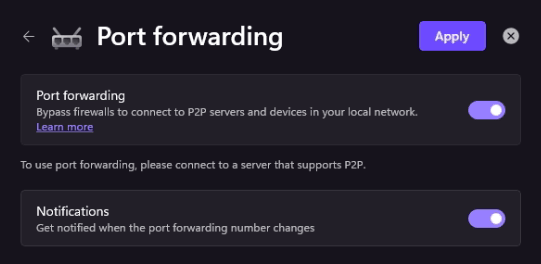
Port forwarding is enabled. To see your active port number, hover over Port forwarding on the right sidebar.

You’ll need this number to configure port forwarding in third-party apps (for example, a BitTorrent client).
The port number usually changes when you reconnect to VPN. You’ll need to update your torrent client whenever this happens.
macOS
Port forwarding on macOS is an early-access feature.
1. Open Proton VPN and go to Countries.
2. Connect to any country, city, or server marked with the P2P icon ( ⇄).
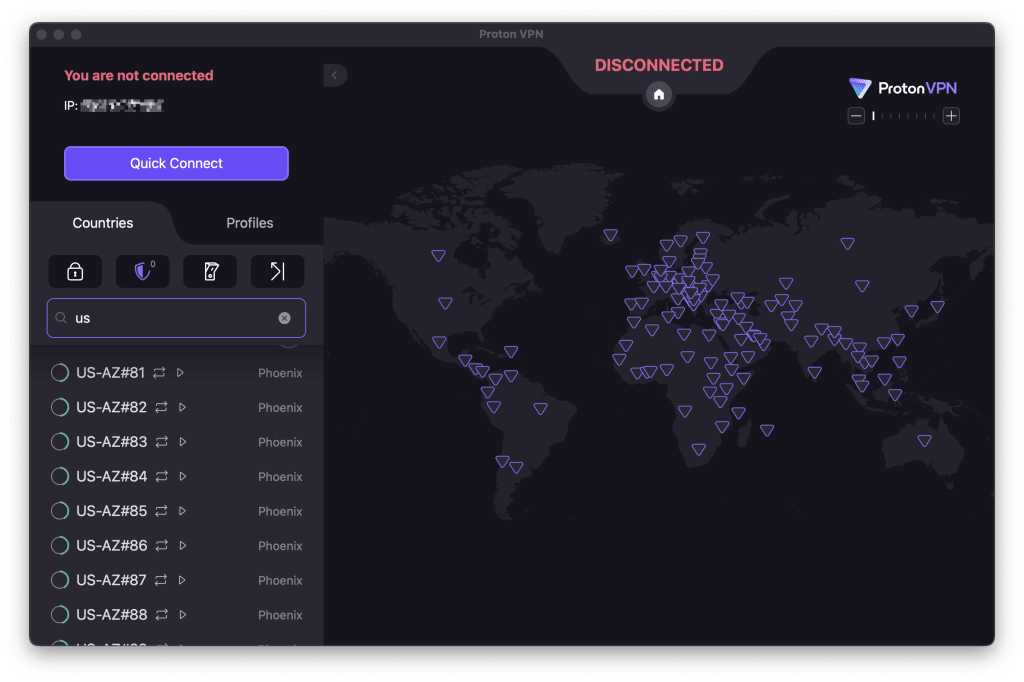
3. Now, click the Port forwarding shortcut.

4. Click Port forwarding On.
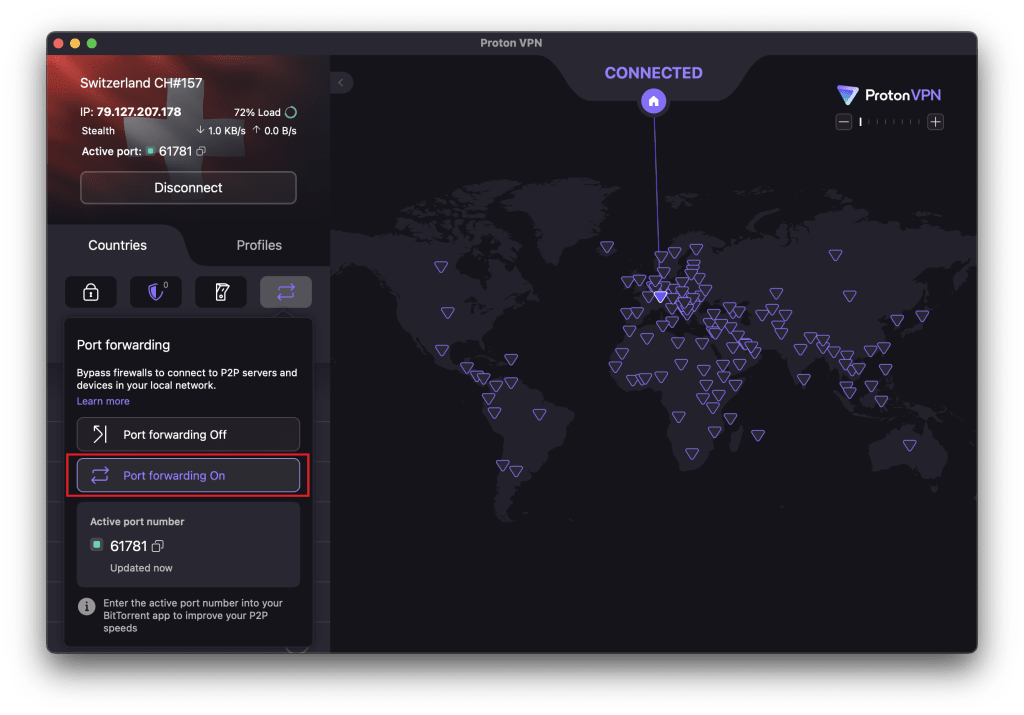
Port forwarding is enabled.
Your active port number will appear underneath the Port forwarding On button.
You’ll need this number to configure port forwarding in third-party apps (for example, a BitTorrent client).
The port number usually changes when you reconnect to VPN. You’ll need to update your torrent client whenever this happens.
Linux (GUI) app
1. Open Proton VPN and go to Countries.
2. Connect to any country, city, or server marked with the P2P icon ( ⇄).
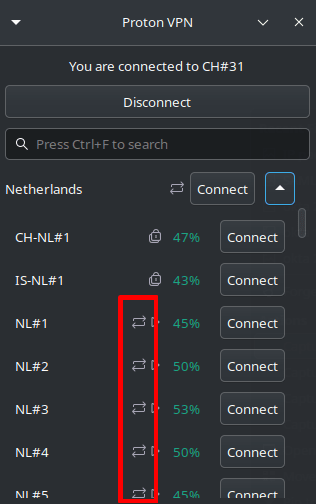
3. Now go to Settings → Features
4. Toggle the Port forwarding switch on.

Port forwarding is enabled. Your active port number shows in the information panel at the top of the main app window.
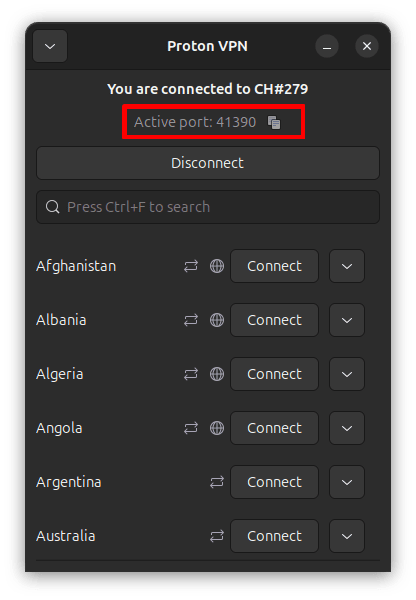
You’ll need this number to configure port forwarding in third-party apps (for example, a BitTorrent client).
The port number usually changes when you reconnect to VPN. You’ll need to update your torrent client whenever this happens.
Linux CLI
Note: Enabling port forwarding for Linux CLI is a two-stage process.
1. Enable port forwarding in the CLI
Open a terminal window and run:
protonvpn config set port-forwarding on
If you were already connected to the VPN, you’ll need to reconnect for the new setting to take effect.
2. Configure port forwarding
Follow the instructions from Step 2: Linux in our How to manually set up port forwarding guide.
OpenVPN and WireGuard® configuration files
Configure port forwarding in your BitTorrent client
Before you get started
- Instructions for some popular Windows torrent apps are listed below, but port forwarding works with any BitTorrent client.
- To prevent IP leaks while you’re torrenting, make sure qBittorrent is bound to the correct interface.
- You’ll need to disable UPnP (Universal Plug and Play) and NAT-PMP (Network Address Translation Port Mapping Protocol), as they can conflict with Proton VPN.
qBittorrent
1. Enable port forwarding in your Proton VPN app.
2. Open qBittorrent and go to Tools → Options → Connection.
3. Disable Use UPnP / NAT-PMP port forwarding from my router.
4. In the Port used for incoming connections field, enter the active port number shown in the Proton VPN app.
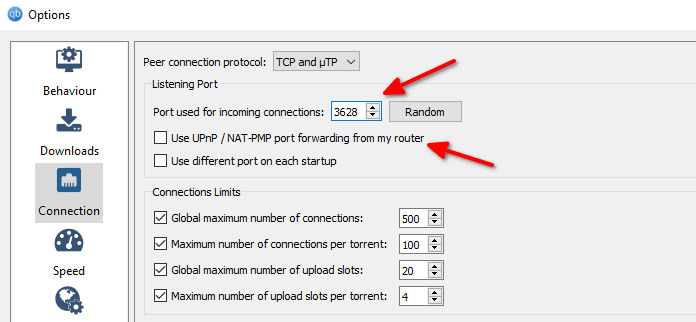
5. Click OK.
Vuze
The screenshots show Vuze in Beginner Mode(new window), but the steps are identical for all modes.
1. Enable port forwarding in your Proton VPN app.
2. Open Vuze and go to Tools → Options → Plugins → UPnP
3. Uncheck Enable UPnP.
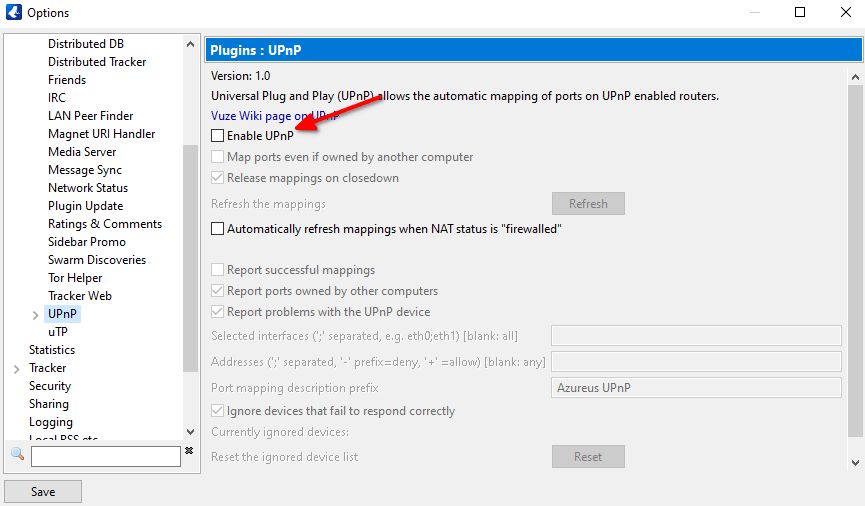
4. Stay on the Options page and click Connection.
5. Enter the active port number shown in the Proton VPN app.
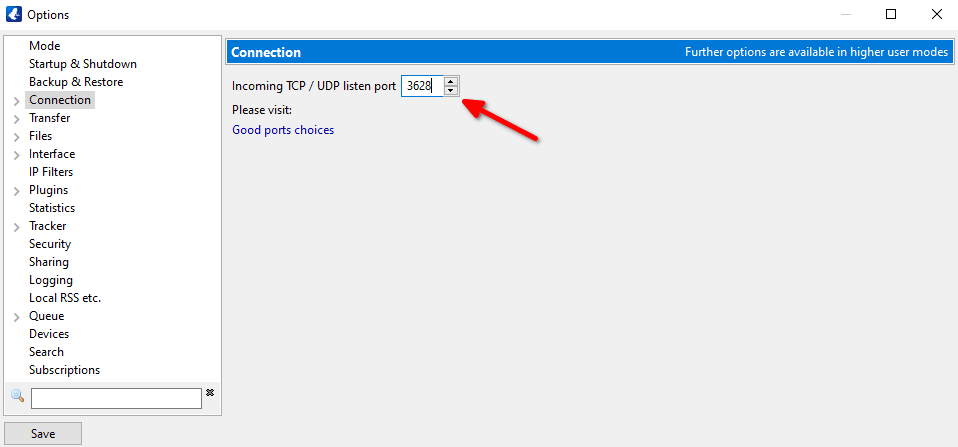
6. Click Save.
uTorrent (Classic)
1. Enable port forwarding in your Proton VPN app.
2. Open uTorrent and go to Options → Preferences → Connection.
3. Uncheck Enable UPnP port mapping and Enable NAT-PMP port mapping.
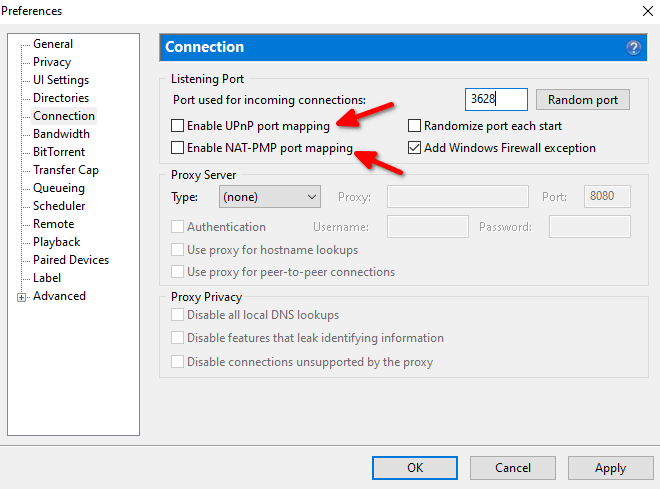
4. In the Port used for incoming connections field, enter the active port number shown in the Proton VPN app.
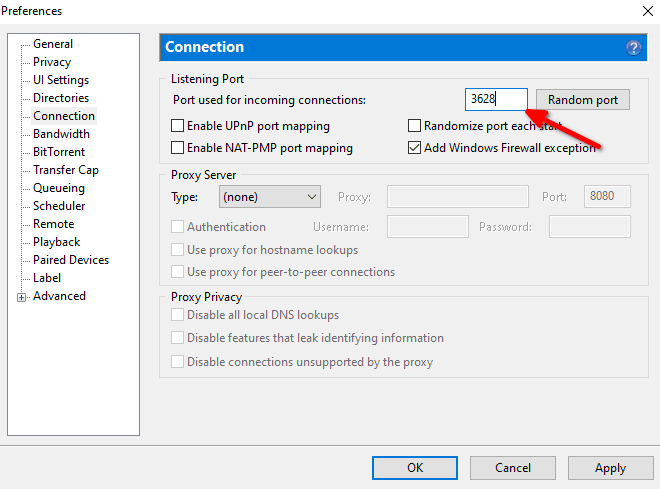
5. Click Apply.
Port forwarding security considerations
Port forwarding opens a path for incoming connections to reach your device.
This does carry a small security risk, however that risk is very low — especially for everyday use cases like torrenting and gaming.
Proton VPN’s port forwarding is designed to protect your privacy and is not vulnerable to known attacks such as Port Fail.
Any issues that could occur would usually be limited to the app using the port. So the level of risk depends on how you’re using the port. For example:
- A file-sharing apps could expose shared files.
- A remote access tool could allow broader control if not properly secured
To stay safe:
- Only use trusted apps from reliable sources
- Keep your apps up to date
- Avoid opening ports you don’t need
A note about online port checkers
Online port checker tools allow you to check for open ports on your device and verify that port forwarding is working correctly. However, open ports can only be detected if an application is actively listening on that port.
How port checking tools work
1. Connection attempt: The tool sends a request to establish a connection to the specified port on your public IP address. When using a VPN, this will be the IP address of the VPN server.
2. Response analysis: It will then wait for a response:
- Open: If an application is actively listening on that port and port forwarding is working correctly, the port checker will successfully establish a connection and mark the port as open.
- Closed or Filtered: If no application is listening on the port, or if our firewall is blocking the connection (for example, if port forwarding is not working correctly), the port checker will either receive a “connection refused” message or the connection will time out. In these cases, the port will be reported as closed or filtered.
Example
Using the Proton VPN port forwarding feature, you open port 44375 in our NAT firewall. However, until you configure an app to listen on that port, an online port checker tool will return a closed or filtered result.If you configure an app to listen on port 44375 (such as a torrent client) and check again, the port checker tool will connect to the app and return an open result.