


How to use the Proton VPN Linux CLI
- Đọc
- 3 phút
- Danh mục
- Linux
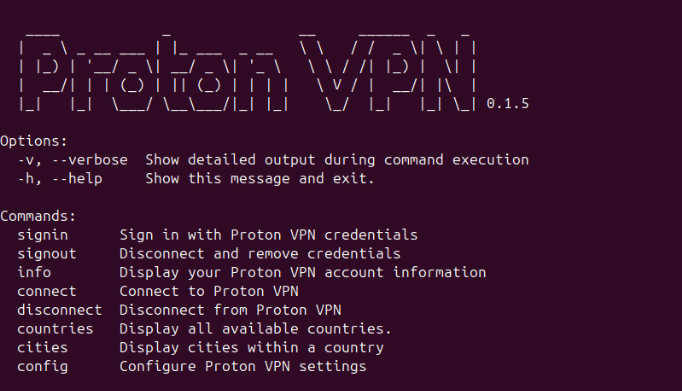
The Proton VPN CLI (command-line utility) makes it easy to defeat censorship and stay private using the internet on the Linux terminal. Using simple command-line commands, you can connect to thousands of VPN servers around the world and view blocked sites and content, all while hiding your IP address.
In this article
How to sign in
1. Open a terminal window and run:
protonvpn signin [username]
2. You’ll then be prompted to enter your Proton password. As usual with the Linux command-line, you won’t see any on-screen feedback when you do this, so just hit [Enter] when you’re done.

How to connect
To connect to the fastest VPN server available on your plan, run:
protonvpn connect
To connect to a specific country:
protonvpn connect --country [Country]
For [Country], you can use country code (US, GB, DE) or its full name inside quote marks. For example:
protonvpn connect --country US
or
protonvpn connect --country "United States"
To connect to a specific city, run:
protonvpn connect --city [City]
For [City], simply enter a single-word city name or use quotes for multi-word names. For example:
protonvpn connect --city miami
or
protonvpn connect --city "New York"
To connect to a specific server, run:
protonvpn connect [server name]
For example:
protonvpn connect CH#242
Note that country, city, state, and server names are not case sensitive, so it doesn’t matter if you use capital letters or not.
You can find a list of all of available server names under the manual WireGuard configuration settings.
How to disconnect and sign out
To disconnect the VPN, run:
protonvpn disconnect
Note that you’ll still be signed in to your Proton VPN account. If other people use this computer, its a good idea to sign out. To do this, run:
protonvpn signout
How to configure VPN settings
To configure advanced VPN settings, run the following command:
protonvpn config set [option] [setting][setting 2]
Most options only have one setting, and all settings reset to their default when you sign out.
To list all available configuration commands, run:
protonvpn config list
Here’s a list of the settings currently available on the CLI:
Anonymous crash reports
Enabling this options sends anonymous crash reports to Proton VPN, which helps us to fix bugs and improve our software.
Option: anonymous-crash-reports
Usage:
To enable:
protonvpn config set anonymous-crash-reports on
To disable:
protonvpn config set anonymous-crash-reports off
IPv6
Option: ipv6
Usage: See Proton VPN and IPv6 support
Moderate NAT (NAT Type 2)
Option: moderate-nat
Usage: See What is moderate NAT and how to use it?
Kill switch
Option: kill-switch
Usage: See See What is a kill switch?
VPN Accelerator
Option: vpn-accelerator
Usage: See How to use VPN Accelerator
Custom DNS
Option: custom-dns
Usage: See How to use custom DNS
NetShield Ad-blocker
Option: netshield
Usage: See How to use NetShield Ad-blocker
Port forwarding
Option: port-forwarding
Usage: See Port forwarding
To see an up-to-date list of features currently available on the Linux CLI, run:
protonvpn config set