Seu iPhone tem um recurso chamado Locais Significativos, projetado para ajudar o Siri e o Mapas a aprender sua rotina para que possam oferecer sugestões melhores e mais personalizadas. Por exemplo, para lembrar você de sair para o trabalho quando o tráfego estiver ruim ou para sugerir um restaurante perto da sua academia.
Embora o recurso Locais Significativos mantenha um registro surpreendentemente detalhado de onde você esteve, quando e com que frequência, a Apple tem feito esforços admiráveis para minimizar a ameaça à sua privacidade.
Indiscutivelmente, uma ameaça maior vem de aplicativos de terceiros, como o quase onipresente Google Maps, que têm acesso detalhado ao seu histórico de localização(nova janela) e são muito menos seletivos sobre com quem o compartilham.
O que é Locais Significativos e como funciona?
Locais Significativos é um recurso do iPhone que mantém um registro dos lugares que você visita com frequência para personalizar serviços como mapas, fotos e sugestões. Diferentemente do Google Maps, Locais Significativos não é um registro completo do histórico de GPS. Em vez disso, ele coleta sinais periódicos de localização usando indicadores de geolocalização como GPS, Wi-Fi, torre de celular e conexões Bluetooth. Com o tempo, ele detecta padrões como:
- Com que frequência você visita uma localização
- Quanto tempo você fica lá
- Há quanto tempo foi sua última visita
Depois que identifica esses padrões, ele armazena as localizações localmente no seu dispositivo. Então, uma cafeteria que você visita todos os dias será armazenada, mas não uma viagem de carro única.
Essas informações são usadas pelo Mapas para prever rotas devido ao tráfego, fazer sugestões baseadas em localização no Calendário, agrupar Memórias no Fotos, criar alertas baseados em localização e sugestões da Siri, entre outros.
Quão seguro é o Locais Significativos?
Os dados de Locais Significativos são armazenados localmente no seu dispositivo. O recurso é ativado por padrão, mas só funciona se os Serviços de Localização estiverem ativados e se o telefone estiver protegido com um código de acesso ou bloqueio biométrico.
Se a opção Sincronizar com o iCloud estiver ativada, seus dados também serão armazenados nos servidores da Apple. No entanto, a Apple afirma que os dados de Locais Significativos são criptografados de ponta a ponta (E2EE)(nova janela), com as chaves de criptografia derivadas do código de acesso do seu dispositivo.
Isso significa que seus dados de Locais Significativos não ficam acessíveis à Apple, mesmo que sejam sincronizados com o iCloud e a Proteção Avançada de Dados(nova janela) (E2EE opcional para iCloud) não esteja ativada. No entanto, metadados ainda podem existir e, como o iOS é de código fechado, só podemos confiar na palavra da Apple sobre isso.
Qualquer pessoa com acesso físico ao seu telefone desbloqueado pode ver seus Locais Significativos. Dependendo de seus métodos de recuperação, qualquer pessoa com controle total do seu Apple ID e de um de seus dispositivos de confiança(nova janela) também pode acessar esses dados.
Como verificar o histórico de localização do seu iPhone (dados de Locais Significativos)
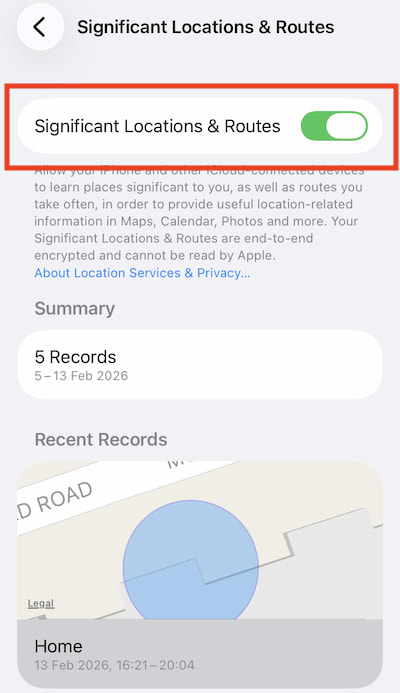
No seu iPhone ou iPad, abra o aplicativo Configurações e vá para Privacidade e Segurança → Serviços de Localização → Serviços do sistema → Locais Significativos e Rotas. A partir daí, você pode ver seus registros de Locais Significativos.

Como excluir o histórico de localização do seu iPhone (Locais Significativos)
1. No seu iPhone ou iPad, abra o aplicativo Configurações.
- Vá para Privacidade & Segurança → Serviços de Localização → Serviços do sistema → Locais Significativos & Rotas.
- Toque o botão de alternância Locais e rotas significativos para desativá-lo.
Cuidado com o rastreamento de localização por aplicativos
Muitos dos aplicativos que você instala no iOS podem rastrear sua localização, mas eles precisam passar por um sistema de permissões e pelas APIs de localização do sistema controladas pela Apple. Elas limitam a quantidade de dados diretos de geolocalização que um aplicativo pode acessar, mas os aplicativos podem usar vários métodos indiretos.
Como o iOS gerencia permissões de localização
O iOS da Apple usa um modelo baseado em permissões que exige seu consentimento explícito antes que qualquer aplicativo possa acessar seus dados de localização. Quando um aplicativo solicita acesso à localização, várias opções são apresentadas:
- Permitir uma vez: concede acesso por uma única sessão.
- Permitir ao usar o aplicativo: o aplicativo pode acessar a localização apenas quando estiver aberto ou em primeiro plano.
- Permitir sempre: o aplicativo pode acessar a localização mesmo em segundo plano (requer justificativa).
- Não permitir: nega totalmente o acesso.

Crucialmente, para permissões Permitir sempre, o iOS exige que o desenvolvedor do aplicativo forneça um motivo para o acesso em segundo plano. Você também receberá lembretes ocasionais dessa permissão por meio de um aviso do sistema perguntando se deseja mantê-la ativada.
Quando o aplicativo estiver acessando ativamente seus dados de localização, você verá um ícone indicador de localização azul na barra de notificações (um ícone cinza indica que sua localização foi acessada recentemente por um aplicativo).

Para ver com que frequência um aplicativo acessou seus dados de localização, você pode visualizar o Relatório de Privacidade do App se tiver ativado esse recurso. Para fazer isso:
- Abra o aplicativo Configurações.
- Vá para Privacidade & Segurança → Relatório de Privacidade do App (em Logs de Transparência).
- Toque em Ativar Relatório de Privacidade do App.
Depois de ativado, vá até Relatório de Privacidade do App sempre que quiser verificar com que frequência aplicativos acessam sua localização e outros dados sensíveis.

Localização aproximada vs. precisa no iPhone
Por padrão, os aplicativos que solicitam permissões de localização usam sua Localização Precisa. Isso usa vários sensores do seu iPhone para localizar você com precisão em poucos metros. No entanto, desde o iOS 14, você pode desativar a Localização Precisa para cada aplicativo que a solicitar, forçando-os a usar sua localização aproximada (aproximadamente dentro de alguns quilômetros).
Para desativar a Localização Precisa, toque em Precisa: ativada quando um aplicativo pedir permissões de localização pela primeira vez (veja a captura de tela acima). Ou abra o aplicativo Configurações, vá para Privacidade e Segurança → Serviços de Localização, selecione o aplicativo e toque no botão de alternância de Localização Precisa para desativá-lo. Você também pode mudar nesta tela quando um aplicativo pode solicitar dados de localização.

Geofencing
Os aplicativos registram geofences usando as APIs de localização da Apple. Quando um usuário entra ou sai dessas áreas, o aplicativo pode acionar ações. Isso é frequentemente usado para lembretes ou serviços baseados em localização, como aplicativos de varejo que acionam notificações de loja e aplicativos de casa inteligente que acionam automações.
O geofencing permite que aplicativos coletem alguns dados de localização em segundo plano, mesmo quando restritos à permissão Permitir ao usar o aplicativo. A única maneira de impedir isso é Nunca permitir acesso à localização para o aplicativo.
Inferência passiva de localização
Mesmo sem acesso explícito ao GPS, os aplicativos podem inferir sua localização usando elementos como seu endereço IP, redes Wi-Fi próximas, beacons Bluetooth e metadados de fotos(nova janela). Embora essas técnicas normalmente forneçam dados de localização menos precisos do que o acesso completo ao GPS, elas ainda podem revelar sua localização até o nível aproximado da cidade ou até do bairro.
E, depois que os aplicativos têm essas informações, eles podem usá-las para segmentar anúncios personalizados e/ou vendê-las a corretores de dados(nova janela) e plataformas de análise.
Sua melhor defesa contra essas técnicas é usar uma VPN para ocultar seu verdadeiro endereço IP e a filtragem DNS (como o recurso NetShield Ad-blocker do Proton VPN) para bloquear scripts de rastreador.
Aplicativos e serviços individuais também podem oferecer suas próprias formas de ver e excluir o histórico de localização que coletaram sobre você. Por exemplo, você pode excluir o histórico de pesquisa do Google Maps ou desativar o compartilhamento de localização no Instagram(nova janela) usando as configurações no aplicativo.
Considerações finais sobre o rastreamento de localização no iPhone
O recurso Locais Significativos da Apple mostra como o histórico de localização pode ser usado de uma forma relativamente consciente em relação à privacidade. Seus dados são armazenados localmente (ou criptografados de ponta a ponta se sincronizados com o iCloud) e ele foi projetado principalmente para melhorar serviços úteis integrados como Siri e Mapas, em vez de criar um perfil detalhado dos seus movimentos para fins publicitários. No entanto, Locais Significativos ainda pode fornecer um registro surpreendentemente detalhado dos lugares que você visita regularmente, então verificar e limpar esses dados de tempos em tempos pode ser uma precaução sensata.
Na prática, o maior risco à privacidade muitas vezes vem dos aplicativos que você instala. Muitos aplicativos de terceiros solicitam acesso à localização e podem coletar, armazenar e compartilhar essas informações com anunciantes, empresas de análise ou corretores de dados. Mesmo quando o iOS limita o acesso direto ao GPS, os aplicativos às vezes podem inferir sua localização por outros sinais.
A melhor forma de manter o controle dos seus dados de localização é revisar regularmente suas permissões de localização, desativar a Localização Precisa para aplicativos que realmente não precisam dela e remover totalmente o acesso quando possível. Combinadas com ferramentas como VPNs e bloqueio de rastreadores, essas medidas podem ajudar a reduzir quanto do seu histórico de deslocamento acaba nas mãos de empresas com as quais você não pretendia compartilhá-lo.