


How to use the Proton VPN Linux GUI app
- Čtení
- 6 minut
- Kategorie
- Proton VPN apps
The Proton VPN GUI app for Linux features a graphic user interface that makes it easy to defeat censorship and stay private on the internet. With a single click, you can connect to thousands of VPN servers around the world and view blocked sites and content, all while hiding your IP address.
In this article
- How to sign in
- How to connect
- How to connect to a specific location
- How to disconnect
- How to auto connect
- Advanced settings
- System tray icon
How to sign in
Open Proton VPN GUI app from your distro’s app launcher or open a terminal window and run:
protonvpn-app
Enter your username and password and click Sign in.
If you haven’t created a Proton VPN account yet, you can use the Create Account button or click here. Note that if you’ve signed up for any Proton service (such as Proton Mail, Proton Drive, or Proton Pass), you can use the same username and password to sign into Proton VPN.

How to connect
If you’re on our Free plan, select Fastest free server → Connect to automatically connect to the fastest server for your location. Free servers are located in the Netherlands, Japan, Romania, Poland, Norway, Switzerland, Singapore, Mexico, Canada, and the United States.
If you’re on a paid plan, select Fastest country → Connect to automatically connect to the fastest server for your location. We have Plus (paid for) servers located in over 140 countries worldwide.

Once connected, the Home screen will turn green.

How to connect to a specific location
If you’re on any paid Proton VPN plan, you can connect to any of our high-speed servers in over 140 countries. If you are on a free plan, you can connect to free servers in the Netherlands, Japan, Romania, Poland, Norway, Switzerland, Singapore, Mexico, Canada, and the United States.
To connect to the fastest server in the country of your choice, simply select it from the All countries list. We’ll automatically connect you to the fastest server in that country (factoring in your location and server loads).

To connect to a specific city or state in a country, click ν next to the country and select the city from the dropdown list. To connect to a specific server in a city or state, click ν next to the city and select the server from the dropdown list.

You can find any country, city, or server by typing its name into the Search bar.

Some servers have special uses. These are clearly labeled:
- Tor servers: Onion icon
- P2P servers: Double-arrow icon
- Smart Routing servers: Globe icon
How to disconnect
1. Open the app.
2. Click the Disconnect button.

Your VPN connection will be terminated, and your device will revert to its regular internet connection.
How to auto connect
You can configure Proton VPN to automatically connect to a server as soon as the app starts.
1. Open Settings (see below).
2. Go to General → Auto connect.
3. To connect to the fastest server available to you, enter Fastest. To connect to a particular server, enter the server’s name (for example, CH#1016).
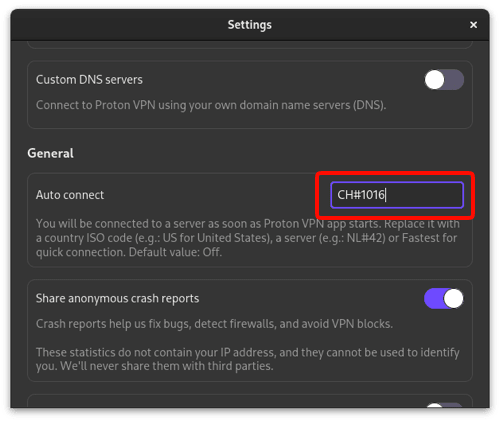
Server names are clearly shown on the Home screen when you connect to them.

Advanced settings
To access advanced settings and features, click the Hamburger menu (☰) at the top left → Settings.

From here, you can configure advanced settings and features:
Features
Connection
General
- Auto-connect (see above)
- Start app minimized
- Share anonymous crash reports
- Beta access
System tray icon
If enabled, the system tray icon will show in your system tray when the app is running. It lets you see, at a glance, whether the VPN is connected. Click on it to:
- Connect or disconnect the VPN
- Show or hide the main Proton VPN GUI app
- Quit the Proton VPN GUI app
- Connect to a pinned server (optional)
To connect to a pinned server, you first need to configure pinned tray connections.
Open Settings, go to General → Pinned tray connections, and enter server names into the field. You can enter multiple server names separated by a comma (,).

Note that Pinned tray connection option is only visible if you’ve enabled the system tray icon.