Many of the apps you install ask for access to something on your phone, like your location, camera, or contacts. Some requests make sense. A navigation app needs your location, and a video-calling app needs your camera and microphone. But if a flashlight app asks for your contacts, you should be suspicious.
- How to change app permissions on Android
- How to see which apps use a specific permission
- How to turn off camera and microphone access for all apps
- How to check which apps have used your permissions recently
- How to stop unused apps from keeping their permissions
- Types of app permissions on Android
- How to decide which permissions to allow
- Protect your privacy beyond app permissions
Android lets you decide what each app can access. You can change an app permission setting one app at a time, review every app that uses a particular permission, or turn off camera and microphone access for your whole phone. This guide shows you how to change app permissions on Android in each of these ways, plus a few other Android privacy settings worth checking.
The steps and screenshots in this guide come from a phone running Samsung One UI 8. Details may vary a little depending on who made your phone and which version of Android it runs, but you’ll find the same settings on any recent Android phone. On a Google Pixel, for example, the privacy settings are under Security & privacy → Privacy.
How to change app permissions on Android
1. Open the Settings app.
2. Tap Apps.
3. Tap the app you want to change. If you can’t find it, tap the search icon and type its name.
4. Tap Permissions.
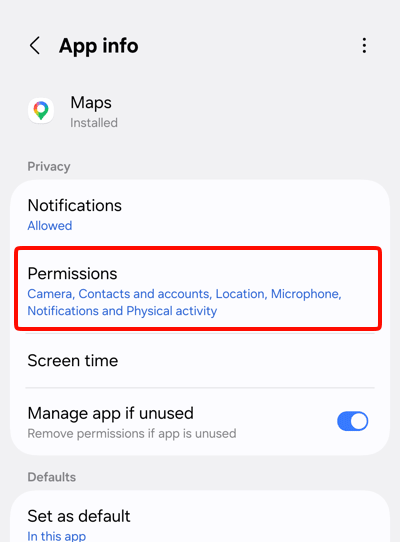
- You’ll see which permissions you’ve allowed and which you’ve blocked. Tap a permission and choose an option.
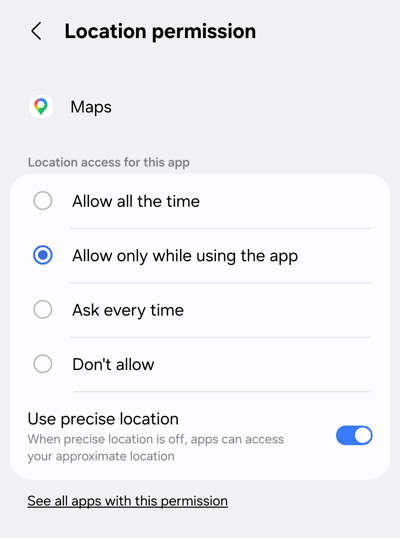
What each permission option means
For location, camera, and microphone permissions, you get more choices than just yes or no:
- Allow all the time: Lets the app use your location whenever it wants, even when you’re not using the app. This option is only available for location.
- Allow only while using the app: Lets the app use the permission only while you’re using it.
- Ask every time: Makes the app ask you each time you open it. If you say yes, it keeps the permission until you finish using the app.
- Don’t allow: Stops the app from using the permission at all, even while you’re using it.
On Android 11 and later, when an app asks to use your location, camera, or microphone, the pop-up also offers Only this time. This gives the app temporary access only. Shortly after you leave the app, the access ends, and the app has to ask again next time.
Tip: If you’re not sure an app needs a permission, choose Ask every time or Don’t allow. If a feature stops working, you can always change the setting back.
How to see which apps use a specific permission
If there’s one type of access you’re worried about, such as your location, start from the permission instead of going through your apps one by one.
1. Open the Settings app.
2. Go to Security and privacy → More privacy settings → Permission manager.

3. Tap a permission type to see which apps you’ve allowed or blocked.
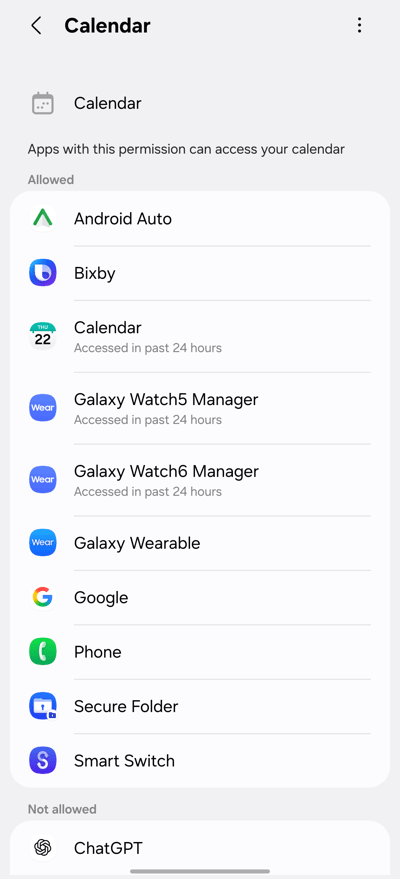
4. Tap an app to change its permission.
How to turn off camera and microphone access for all apps
If you’d rather set one rule for your whole phone, you can block camera or microphone access for every app at once.
1. Open the Settings app.
2. Tap Security and privacy.
3. Scroll down and tap Controls and alerts.
4. Turn off the Camera access or Microphone access toggle.
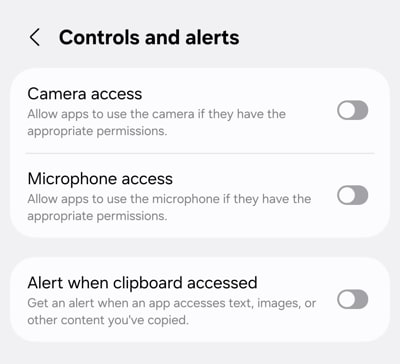
This blocks camera or microphone access for every app until you turn it back on. When an app is using your camera or microphone, a small green dot appears in the top-right corner of your screen. To see which app it is, swipe down to open the notification panel and tap the green dot.
How to check which apps have used your permissions recently
Changing permissions controls what apps can do from now on. You can also see which permissions your apps have already used.
1. Open the Settings app.
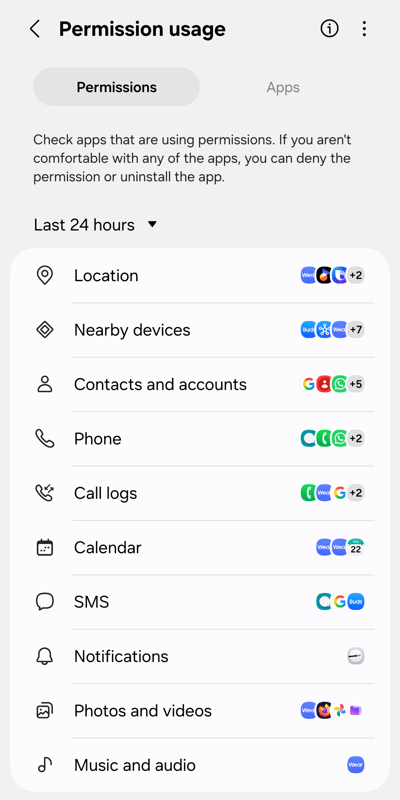
2. Go to Security and privacy → Privacy → Permissions used in last 24 hours.
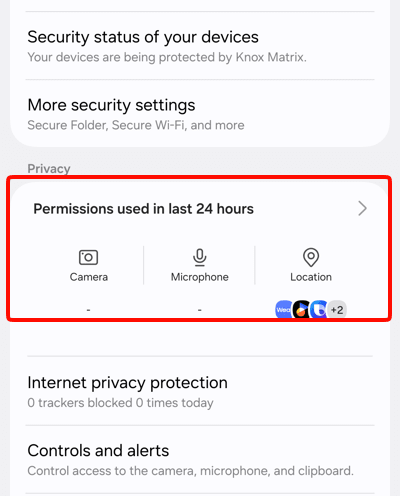
You can switch between the Permissions and Apps tabs to see which permissions were used, or which apps used them.
How to stop unused apps from keeping their permissions
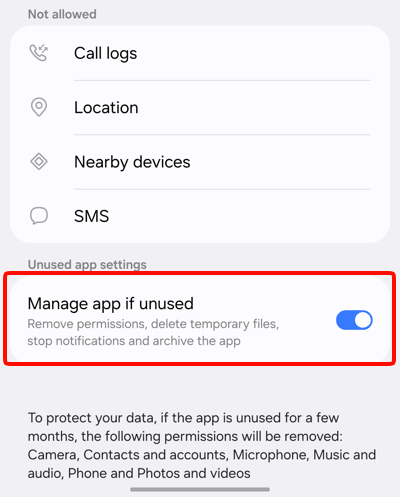
If you haven’t opened an app in a few months, Android can remove the permissions you gave it. This works for apps built for Android 11 or later. To check the setting for a particular app:
1. Open the Settings app and tap Apps.
2. Tap the app.
3. Make sure the Manage app if unused toggle is on.
Types of app permissions on Android
Most permissions are self-explanatory, but a few, like physical activity or nearby devices, are easy to approve without much thought. Here’s what each one lets an app do. The exact names may vary slightly depending on your phone:
- Calendar: Access your calendar.
- Call logs: Read and write your phone’s call log.
- Camera: Take photos and record videos.
- Contacts: Access your contacts.
- Files: Access all files on your device.
- Health, Wellness, Fitness: Access health data, records, and sensor information about your vital signs. On Android 15 and earlier, this may show as Body sensors.
- Location: Access your device’s location.
- Microphone: Record audio.
- Music and audio: Access music and other audio files on your device.
- Nearby devices: Find, connect to, and determine the relative position of nearby devices.
- Notifications: Send you notifications.
- Phone: Make and manage phone calls.
- Photos and videos: Access photos and videos on your device.
- Physical activity: Access activity data such as walking, biking, driving, and step count.
- SMS: Send and read text messages.
How to decide which permissions to allow
The simplest test is whether a permission matches what the app is for. A photo editor needs your photos. A weather app might reasonably want your approximate location. A game probably doesn’t need your contacts, call logs, or access to your SMS messages. If a permission doesn’t fit the app’s purpose, block it and see whether the app still does what you need.
Some developers publish a list of the permissions their app asks for and why. For example, we list every permission(nouvelle fenêtre) the Proton Mail Android app asks for, and which ones are optional. If an app you’re unsure about offers something similar, read it before you tap Allow.
Check your permissions again every so often, too. Apps get updated, and an app you installed for a one-off task may still have access to your camera or location months later.
Protect your privacy beyond app permissions
Changing your app permissions on Android controls what apps can access on your phone. It doesn’t stop the apps and websites you use from seeing your IP address, which can reveal your approximate location, or stop trackers from following you around the web.
Proton VPN encrypts your internet connection and hides your IP address. On paid plans, our NetShield Ad-blocker feature also checks the domains your apps and websites connect to, and blocks ads, trackers, and malware before they load.
A VPN can’t stop apps from collecting data you’ve given them permission to use, though. So use both: a VPN to protect your connection, and tight permission settings to limit what your apps can collect.