


如何使用 Proton VPN 浏览器扩展程序
- 阅读
- 6 分钟
- 类别
- 浏览器扩展程序
Proton VPN 为 Firefox 和 Chrome 提供浏览器扩展程序。这款独立扩展程序提供了快速便捷的方式,助您在浏览互联网时保护隐私,并且所有拥有 Proton 帐户的用户(包括 Free 帐户用户)均可使用。
使用我们的 VPN 应用与浏览器扩展程序的最大区别在于:VPN 应用会保护进出设备的所有互联网流量,而浏览器扩展程序仅保护浏览器内的流量。
- 如何安装适用于 Firefox 的 Proton VPN 浏览器扩展程序
- 如何安装适用于 Chrome 的 Proton VPN 浏览器扩展程序
- 如何使用 Proton VPN 浏览器扩展程序
- 扩展程序具有哪些功能?
- 常见问题
如何安装适用于 Firefox 的 Proton VPN 浏览器扩展程序
Firefox 扩展程序也适用于基于 Firefox 的浏览器,例如 LibreWolf 和 Waterfox。安装方法如下:
1. 打开基于 Firefox 的浏览器,然后点击此处(新窗口)。您也可以在Firefox 附加组件(新窗口)中搜索 Proton VPN。
2. 点击添加到 Firefox 并按照提示操作。

3.(可选)默认情况下,Firefox 不会通过 HTTPS 连接将 DNS 查询路由至我们的 VPN 服务器,这会导致 DNS 泄露。
如果您仅将浏览器扩展程序用于直播中,这并无影响。但如果您使用浏览器扩展程序是为了保护隐私,则需要执行额外的步骤。
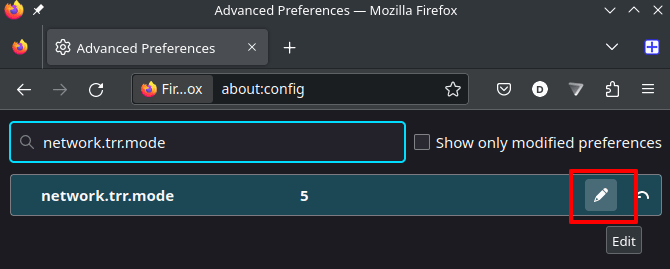
在网址栏中输入 about:config,然后按 <enter>。出现警告时,点击接受风险并继续 → 搜索 network.trr.mode → 编辑。
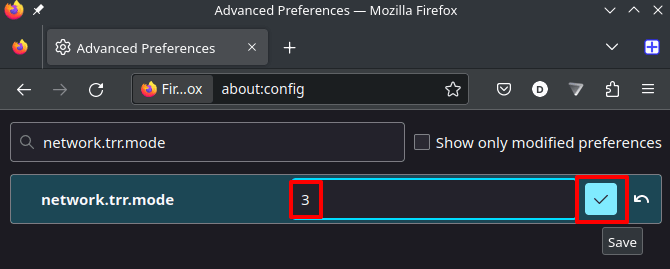
将该值更改为 3,然后点击保存图标。
请注意,以私有模式(见下文)运行 Firefox 也可防止 DNS 泄露。
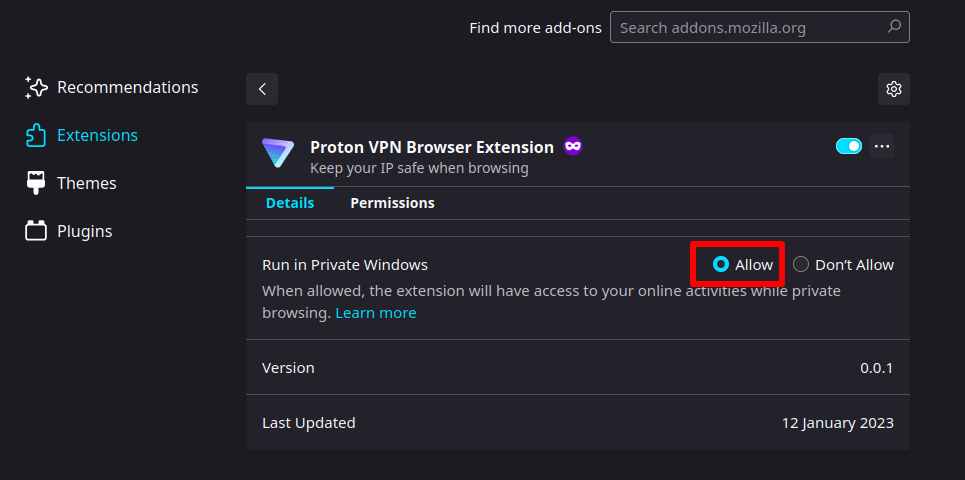
4.(可选)默认情况下,Firefox 扩展程序无法在私有浏览模式下工作。如果您想在私有窗口中使用 Proton VPN 扩展程序,请前往☰ → 附加组件和主题 → 扩展程序 → 管理您的扩展程序 → Proton VPN 浏览器扩展程序 → 详细信息标签页 → 在私有窗口中运行 → 允许。
如何安装适用于 Chrome 的 Proton VPN 浏览器扩展程序
Chrome 浏览器扩展程序也适用于基于 Chromium 的浏览器,包括 Edge、Brave、Chromium、Opera 和 Vivaldi。
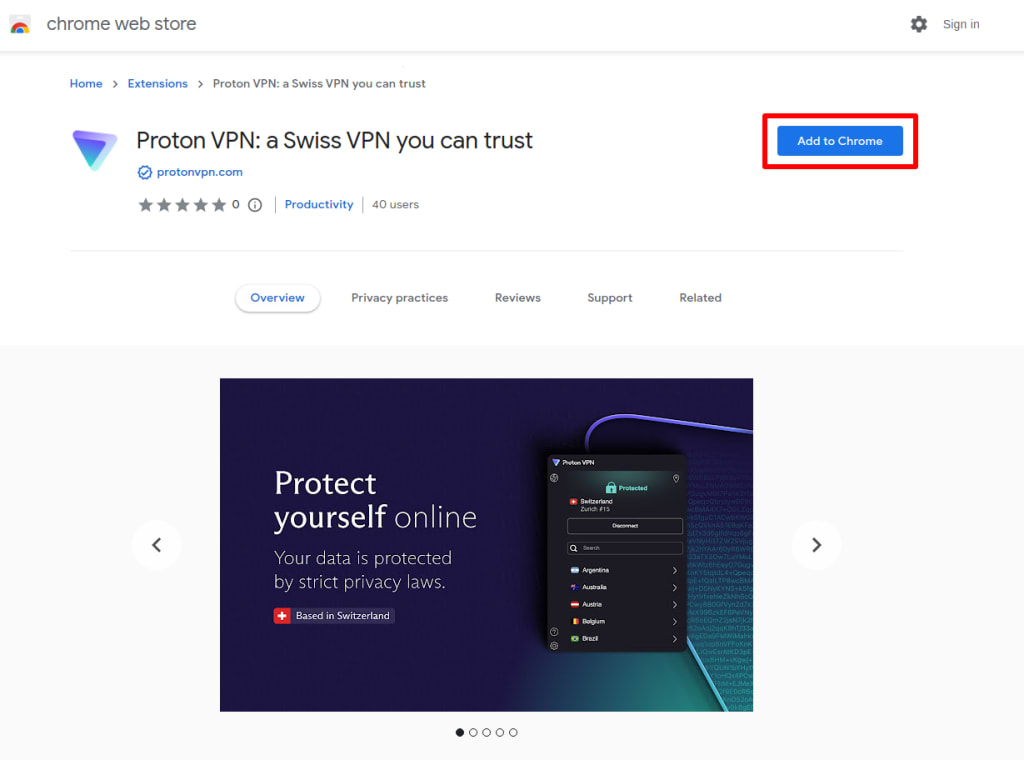
1. 打开基于 Chromium 的浏览器,点击此处(新窗口)(您也可以在Chrome 网上应用店(新窗口)中搜索“Proton VPN”)。请注意,要在 Edge 上运行 Chrome 扩展程序,您必须在首次访问 Chrome 网上应用店时点击允许来自其他商店的扩展程序。

2. 点击添加至 Chrome(或您的浏览器名称)并按照提示操作。
3.(可选)默认情况下,Chrome 扩展程序无法在无痕模式下工作。如果您想在无痕窗口中使用 Proton VPN 扩展程序,请前往⋮ → 设置 → 扩展程序 → Proton VPN 浏览器扩展程序 → 详细信息 → 在无痕模式下启用。

请注意,不同浏览器的操作说明可能有所不同。例如,在 Brave 上,请前往☰ → 扩展程序 → Proton VPN 浏览器扩展程序 → 详细信息 → 在私有模式下允许。
在 Edge 上,请前往… → 扩展程序 → 管理扩展程序 → Proton VPN 浏览器扩展程序 → 详细信息 → 在 InPrivate 中允许。
Proton 专业提示(Firefox 和 Chrome)
为了更方便地访问 Proton VPN 扩展程序,请点击浏览器工具栏中的扩展程序图标 → 点击扩展程序旁的固定图标(Chrome),或点击齿轮图标 → 固定到工具栏(Firefox)。
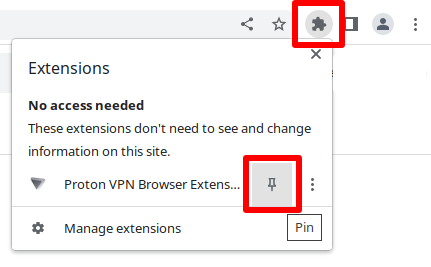
现在,Proton VPN 浏览器扩展程序图标将直接显示在您的浏览器工具栏上。
如何使用 Proton VPN 浏览器扩展程序
浏览器扩展程序会保护您在浏览器中所做的一切。它不保护浏览器之外的互联网连接,例如系统更新、BitTorrent 客户端等应用,或其他浏览器。
您可以在任意多个不同的兼容浏览器中安装浏览器扩展程序,每个处于活动状态的浏览器连接都会占用您套餐中可用的 VPN 连接数。
1. 首次打开 Proton VPN 浏览器扩展程序时,您需要点击登入按钮并输入您的 Proton VPN 帐户详细信息。如果您的帐户启用了双因素身份验证(强烈建议启用!),您还需要输入双重验证 (2FA) 代码。
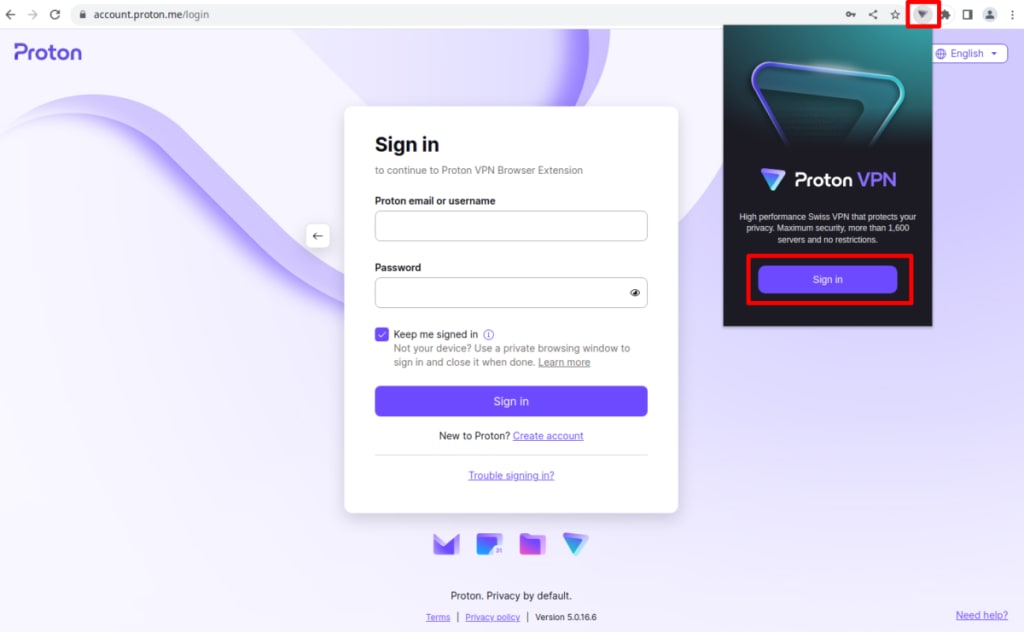
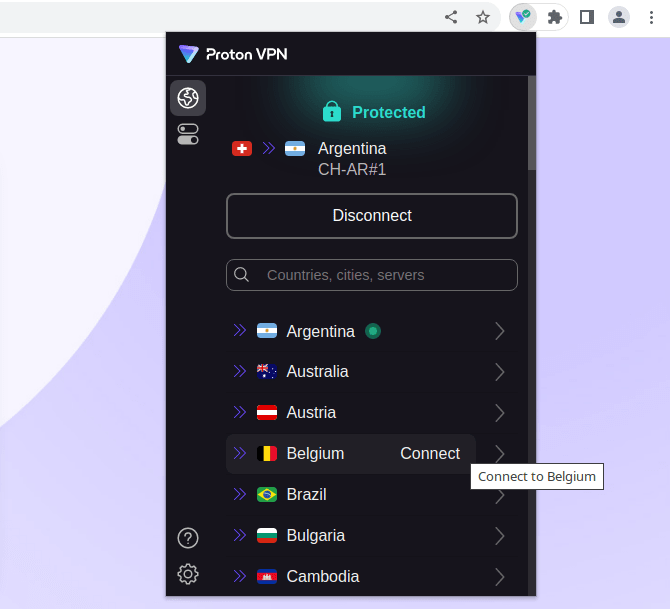
2. 要连接到 VPN 服务器,请点击浏览器工具栏中的 Proton VPN 扩展程序,然后点击快速连接按钮,或选择一个国家/地区 → 连接。
点击快速连接按钮会将您连接到所在位置最快的服务器。选择一个国家/地区会将您连接到该国家/地区最快的服务器。
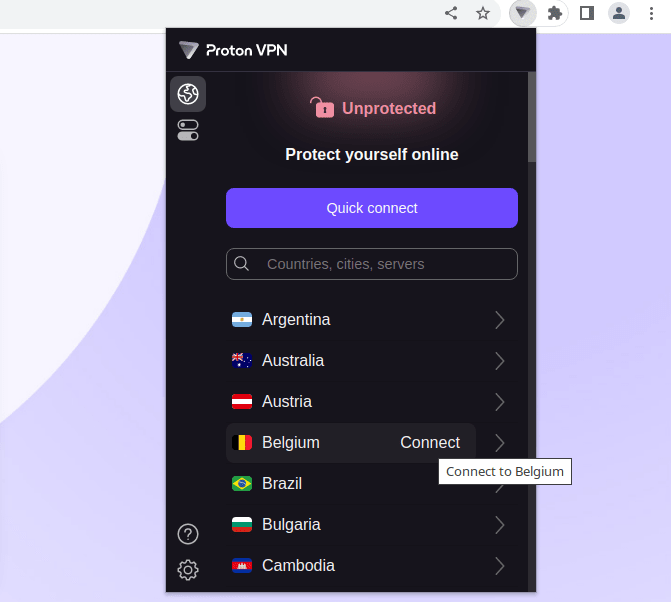
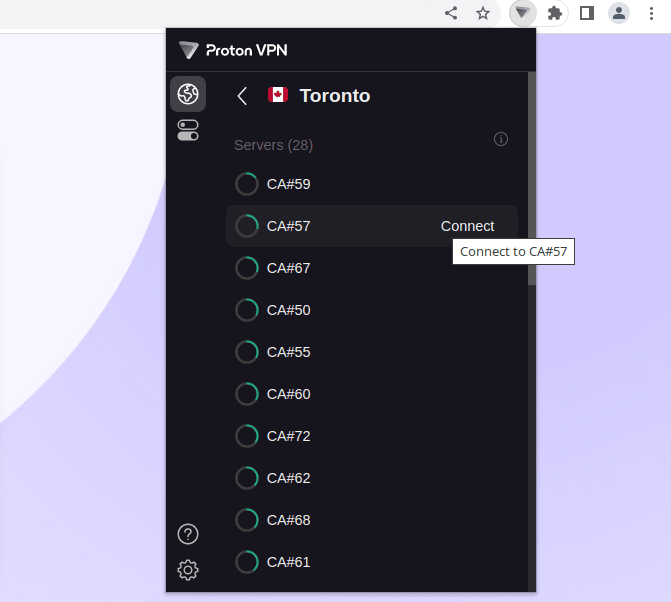
如果您想选择某个国家/地区内的特定城市或服务器,请使用搜索栏,或点击该国家/地区旁的>并选择一个城市:
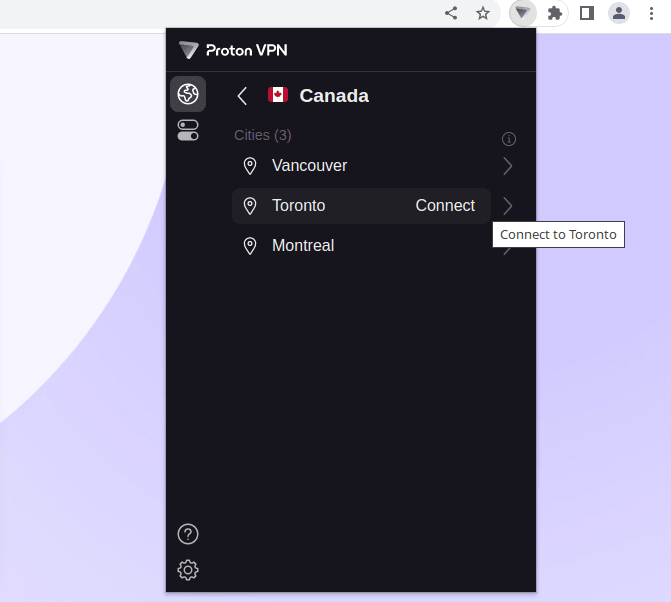
您还可以点击首选城市旁的> 并选择单个服务器。
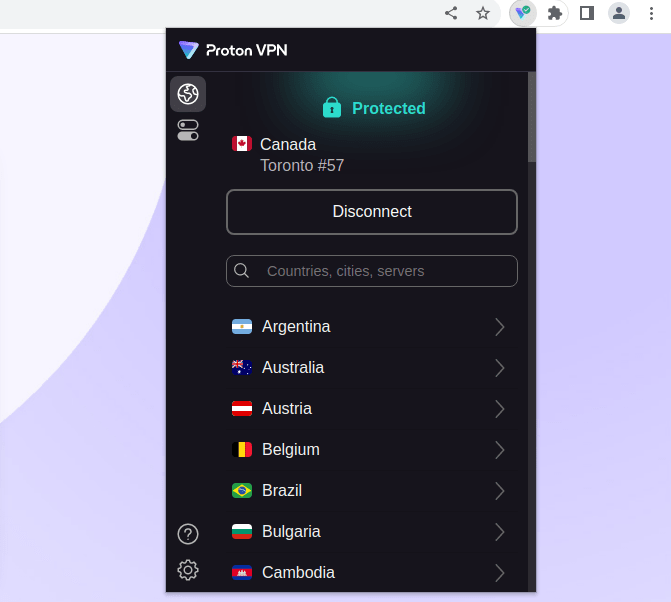
您的浏览器互联网连接现已受到 Proton VPN 的保护。
扩展程序具有哪些功能?
使用我们的浏览器扩展程序时,可以使用以下高级功能。要访问这些功能,请点击功能图标。
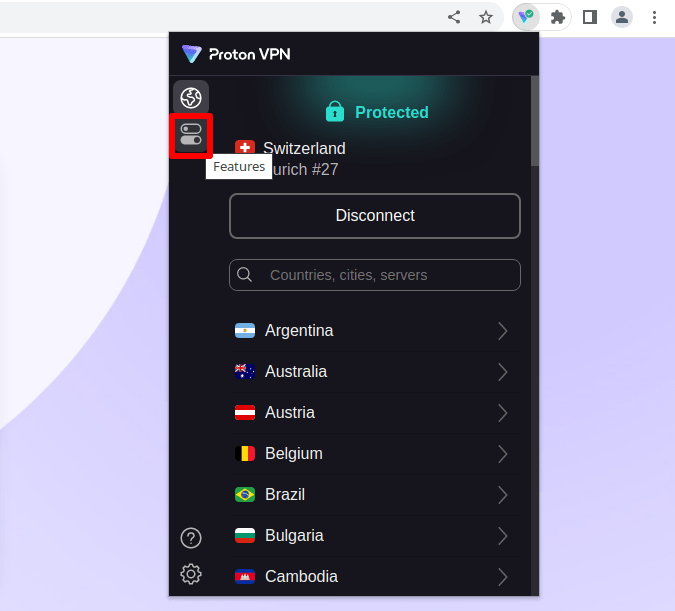
Secure Core
我们的 Secure Core 功能通过将您的 VPN 连接经由两台 VPN 服务器路由来提升安全性与隐私。第一台服务器是强化型的 Secure Core 服务器,由我们直接控制,并且仅位于非常注重隐私的国家/地区(瑞士、瑞典或冰岛)
要使用此功能:
1. 将 Secure Core 开关切换为开启。
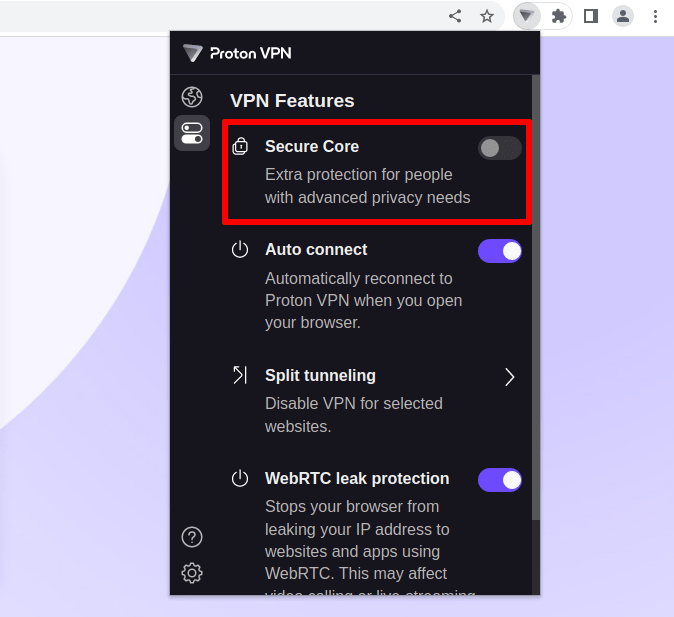
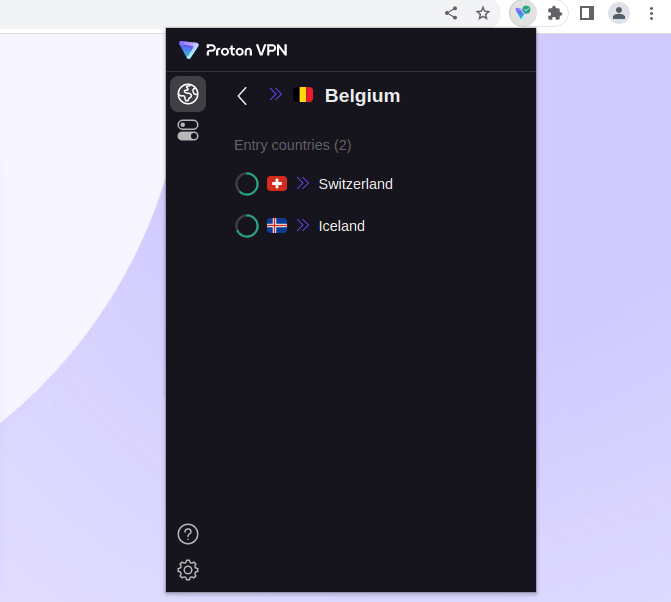
2. 返回服务器列表,您将看到以双箭头 ≫ 图标标记的 Secure Core 位置列表。这些是出口服务器位置(链路中的第二台服务器)。
要连接到某个位置并自动选择最适合您需求的 Secure Core 服务器,只需选择一个国家/地区 → 连接即可。
如果您想选择所使用的 Secure Core 服务器,请点击出口国家/地区旁的>并选择一个 Secure Core 入口服务器。
自动连接
为确保您的浏览会话始终受到 Proton VPN 的保护,请将自动连接开关切换为开启。
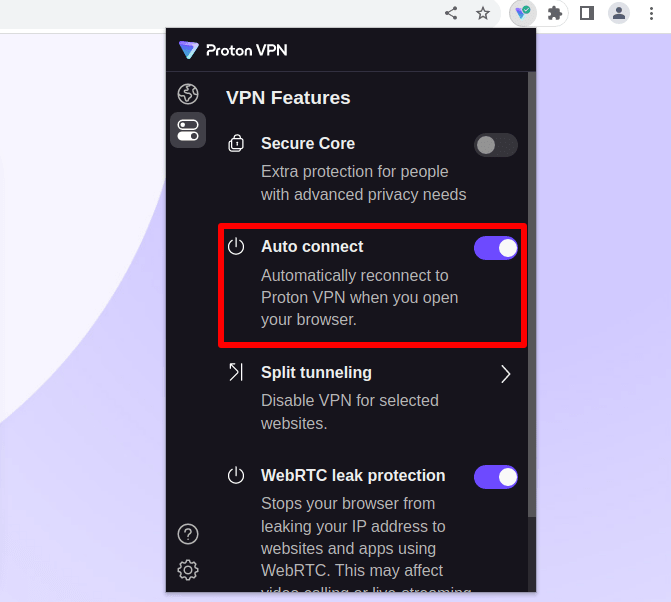
下次打开浏览器时,扩展程序将自动连接到我们的 VPN 服务器。您所连接的服务器取决于您在关闭浏览器之前最后选择服务器的方式。
- 如果您使用了快速连接,我们的扩展程序将再次使用快速连接。
- 如果您选择了一个国家/地区,我们的扩展程序将连接到同一国家/地区的 VPN 服务器。这不一定是同一个城市或服务器,具体取决于当前可用的最快 VPN 服务器。
- 如果您指定了城市或服务器,我们的扩展程序会将您连接到该城市或服务器。
拆分隧道
拆分隧道允许您将特定网站排除在 VPN 连接之外。
要使用拆分隧道:
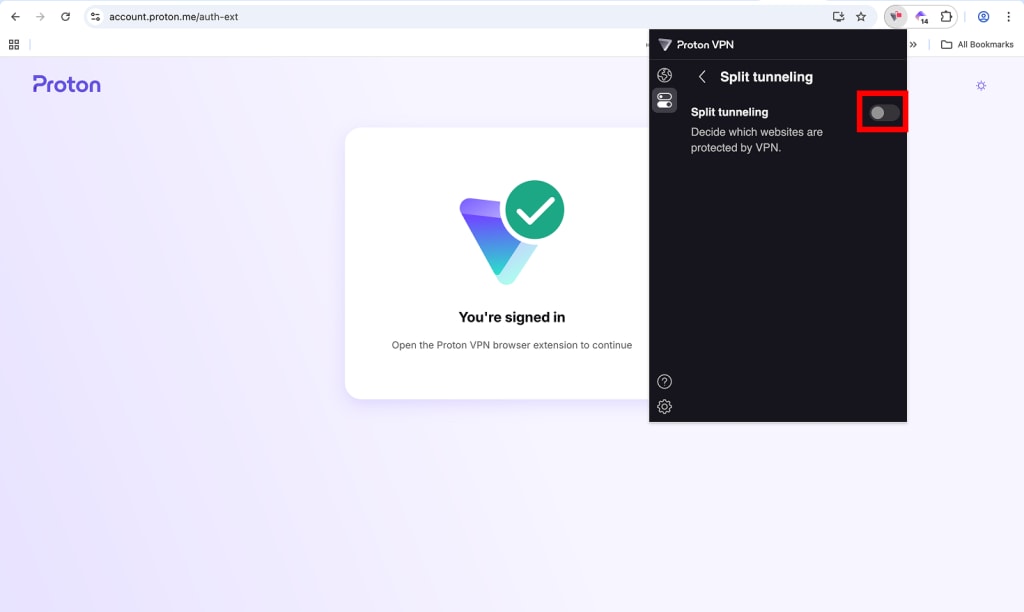
1. 打开功能标签页,并从列表中选择拆分隧道。

2. 将拆分隧道开关切换为开启。
3. 要将网站添加到拆分隧道,请点击添加网站。
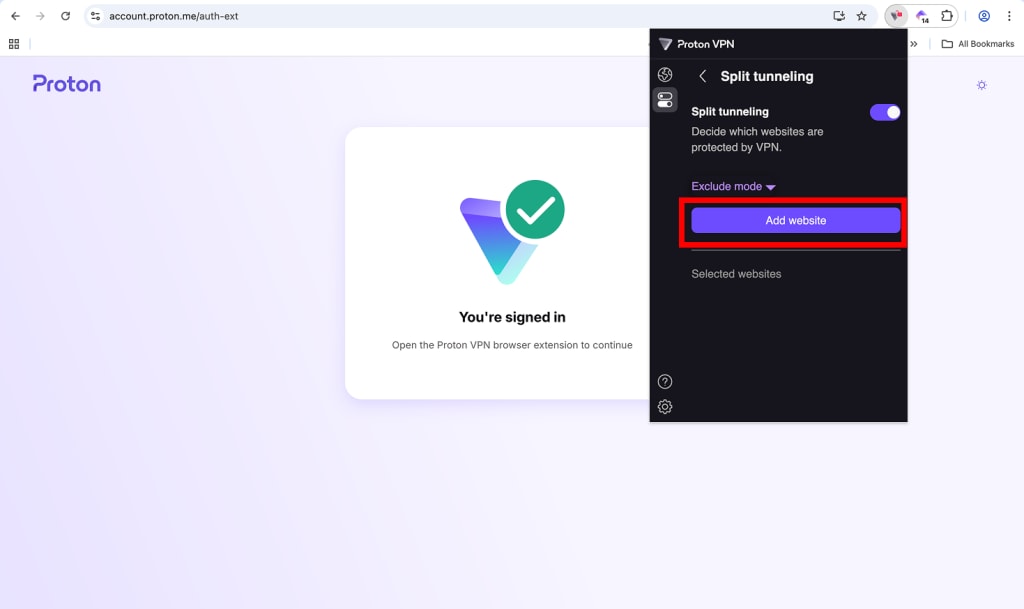
4. 在字段中输入网址,然后点击添加进行确认。

该网站的子域名也将被排除在 VPN 连接之外。如果您不想排除子域名,请取消选择也添加子域名。
就是这样。您添加的网站将不再通过 VPN 连接。
如何将拆分隧道切换为包含模式
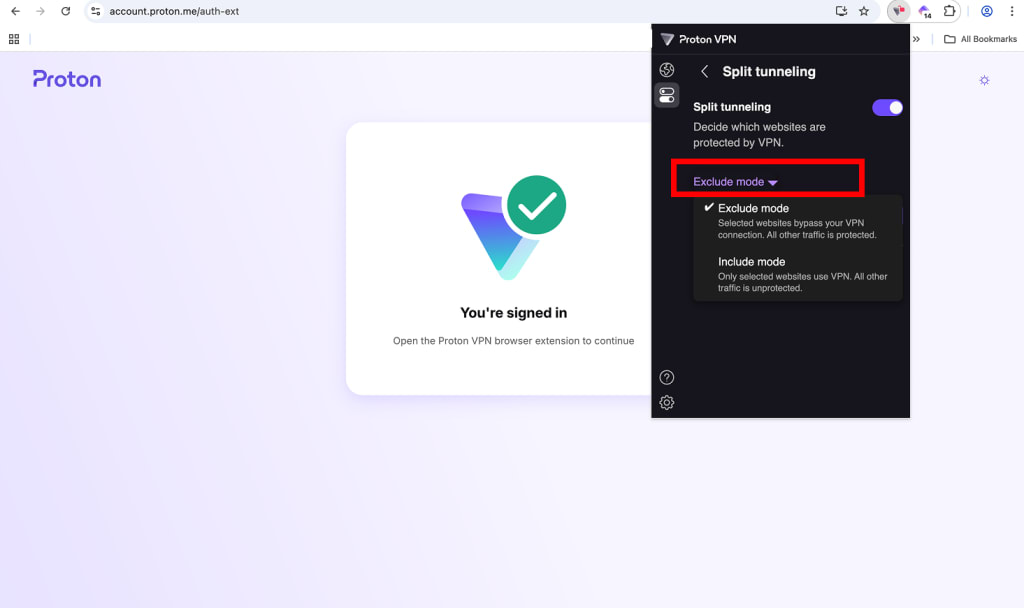
默认情况下,拆分隧道会将您添加的网站从 VPN 连接中排除。所有其他网站照常受到 VPN 保护。
不过,您也可以在包含模式下使用拆分隧道。启用包含模式后,VPN 仅保护您添加到拆分隧道的网站。所有其他网站将不受保护。
要启用包含模式,请点击拆分隧道屏幕上的排除模式标签,然后从下拉菜单中选择包含模式。
常见问题
Yes. If you have a Proton VPN Plus plan, you can connect up to ten devices at the same to our VPN network.
Each browser using the browser extension counts as one of your ten VPN connections. You can open as many tabs as you like in each window, but if you open a different browser running the browser extension, that will count as two active VPN connections.
We would love to offer a browser extension for Safari, but Safari doesn’t support the tools needed to create a VPN tunnel. If you are a Mac user, we suggest using a privacy-focused browser(新窗口) such as Firefox or Brave instead.
The Proton VPN browser extension is intended to complement our full VPN app, providing a quick and convenient way to protect your privacy when browsing the internet.
However, any browser extension must work within the limitations imposed by the browser itself. This means that under specific circumstances, the browser extension may not cover all the use-cases of the full Proton VPN app. we explain these here.
No. The browser extension is a stand-alone product and doesn’t require the Proton VPN app.
Yes. The browser extension is now available to everyone with a Proton account (including those on our Proton VPN Free plan).
Yes, if you’re on a paid Proton VPN plan.
The browser extension uses HTTPS.
Yes. Edge is based on Chromium and can use extensions downloaded from the Chrome Web Store. Just be sure to click Allow extensions from other stores when you first visit the Chrome Web Store.
Yes. Brave is based on Chromium and can use Chrome extensions downloaded from the Chrome Web Store without the need for any additional action on your part.
Yes, but you need to enable this. Please see instructions for Chrome and Firefox in the support article above.
If you completely close your browser application with an active VPN session running, the VPN session will end.
If auto connect is enabled, when you open the browser again, a connection will be established to the last server you connected to. If auto connect isn’t enabled, you’ll need to manually reconnect to a VPN server.
If you close a browser window but leave the application still running (for example on the macOS Dock, or in another open window), the VPN sessions will remain active.
The browser extension only protects things you do in your browser. It doesn’t protect your system activity or activity performed inside other applications, including BitTorrent clients, stand-alone messenger apps, and other browsers not using the browser extension.
Within a browser, activating the Proton VPN browser extension:
– Prevents your internet service provider (ISP) from knowing your browsing history
– Prevents untargeted mass surveillance that relies on ISPs logging your browsing history. It does not protect against more targeted attacks
– Prevents data discrimination, as your ISP can’t see what you do online
– Prevents internet censorship
– Can bypass geo-blocks, allowing you to stream content when traveling away from home
Please see Understanding the VPN Threat Model for more information on how a VPN defends against these threats.
The browser extension itself uses non-persistent memory, but by default, it stores a cookie on your browser so that your session remains active when you close the browser. This means you don’t need to sign in each time your restart your browser.
To manage and revoke active sessions(新窗口), sign in to account.proton.me and go to Settings → Go to settings → Security and privacy → Session management.
When you sign in to your Proton account, you can opt to uncheck the Keep me signed in option. If you do this, then no cookies will be stored on your browser.
No. You can clear your browsing history and browsing cache at any time. Doing so won’t affect the extension as long as you don’t specifically clear extension storage.
Our Chrome browser extension supports all browsers based on Chromium 108.0 (Official Build) or later. This includes Edge 108.0. Our Firefox browser extension supports all browsers based on Firefox 109.0 or later.
Yes. The browser extension fully supports IPv6. If you are using an IPv6-only internet connection, you can connect using our browser extension. If your internet connection supports both IPv6 and IPv4, IPv6 will be prioritized. In general, you are unlikely to notice any difference between using IPv6 and IPv4, but if you visit a website that only uses IPv6, it will be supported by our browser extension.
Yes. If you use the Proton VPN app and the browser extension together, all your device’s internet connections are routed through the VPN server the app is connected to. Connections inside the browser, however, will then also be routed to the VPN server the browser extension is connected to. This creates a “double-VPN” effect similar to our Secure Core feature.
This setup can be useful. For example, you may wish to protect all your device’s connections by connecting to the fastest VPN server for your location. At the same time, you can stream content from another country in your browser.
Using our Secure Core feature will create a “triple-VPN” (or even a “quadruple-VPN“ if used on both the browser extension and the VPN app), but the performance hit of doing this is likely to heavily outweigh any potential privacy and security advantages.