


How to add new users to your organization
- Lezen
- 5 min
- Categorie
- Proton VPN for Business
To add users to your Proton VPN for Business plan, you must first create an organization. As part of this process, you must Enable Multi-user support and give your organization a name.

Learn how to create an organization
Once you have created an organization, you can add users to it. The number of users you can add depends on the number of licenses you purchased as part of your plan.
Learn how to add more licenses
There are two ways you can add users to your organization:
- Individual users — If you’re a small organization or only have a few users, you can fill out each user’s details in your Proton VPN settings.
- Multiple users — If you have multiple users, you can download a CSV template from Proton VPN settings, fill it in, and then upload it. We’ll then create all the users specified on the sheet. You’ll only be able to add as many users as you have licenses for, so check that you have sufficient licenses before uploading the CSV.
How to add individual users to your organization
1. Sign in to account.protonvpn.com and go to Organization and people → Users → Add user.

2. Enter the user’s name and email address into the correct fields. Select how much account storage to assign them and whether to allow VPN connections. Click Save when you’re done.
Note that you must assign new users some account storage. This may require adjusting how much storage your other users are assigned by editing their user accounts. On new Proton for Business accounts, all storage is initially assigned to the Primary admin.
Learn how to edit user accounts
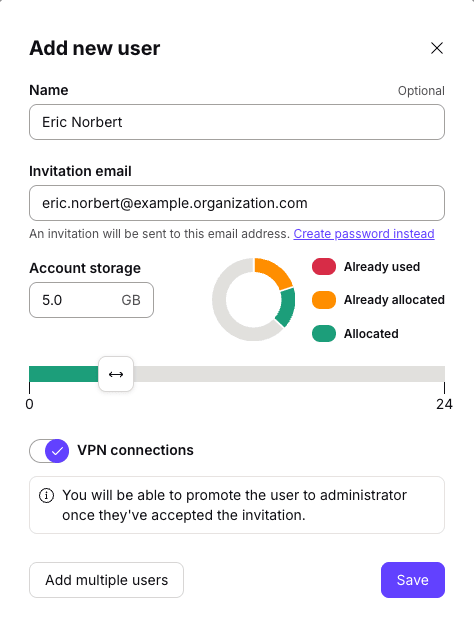
The new user will appear on the Users screen and will be sent an invitation. Once they accept the invitation, they’ll be prompted to create a password for their new Proton account.

Alternatively, click Create password instead to create their password for them. Be sure to share this password with them.

How to add multiple users to your organization
1. Sign in to account.protonvpn.com and go to Organization and people → Users → Add user.
2. Select Add multiple users.

3. Select Download our CSV template.
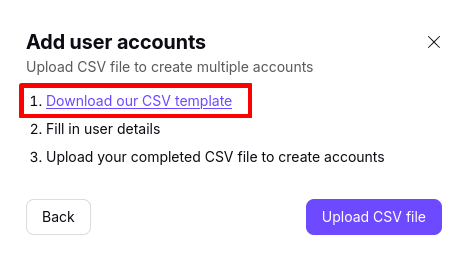
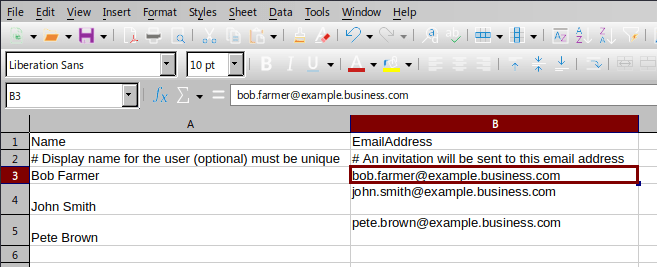
4. This will download a CSV file. Open it with a spreadsheet program such as Microsoft Excel, Apple Numbers, or Libre Calc and edit with the correct details of your users. Save the edited file when you’re done.
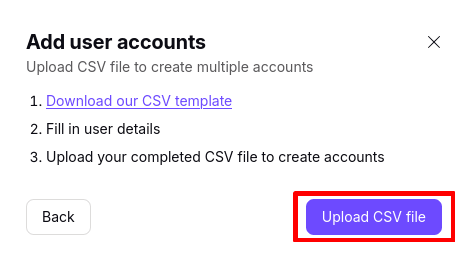
5. Back on your Proton VPN account page, click Upload CSV file and locate the file you just saved using your system’s default file manager.
5. You’ll see a list of all the users’ details from your CSV file. Click the checkboxes to select the users you with to add from the list, and click Create [x] users when you’re ready.
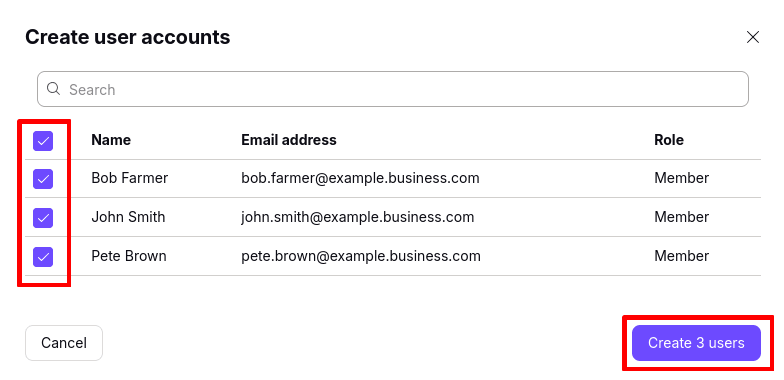
Depending on how many users you’re adding, uploading the CSV might take several minutes. Don’t close the page or disconnect from the internet, or you’ll interrupt the upload.
Once done, your new users will appear on the Users screen, and will be sent an invitation. Once they accept the invitation, they’ll be prompted to create a password for their new Proton account.
