


How to change your default connection
- وقت القراءة
- 5 mins
- Category
- Proton VPN apps
Your default connection is the VPN connection you make when you click or tap the Connect button in our apps. Unless you change it, your default connection will be to the fastest VPN server for your location (which is usually the closest, but other factors, such server load and network speed, also play a part in automatically selecting the best server for you).
However, if you’re on any paid Proton VPN plan, you can customize your default connection on our Windows and mobile apps. In this guide, we show you how to do this on:
Windows
1. Open the app and go to Settings → Connection Preferences → Default connection

2. Click on the Default connection dropdown menu.

3. Select Fastest country, Random country, Last connection, or any connection from your Recents list (which can be a Secure Core connection or a profile). Click Apply when you’re done.

If you don’t want Fastest country to connect you to certain locations, you can exclude them. To do this:
Open the app and go to Settings → Connection Preferences → Excluded locations and select a country, city, or state from the dropdown list.

You can add multiple locations to exclude. Click Apply when you’re done.

Android
1. Open the app and go to Settings → Connection → Connection Preferences.

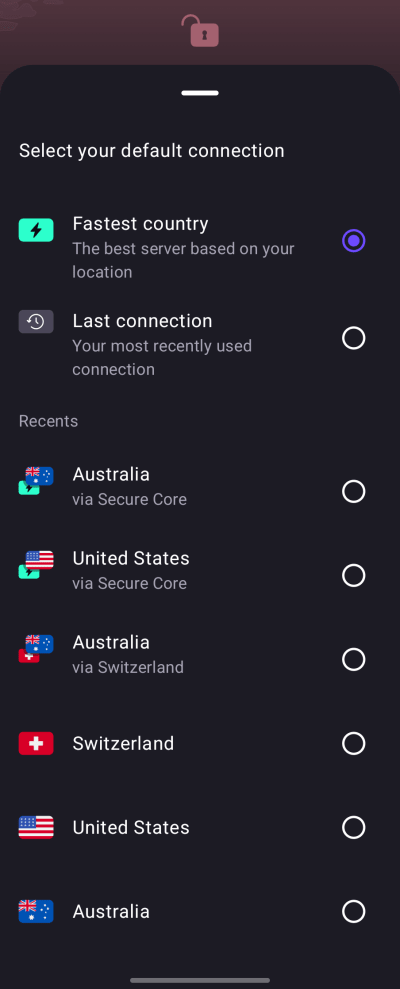
- Tap your current Default connection.

- Select Fastest country, Last connection, or any connection from your Recents list (which can be a profile).

If you don’t want Fastest country to connect you to certain locations, you can exclude them. To do this:
1. Open the app and go to Settings → Connection → Connection Preferences → Excluded locations → Select .

- Select a country, city, or state from the list.

You can add multiple locations to exclude.

iOS and iPadOS
1. Open the app and disconnect the VPN if its connected.
2. Tap Default connection ⏷.

3. Select your default connection (which can be a profile).
The iOS and iPadOS app doesn’t currently support Excluded locations.